
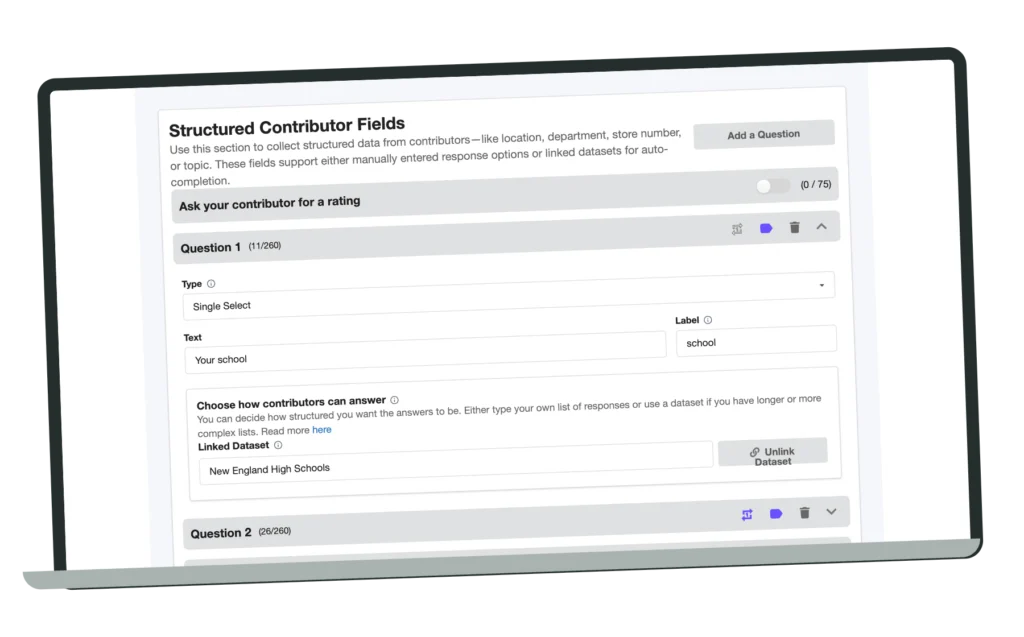
Collect useful information with each submission, then choose which details appear as video overlays. You can keep contact details in the project without displaying them on the footage.
1. Add contributor fields
Open Collect → Contributor Data. Under Structured Contributor Fields, choose Add a Question. Select a response type suited to the information: free text for a role or short answer, a selection for a category, or a linked dataset for standardized values.
2. Decide when to ask
Use contributor-level fields for details shared across the submission, such as an organization. Use clip-specific fields for details that can change with each file, such as a performance title or work stage.
3. Set a useful field alias
Give each field a clear report alias. Use the field supported by the template’s dynamic-text controls when you want to display its answer. Avoid ambiguous labels such as “other.”
4. Add the overlay
Open Customize → Video Template Builder. Add a dynamic text element and select or reference the relevant contributor field. Position and style it so the text remains readable without obscuring the subject.
Useful lower-third examples
- Contributor name and job title.
- Organization and department.
- Performance title and category.
- General location, where appropriate for the project.
Ratings
Contributor Data also provides a rating question. When the project collects a rating, use the supported rating element in the template if you want it visible on the branded video.
Review before use
Check a sample with short and long answers and confirm that private fields are not included in the layout. The overlay belongs to the Branded output, not the Raw original.