
Start with the story you want your finished video to tell. A customer story needs room for the person speaking. A job report needs a clear sequence. A highlights video can be more playful. You do not need to design everything from scratch: use a suitable starting format, then make the branding your own.
Four examples to help you choose
These examples come from our video compilation templates and reporting page. Some control the order of your clips; others control the visual presentation. Choose the combination that fits your project.
Before / During / After: show the work getting done
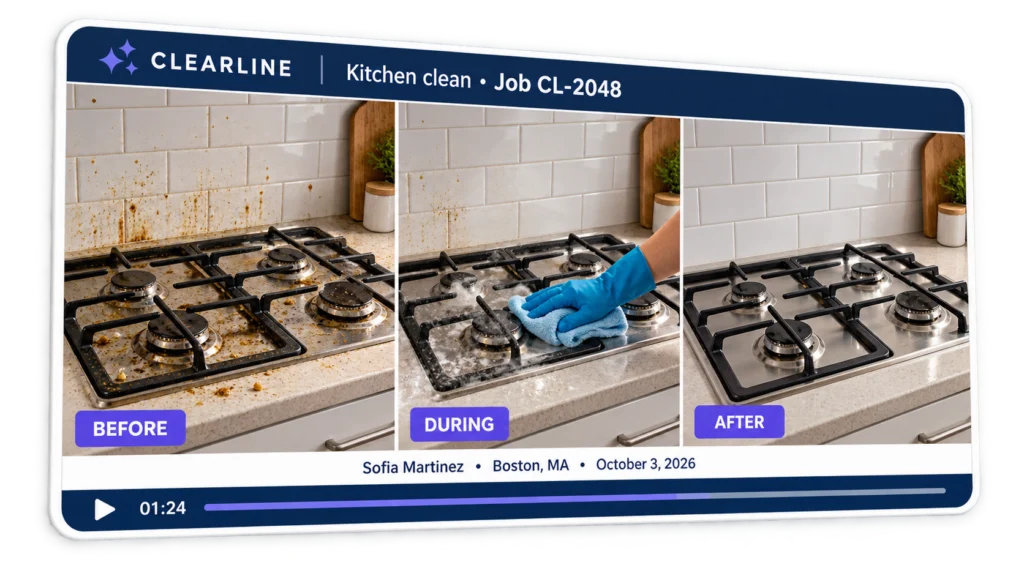
Choose this for: cleaning, maintenance, gardening and other jobs where the result matters. Show the starting condition, include progress footage when useful, and finish with the completed work. In this workflow, Before and After are required; During is optional. Each clip plays full-frame in the fixed sequence, with your branding and relevant job details.
Listicle: turn several clips into a memorable countdown
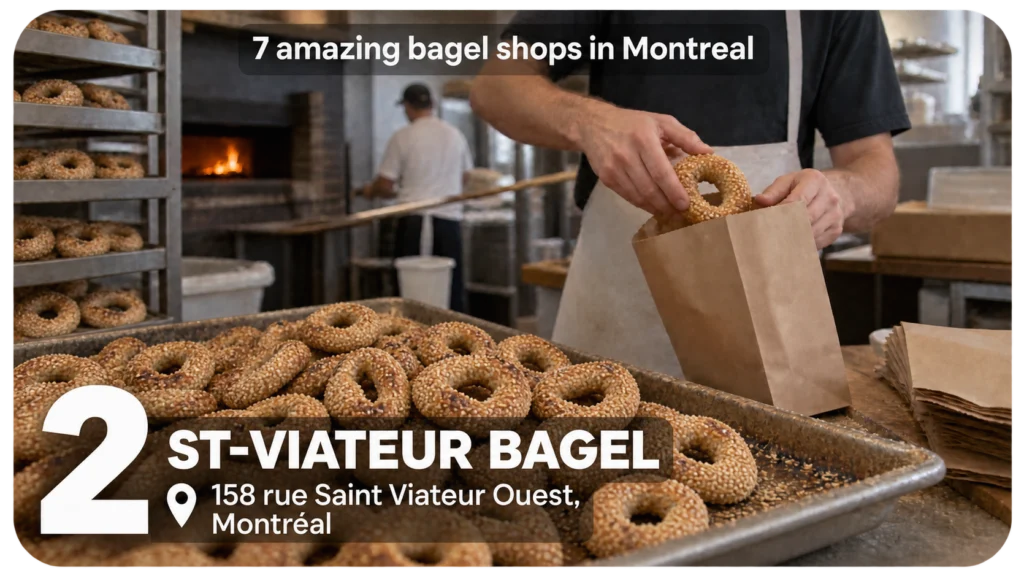
Choose this for: destination guides, product roundups, recommendations or a collection of useful tips. Think “Seven favourite places to visit” or “Five ideas from our team”. Each clip gets a number, and the numbering updates when you rearrange the clips in the compilation builder. Add useful names or locations without covering the footage.
Six Shots: open with a shared experience
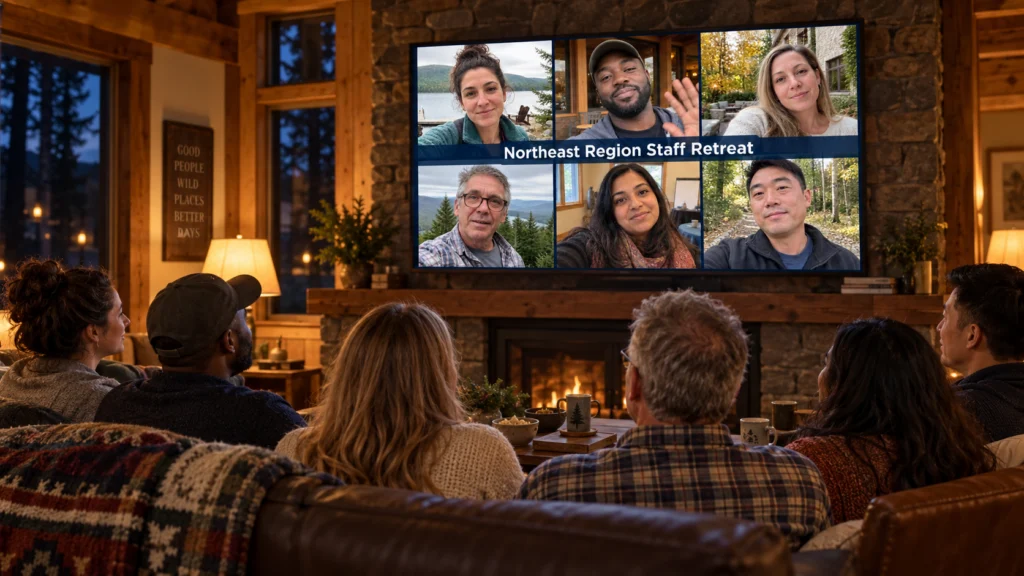
Choose this for: staff retreats, community events and fan highlights. Six Shots brings the thumbnails or posters from six videos into one opening frame, with a title across the middle. It is a visual introduction to the people and moments in your compilation—not six videos playing simultaneously.
Complete Q&A: give every answer its context
Choose this for: employee interviews, customer experiences and structured feedback. Collect responses with Vloggi Conversations, then combine them in question order. The question appears with the answer, alongside the contributor details and branding you have configured. Viewers can follow the conversation without guessing what someone was asked.
Explore the full examples and see how reusable video templates work →
Not sure? Keep your first video simple
For a first customer story or team update, start with a clean layout: your logo, a readable contributor name and only the extra details viewers need. Let the person and their story do the work. You can refine your template as your project grows.
Choose a submission workflow
- Contribution: one uploaded or recorded video, such as a customer story.
- Collection: several files together, such as event footage or multiple performance clips.
- Capture: one on-screen question answered on camera.
- Conversation: two to eight video questions.
- Compliance: structured visual evidence for a workplace, asset or job.
Choose the output shape
Select widescreen, vertical or square according to where the finished video will be used. The project canvas can be reviewed in Overview & Settings.
Set watermarking and attribution
The next project-creation step controls the watermark and contributor credit. Use it for a simple, consistent starting design.
Build the visual template
Open Customize → Video Template Builder to add or adjust static text, artwork, watermarks and dynamic contributor information. Collect the relevant fields in Contributor Data before using them in an overlay.
Match the design to the content
- Testimonials: a readable contributor name and role, with restrained branding.
- Product footage: a watermark and a useful product/category label.
- Community stories: a contributor credit and appropriate general location.
- Reports: relevant project or task information, kept clear of the evidence being shown.
Your submission workflow determines how people contribute. Your video template determines how the finished video looks. Start with the workflow you need, then customize the design in Customize → Video Template Builder.