
Vloggi Context: collect the details. Find the right video.
data LABELS and ZERO-PArty data
Enrich video submissions with human-generated context.
Vloggi turns unstructured video submissions into structured business assets by using human-in-the-loop data labeling. Contributors add context during the upload stage, meaning you get context as son as the videos arrive.
Collect details directly from contributors: a performance title, product name, location or other useful fact. Combine their answers with your own CSV lookups and structured choices, then turn configured values into tags that make videos easier to find in your library.
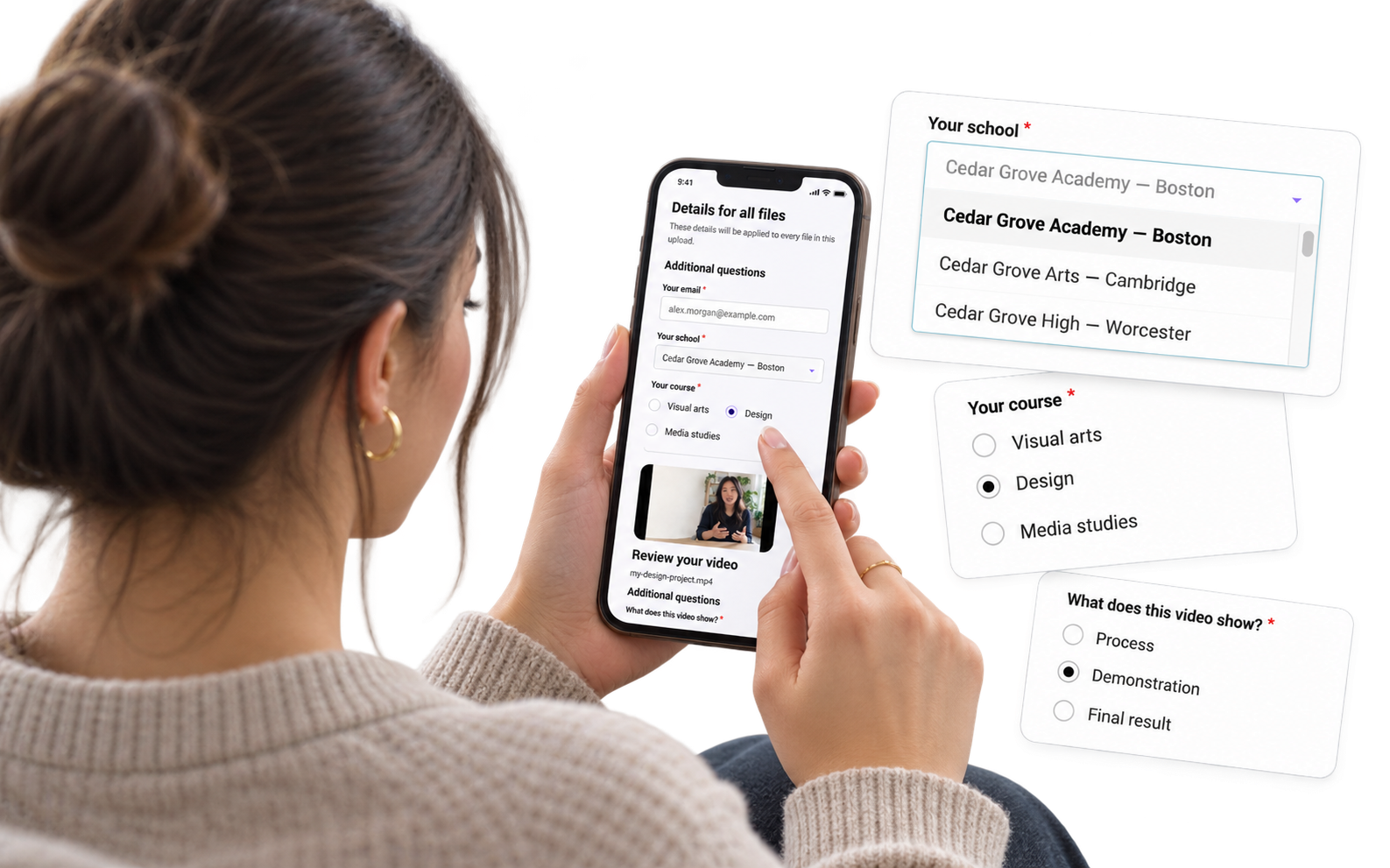

The problem
Great footage. Missing context.
A video arrives without the right store, product, school or course. Names and codes are typed differently, answers land in separate messages, and your team spends time fixing the data before it can use the footage.
The solution
One form. Answers your team can use.
Ask people for the details only they can provide, and let them choose reference values from your own lists. Collect video, form responses and consistent tags in the same submission workflow.
Two parts of Context
Their answers. Your reference data.
1. Collect zero-party data
Vloggi’s video forms can be configured to collect zero-party contributor data in addition to the video responses. Ask for personal details, location, preferences or written answers relevant to their video, which are converted into data labels for your easy retrieval.
2. Single or multi select
Make it easy for contributors by pre-loading your datasets such as (stores, SKU codes, schools, course types, states or other reference values) and then link the dataset to a form question so contributors search or select an answer.
CONTENT MANAGEMENT
Useful details. An organized video library.
Bring video, contributor details and your team’s labels together in one content repository. Capture the context you need, then organize, review and retrieve footage at scale.
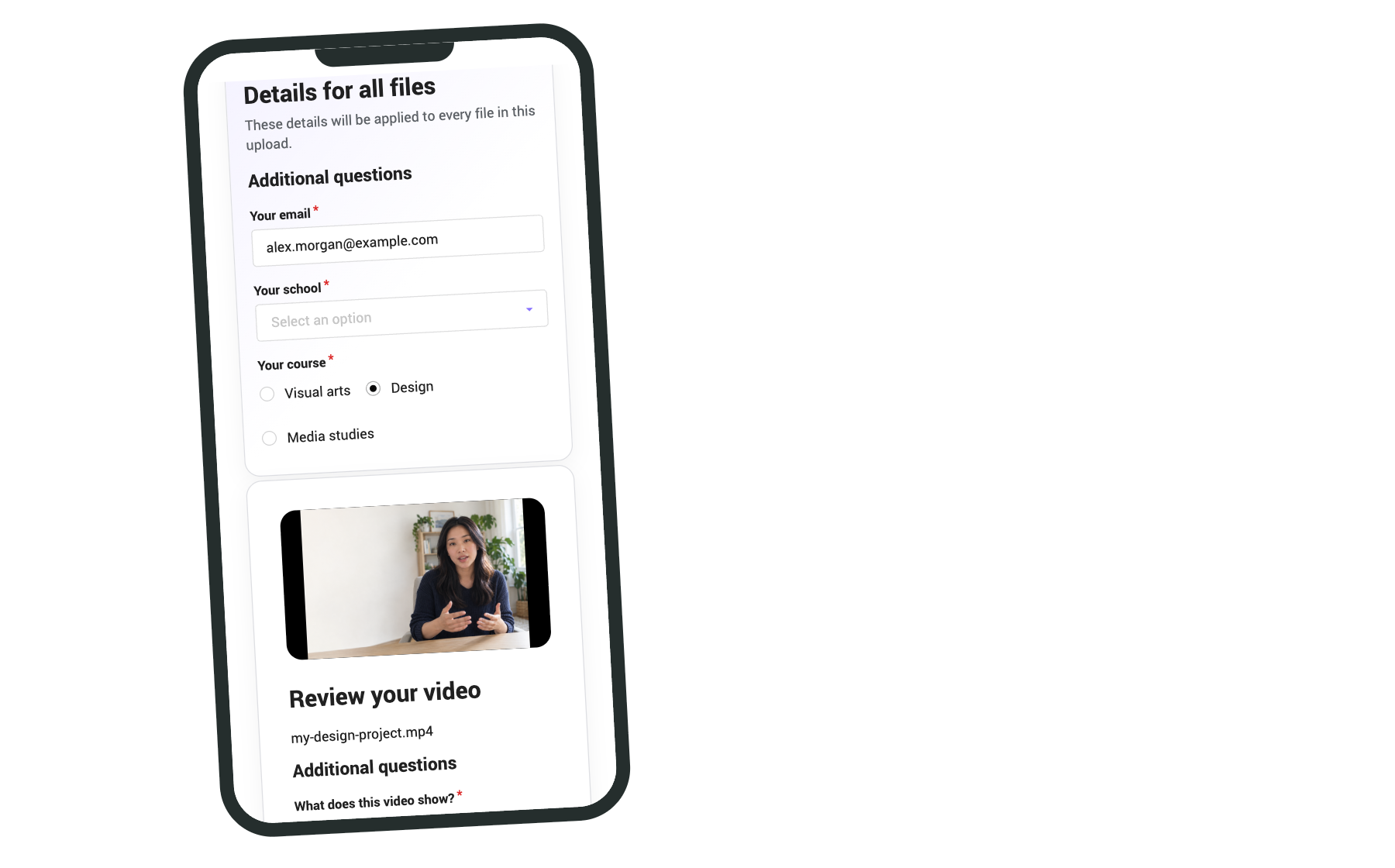
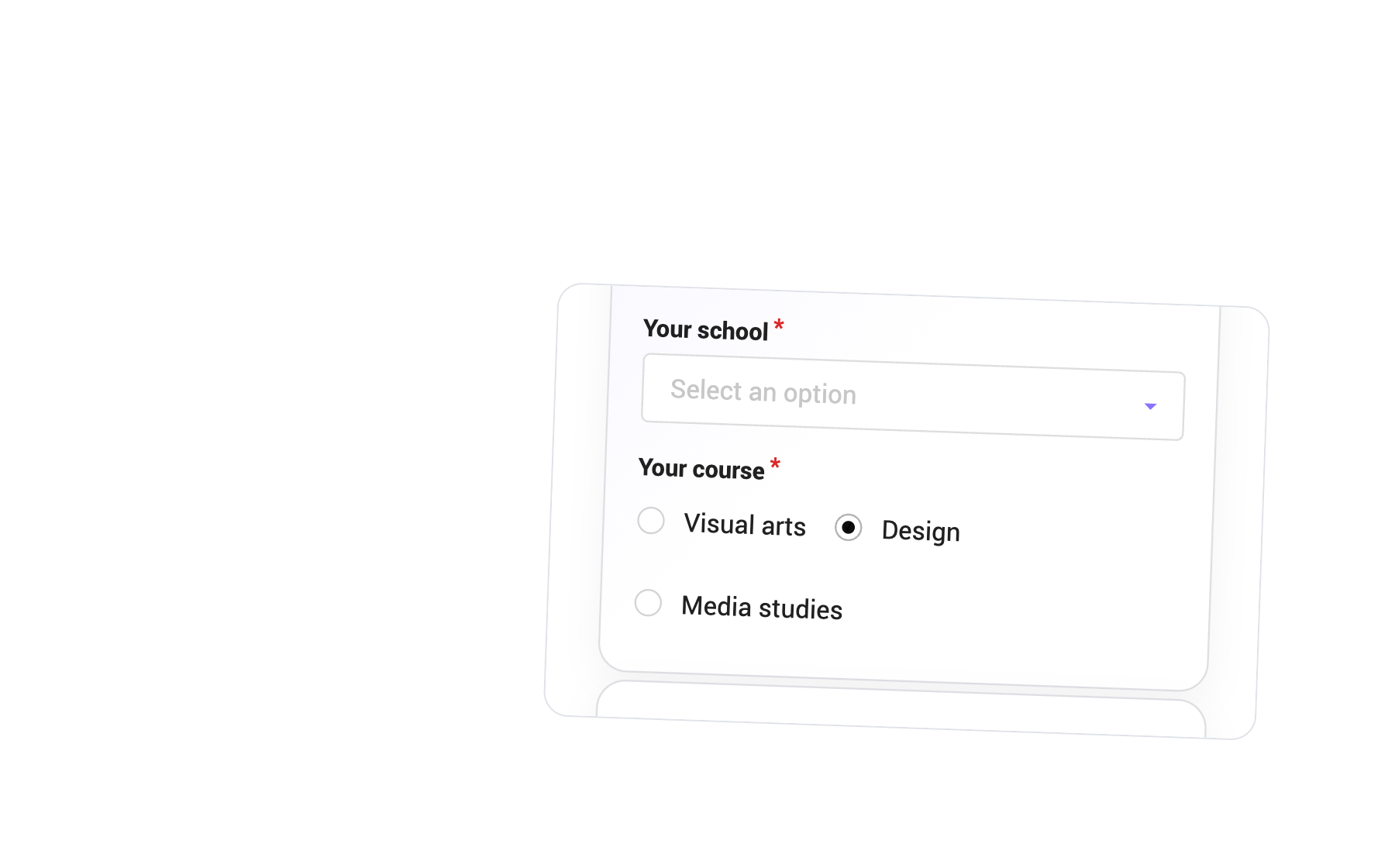
Ask once. Or for each video.
Collect shared details once per submission and specific answers for each clip. Use free text for short facts, or single- and multiple-select choices for consistent labels.
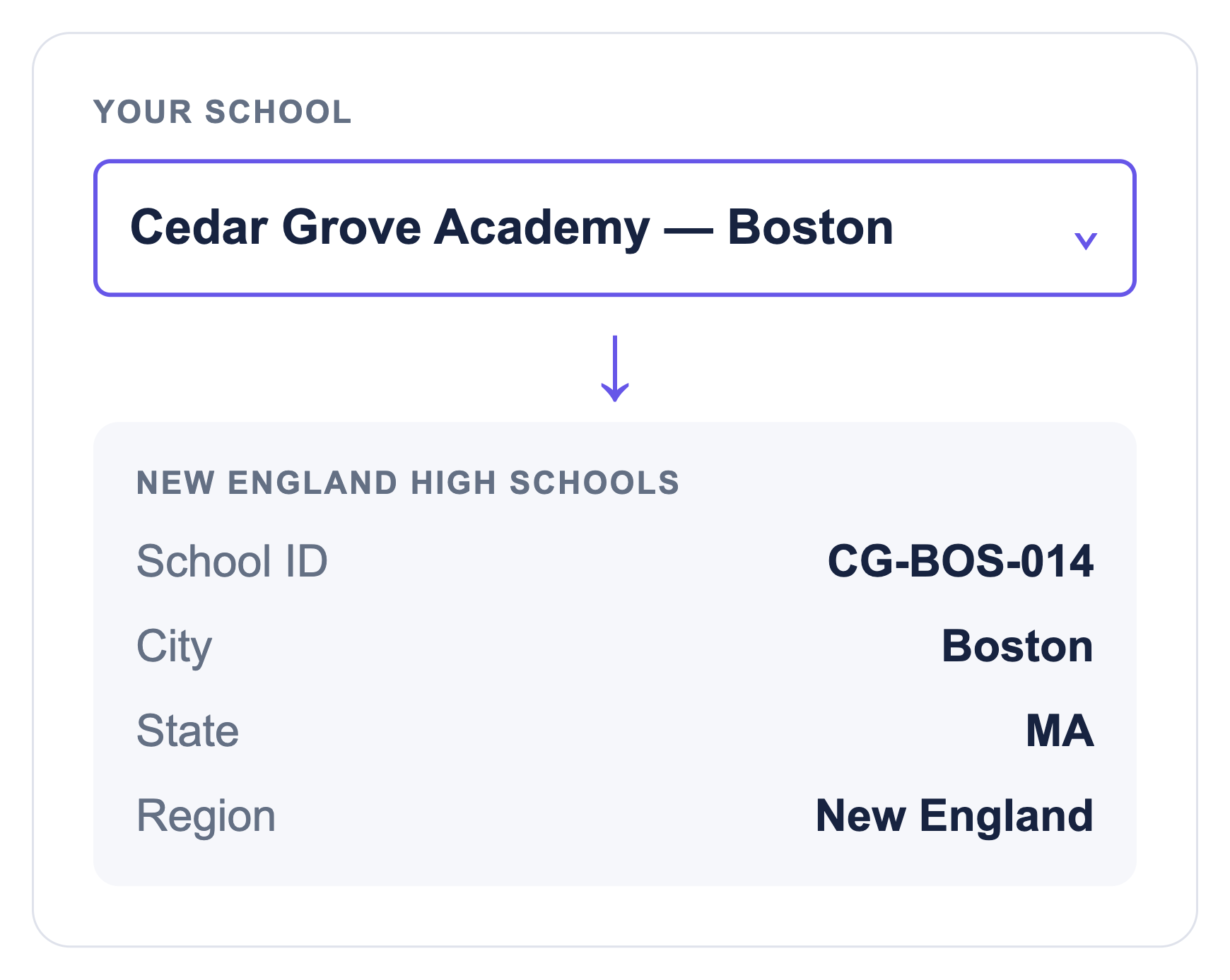
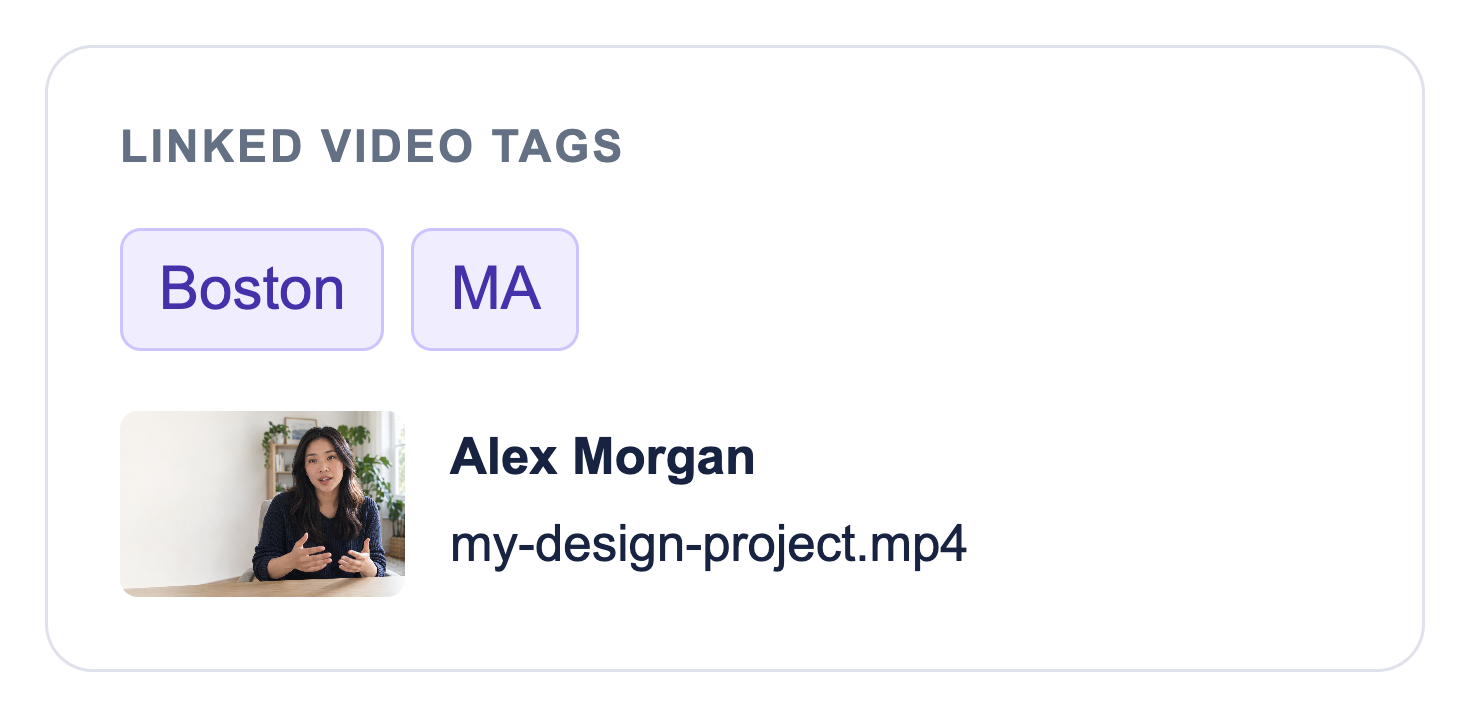
Connect your reference data.
Link your own CSV dataset to a searchable lookup. One selection supplies related details and configured tags, without asking contributors to enter the same information again.
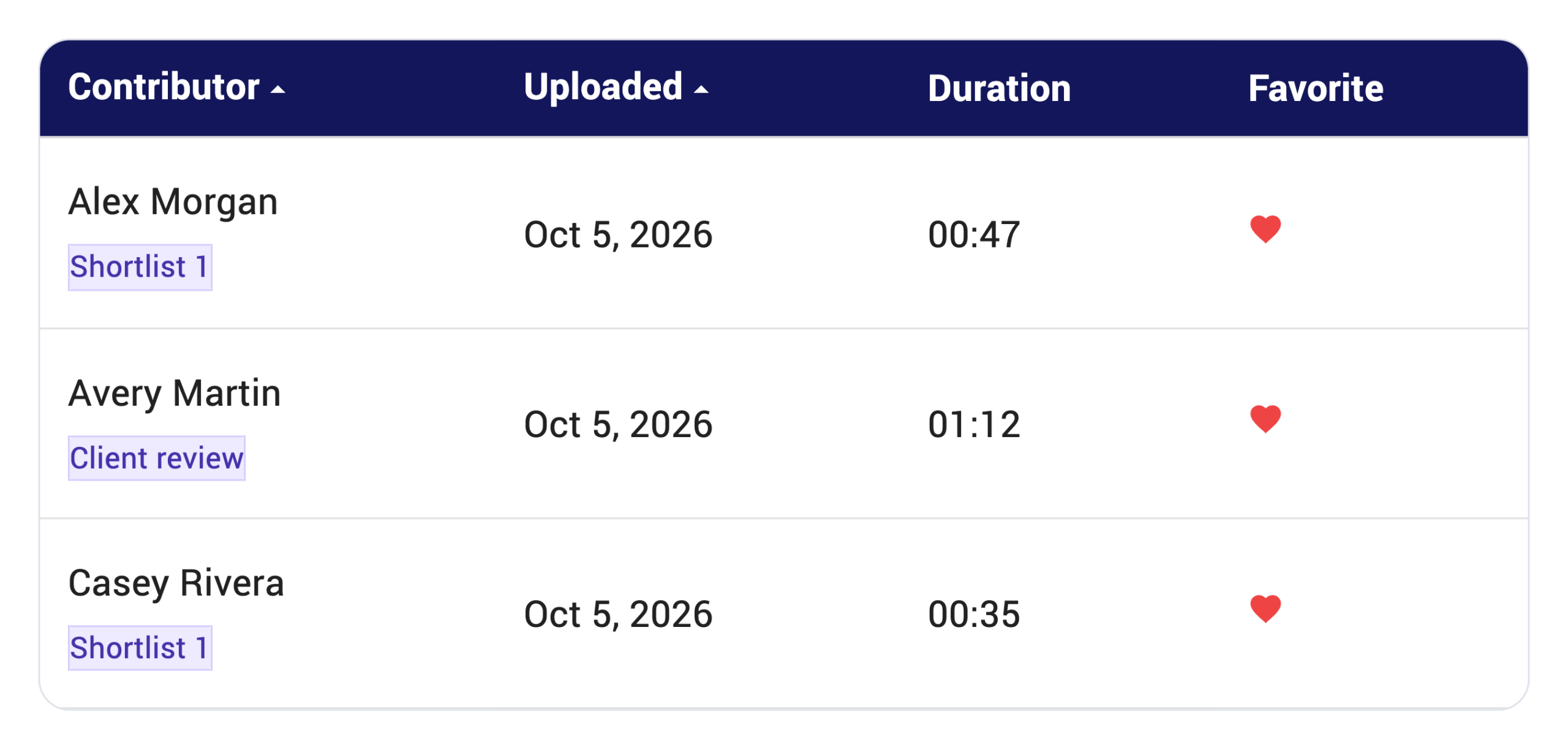

Filter and sort your library.
Combine tags to narrow large collections. Switch between grid and list views, then sort by contributor, upload date, duration, votes or favorite status.
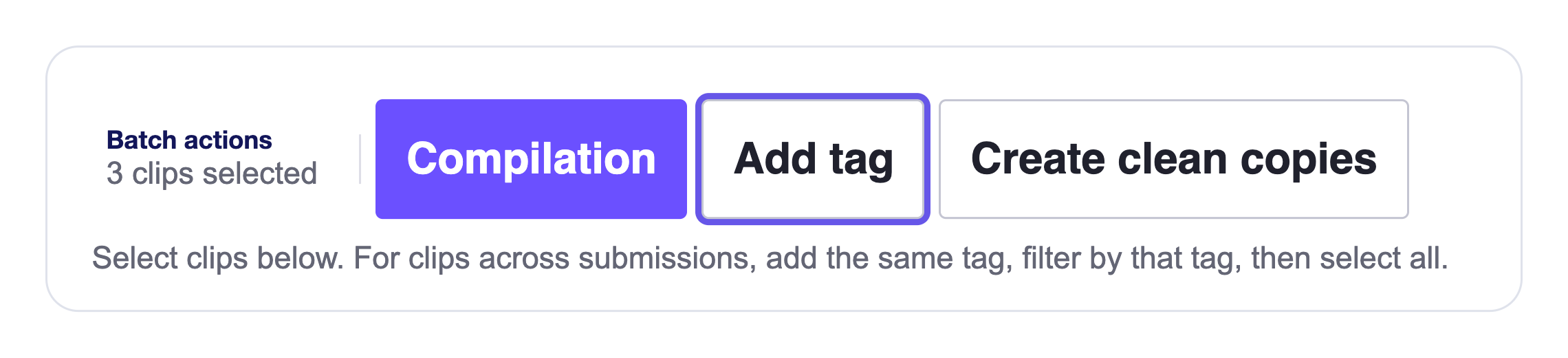
Add tags in bulk.
Project owners can select several clips and apply a shared label. Keep contributor-supplied context and your own review tags together, across submissions.
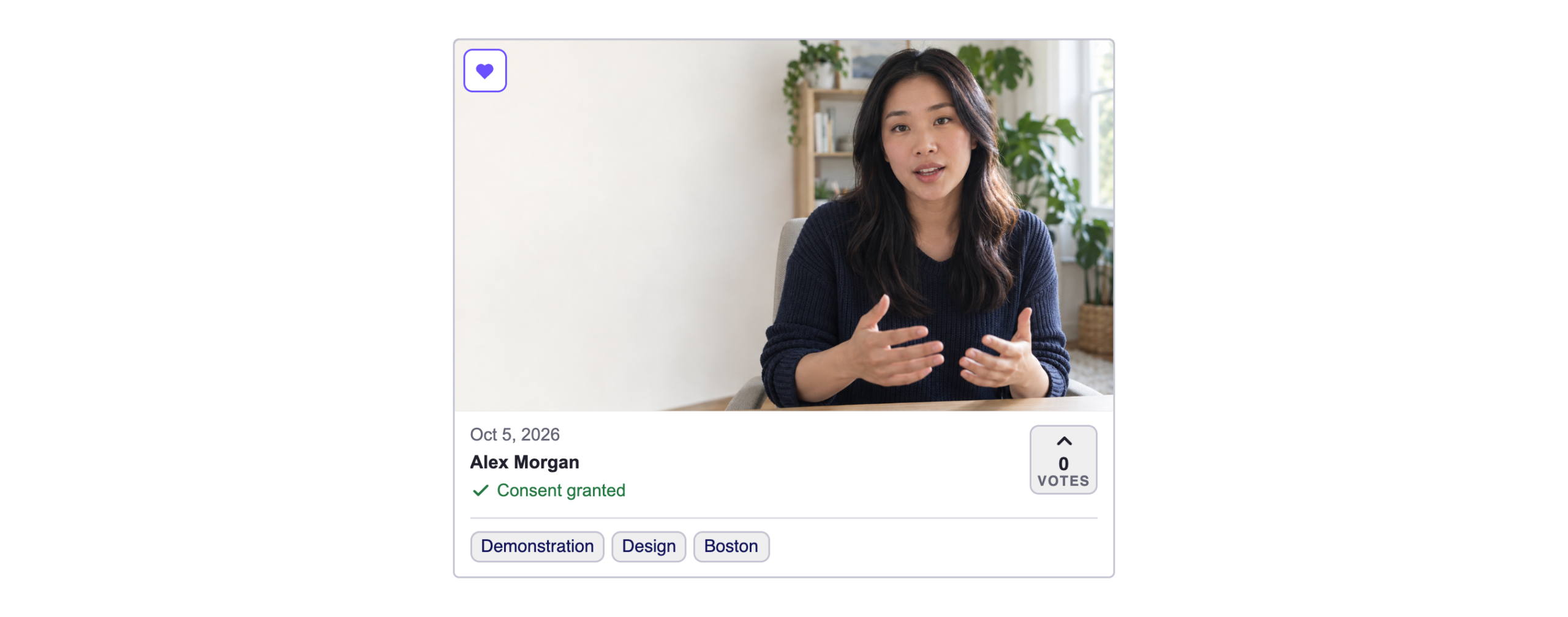

Favorite your strongest clips.
Mark promising videos as Favorites for internal review. Use the Favorites filter to return to that selection without searching through the whole library.
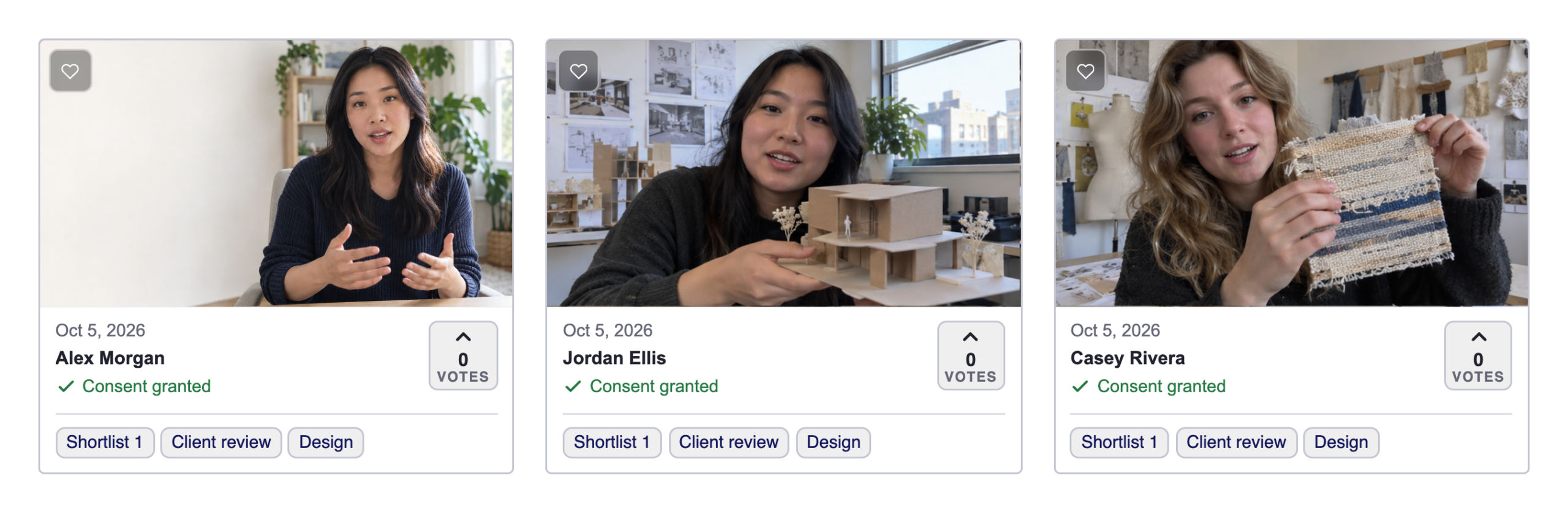

Build named shortlists.
Add owner-created labels such as Shortlist 1, Client review or Team pick. Combine them with other tags to retrieve the right selection later.
Feature spotlight – DATA LABELS
Use data labels to turn unstructured video submissions into useable business assets.
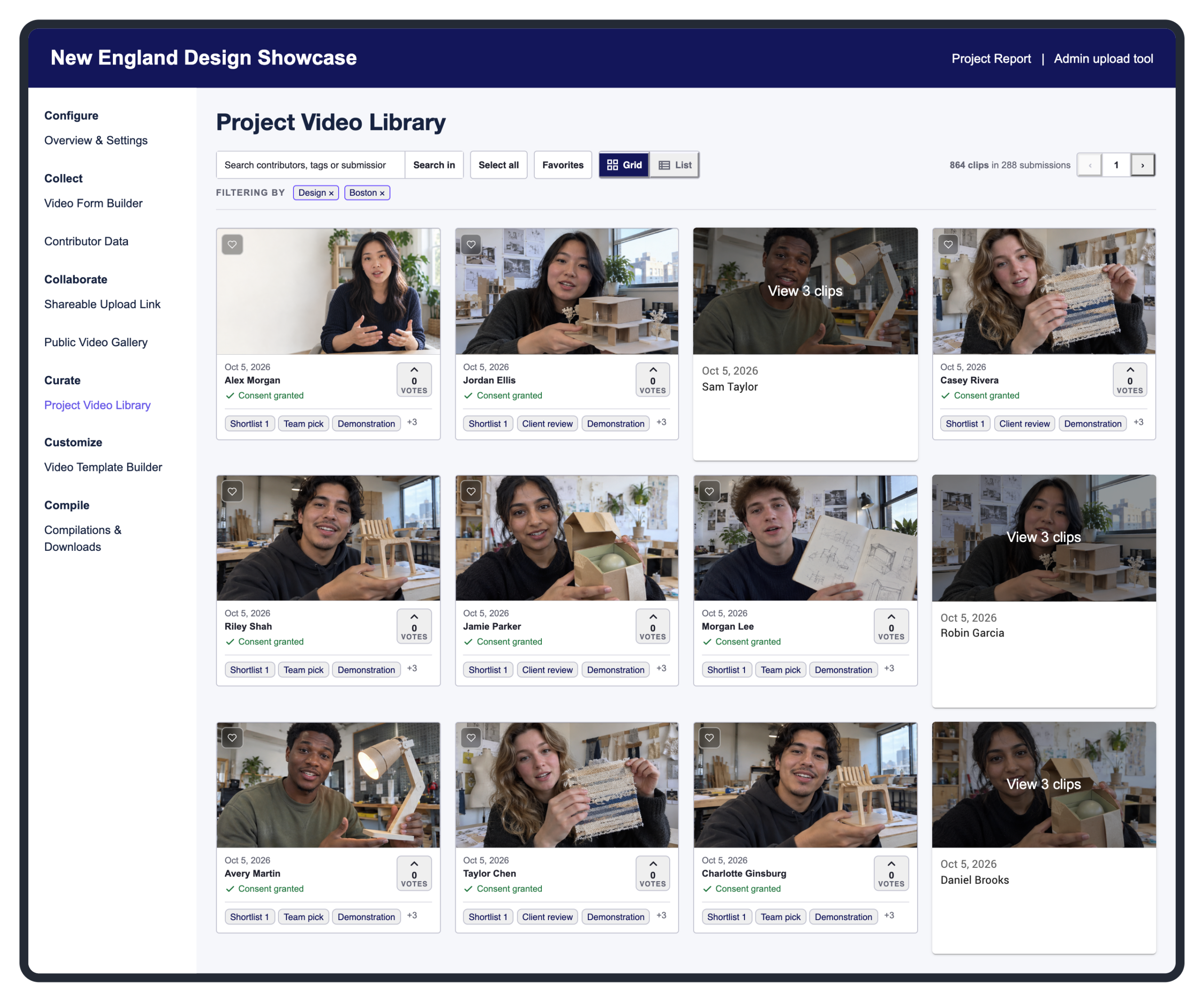
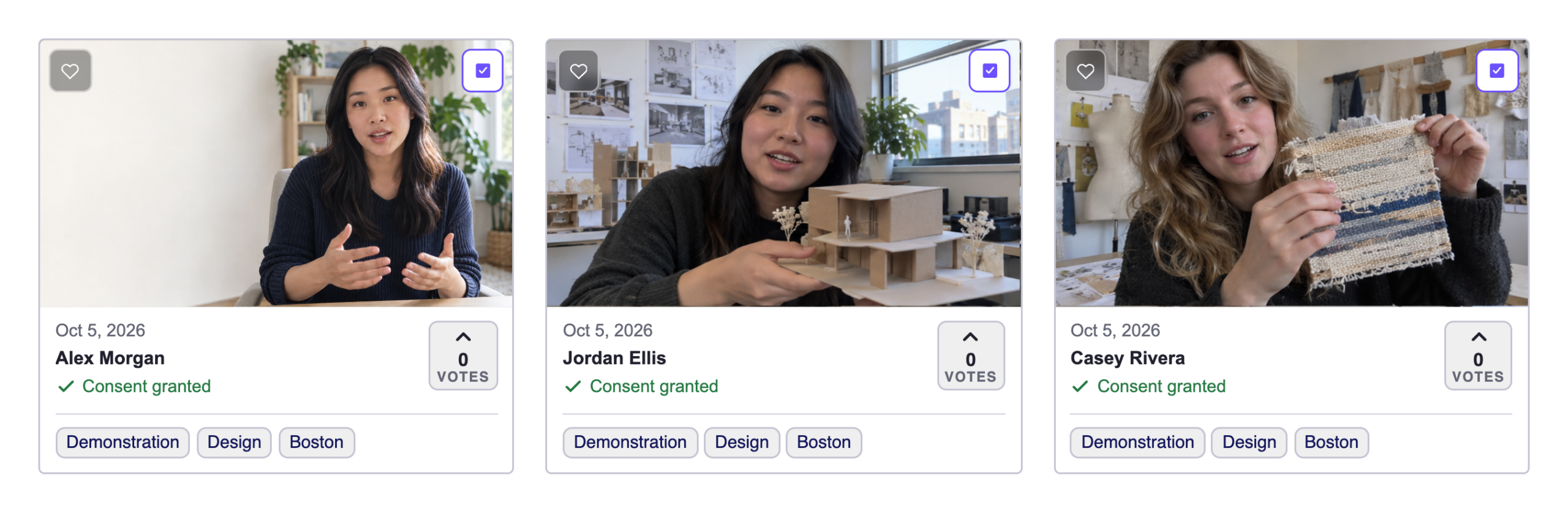
Browse in grid view.
Review footage and grouped submissions, with contributor context and owner-added labels such as Shortlist 1 visible together.
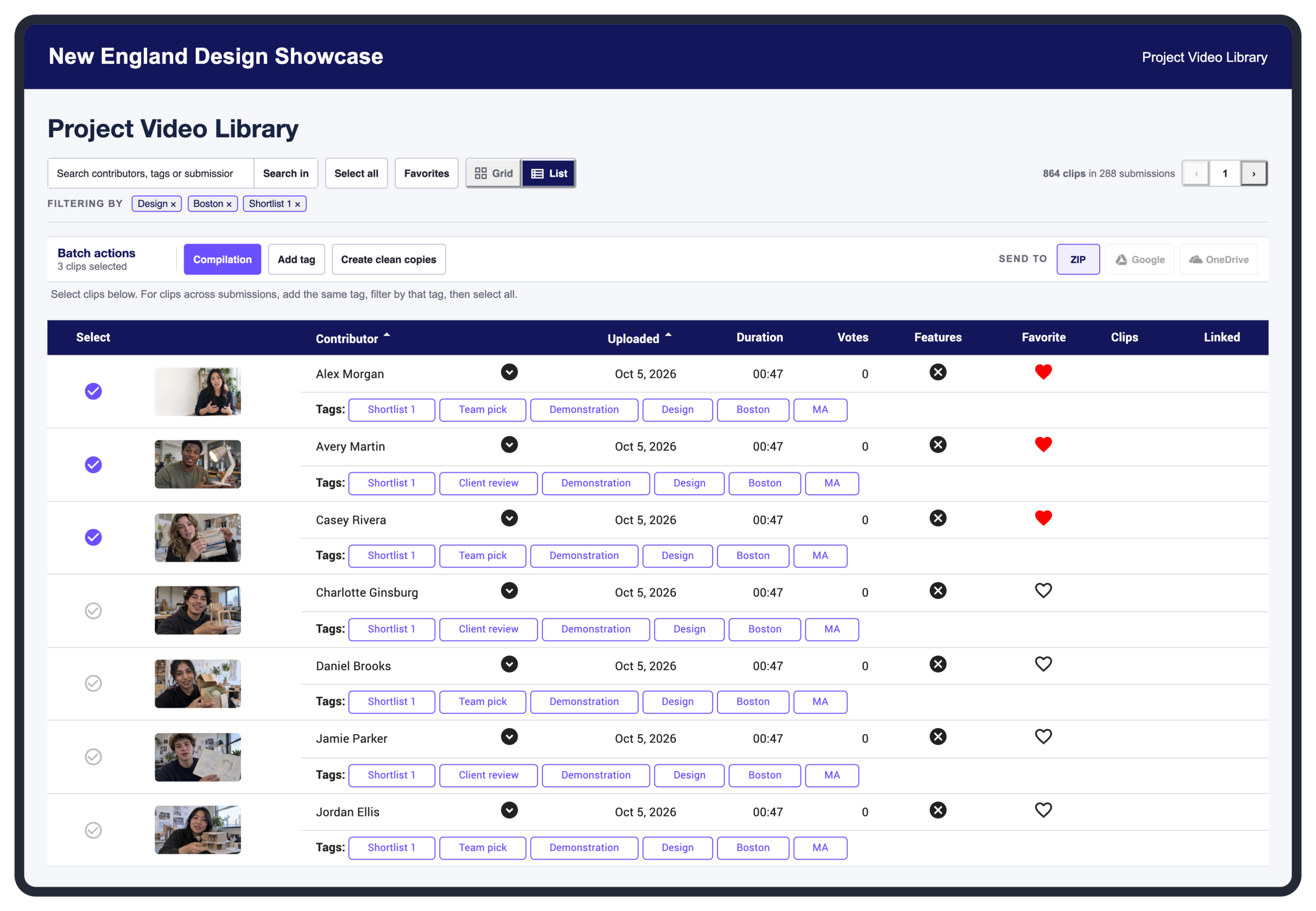
Compare in list view.
Combine filters and sort by contributor, upload date, duration, votes or Favorites. Review labels and select clips for bulk actions.
Find the videos you need, quickly.
Contributors supply context through your form, and project owners can add tags as they review. Combine these labels to filter large libraries, compare relevant submissions and build shortlists.
01 · CONTRIBUTOR DATA
People add the details.
Contributors answer your questions and select relevant details about themselves or each video, giving every submission useful context from the start.
Content type · Project · Location
02 · CONTEXT
Build context with tags.
Contributor answers become tags, and linked datasets add related details automatically. Project owners can also add tags, individually or in bulk, as they review.
03 · LIBRARY FILTERS
Find the right collection.
Combine contributor-supplied context with your own review tags to find relevant footage. Add labels such as Shortlist 1 or Client review to organize selections.
This is human-in-the-loop labeling: people add the context that makes footage easier to find and use, even within a library containing thousands of videos. Short written details remain useful context alongside the configured tags.
How it works
Build the form. Bring in the context.
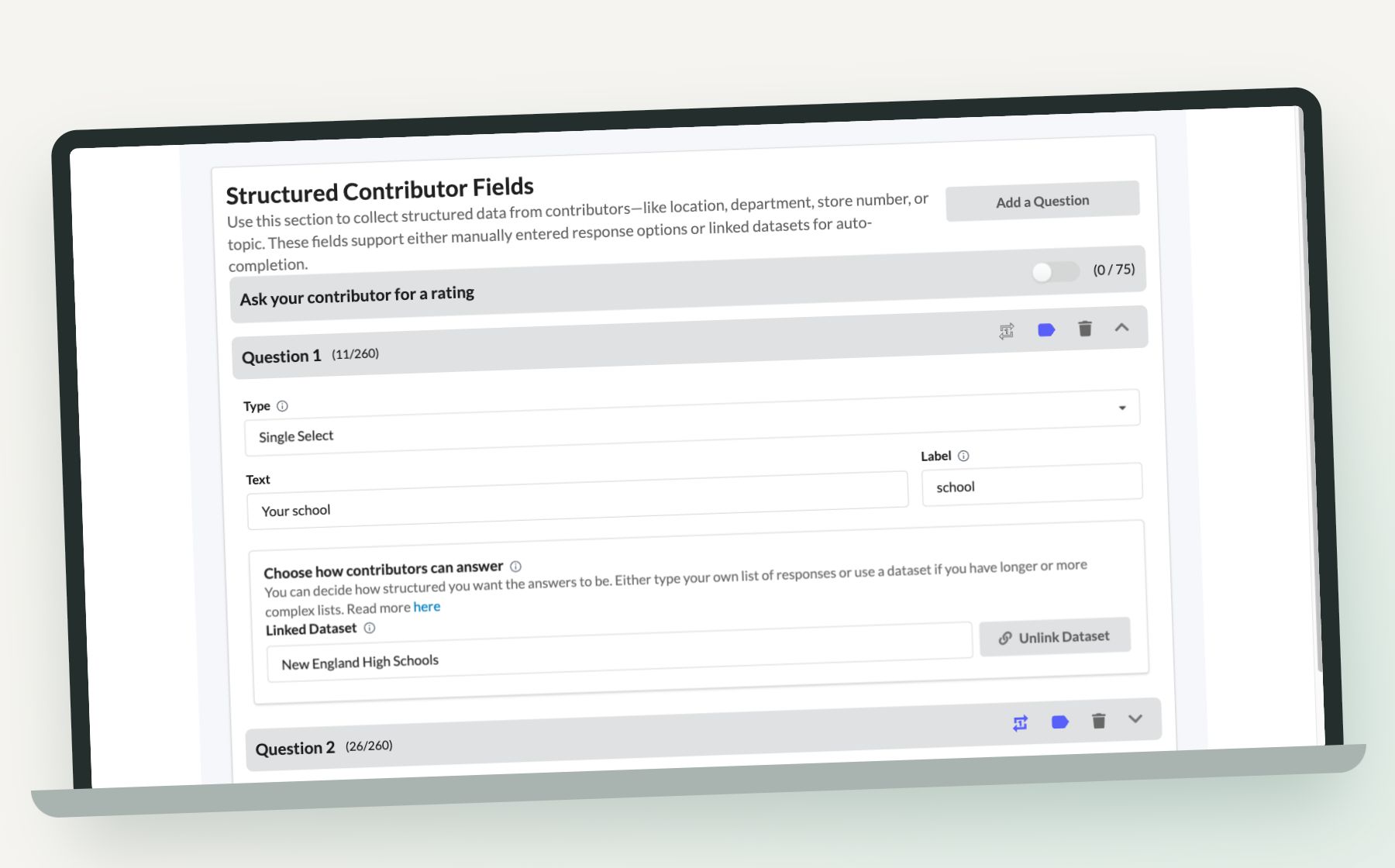
1. Prepare your fields
Choose your form questions in your Vloggi project settings, including whether to ask once or for each clip. Upload a CSV for preset values, review its headers and choose the key column.
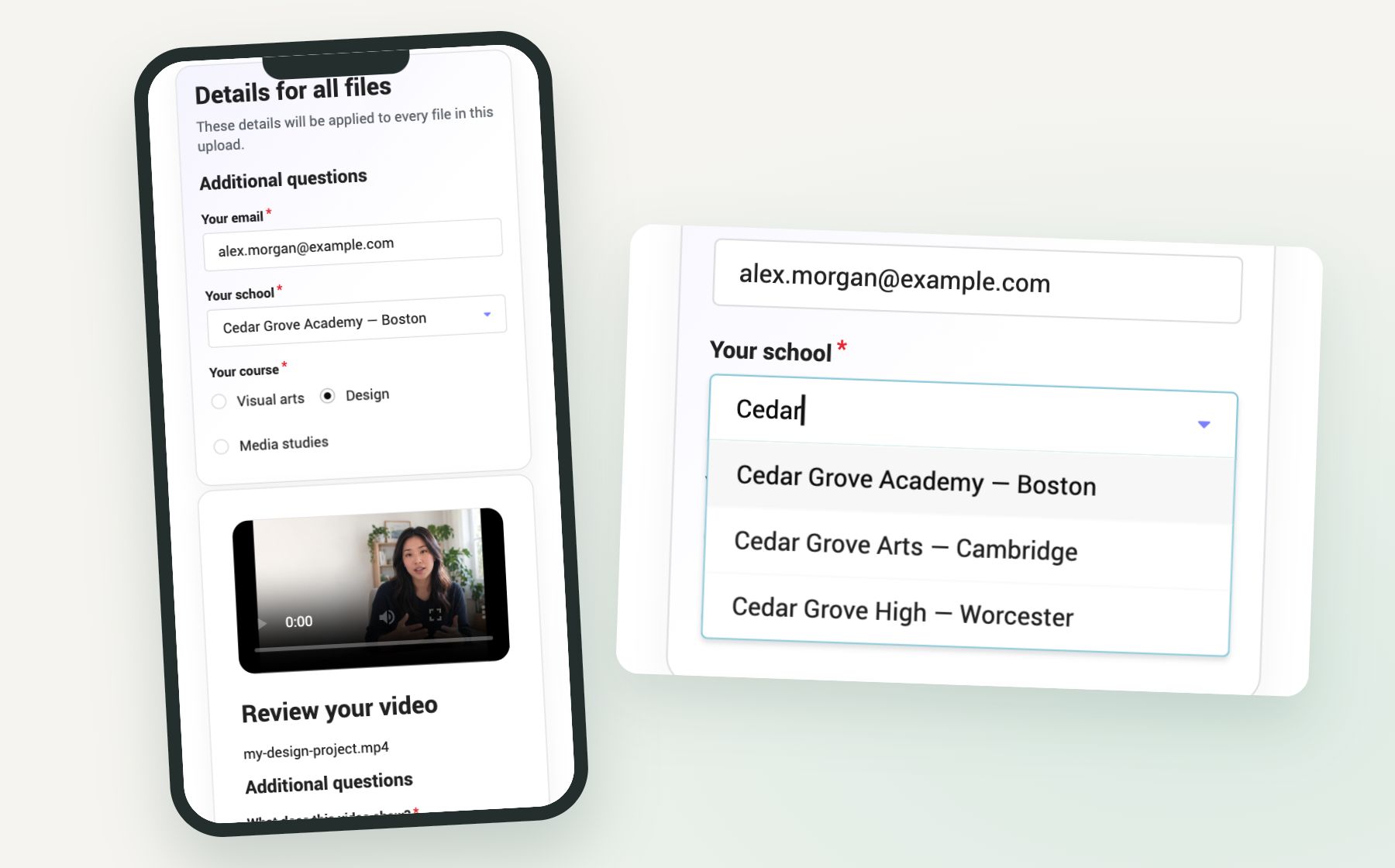
2. Build the form
In Collect → Contributor Data, add your questions and link the relevant dataset. Choose free text, single select or multi select, then preview the contributor journey.
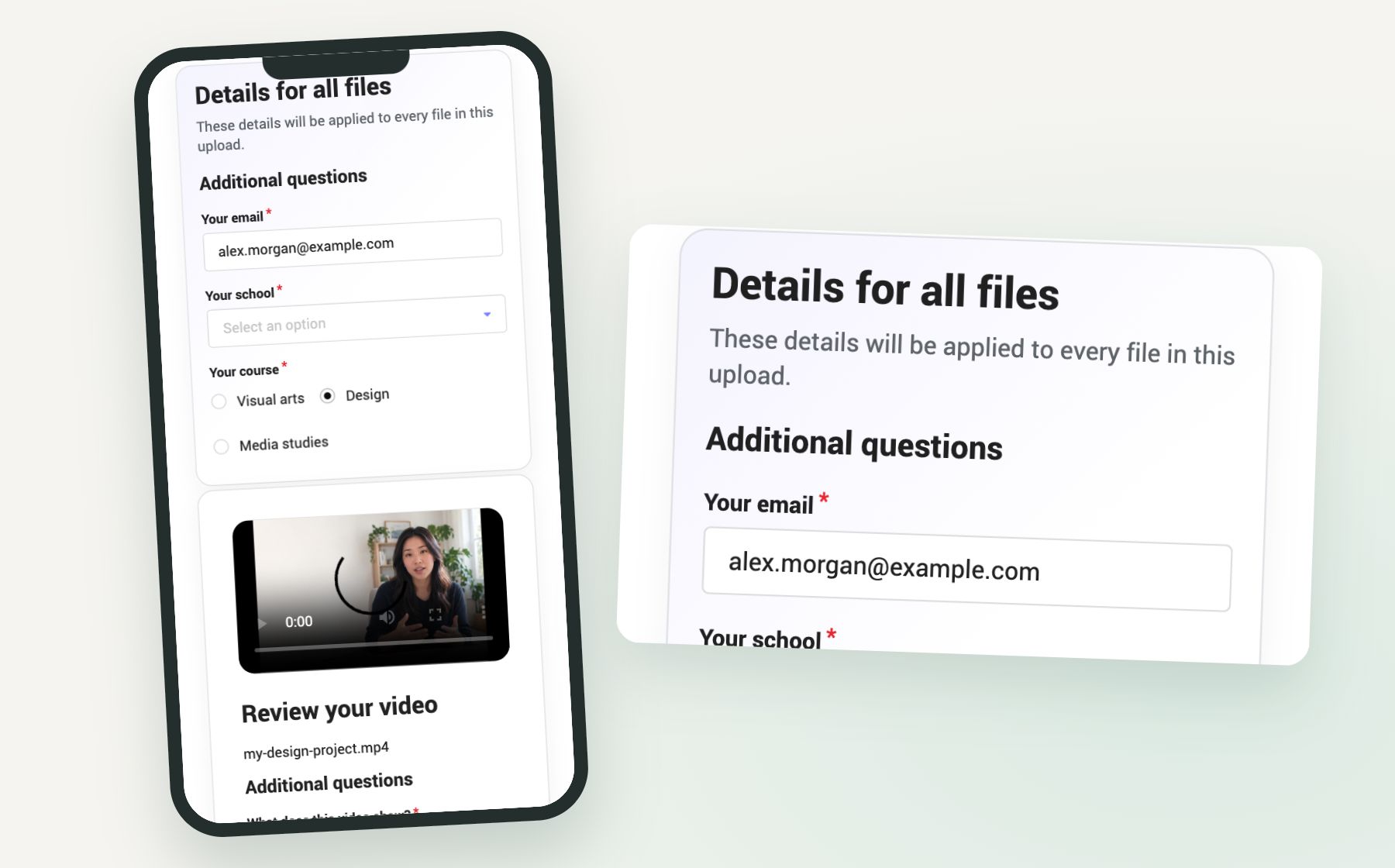
3. Collect video with context
Contributors enter shared details once, then answer questions for each file. Review those answers and configured dataset tags alongside the videos.
Important · Before you collect
Your form. Your data responsibilities.
Add your organization’s privacy policy to your video form before inviting contributions. Tell people what information you collect, why you need it, how you will use and share it, and how they can contact you about their data. Obligatory in the EU and California, recommended elsewhere.
You control the contributor data collected through your project. As the project owner, your organization is the data controller: you choose the questions, the purpose of collection and how the answers are used. Vloggi processes that contributor data on your behalf. Vloggi’s privacy policy does not replace your own.
Ask only for information your project needs, and make your privacy policy easy to find before people submit.
Use cases
Find the context your team needs.
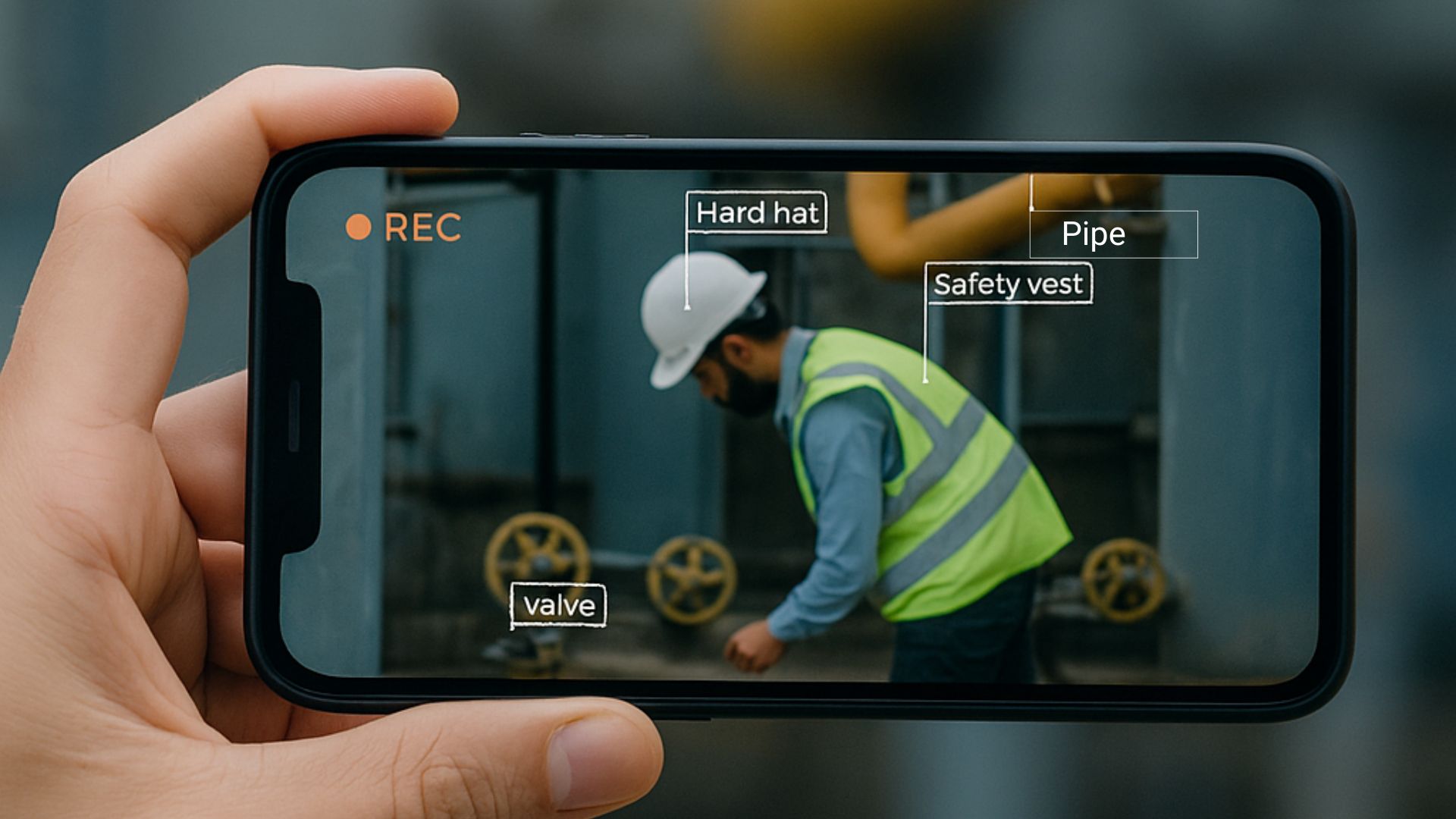
Inspections & compliance
Connect each employee video report to an asset ID, site or job. Pre-loaded reference values help reviewers retrieve the evidence for the right asset.

Education
Connect each student’s video to a school, course and submission category, so reviewers can find and compare like-for-like work.

Employee engagement
Use store IDs, employee IDs or team reference values to connect contributions to the right location or group, without repeatedly asking for related details.
Customer proof
NESA: the right student videos, ready for adjudicators.
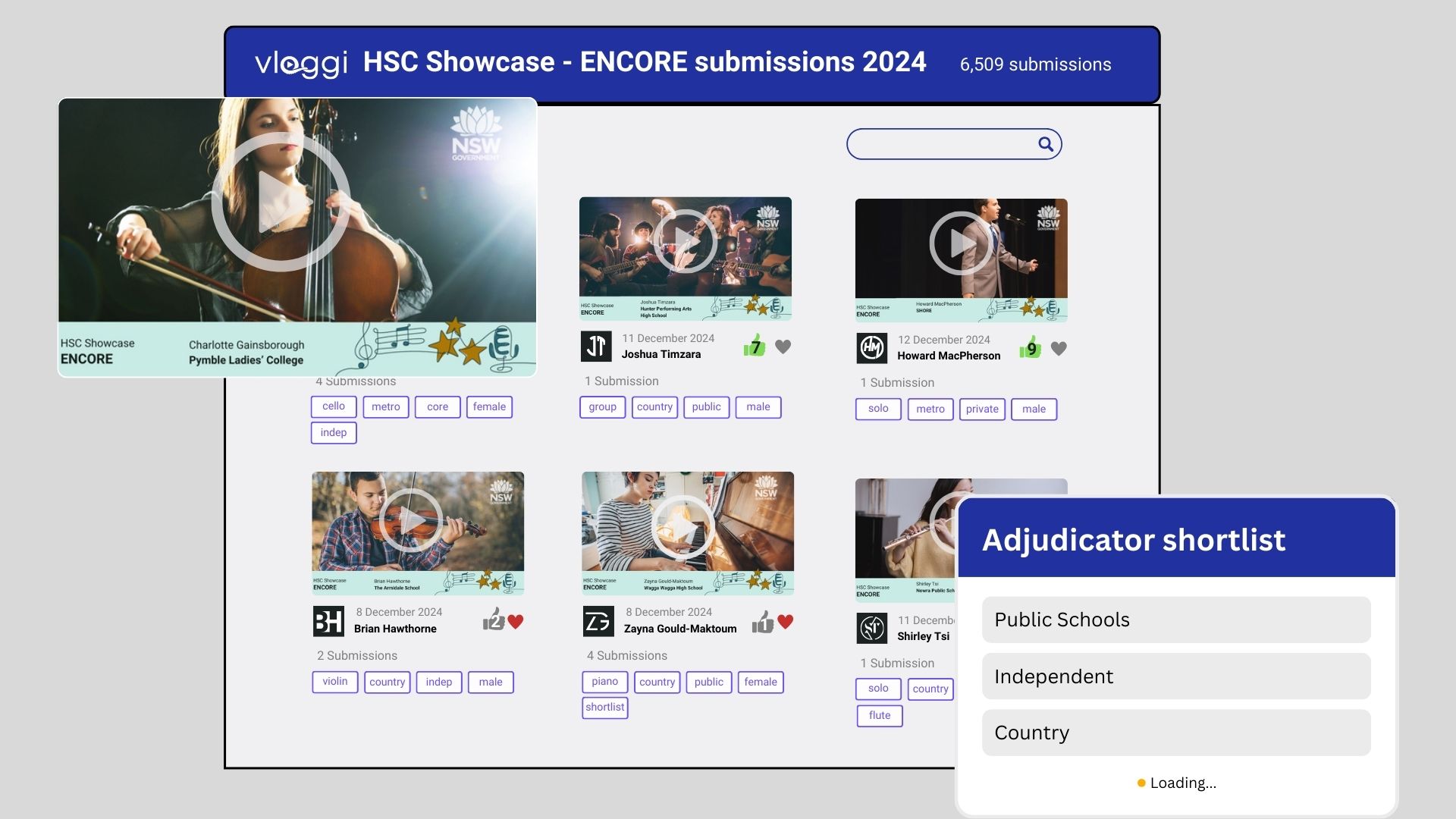
The NSW Education Standards Authority (NESA) makes it easy for students to upload a video and select their school from a definitive list of high schools in the Australian state of New South Wales. Linked school data tags the videos with relevant despatch data tags as well as student-inputted course details.
That context helps adjudicators find the video they need and compare it with other submissions in the same category—without manually sorting a folder of unlabeled files.
Related reading
More on collecting video with context.
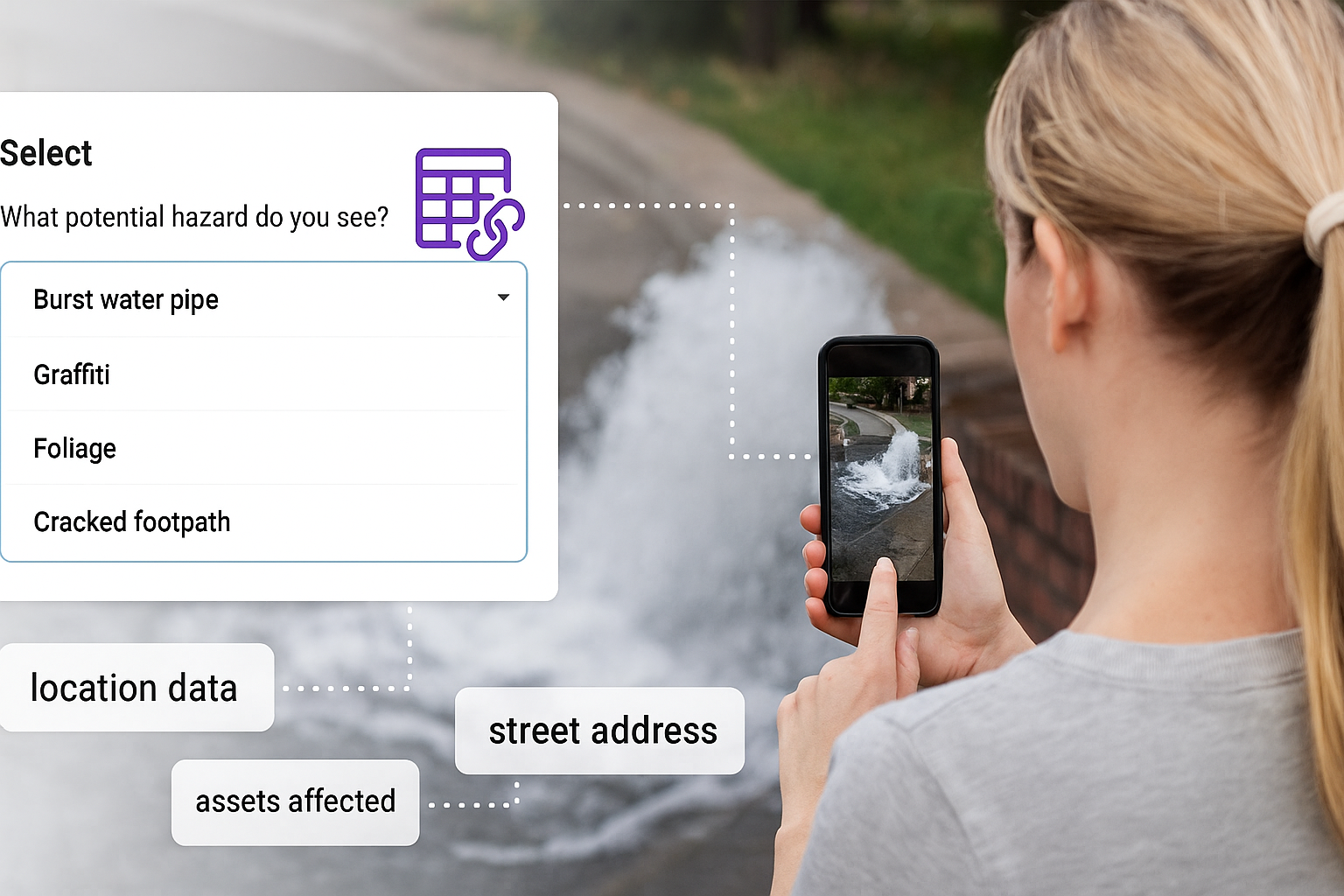
Human-in-the-loop labeling at upload
How contributor answers, linked datasets and automatic tags turn incoming videos into a structured, searchable collection.
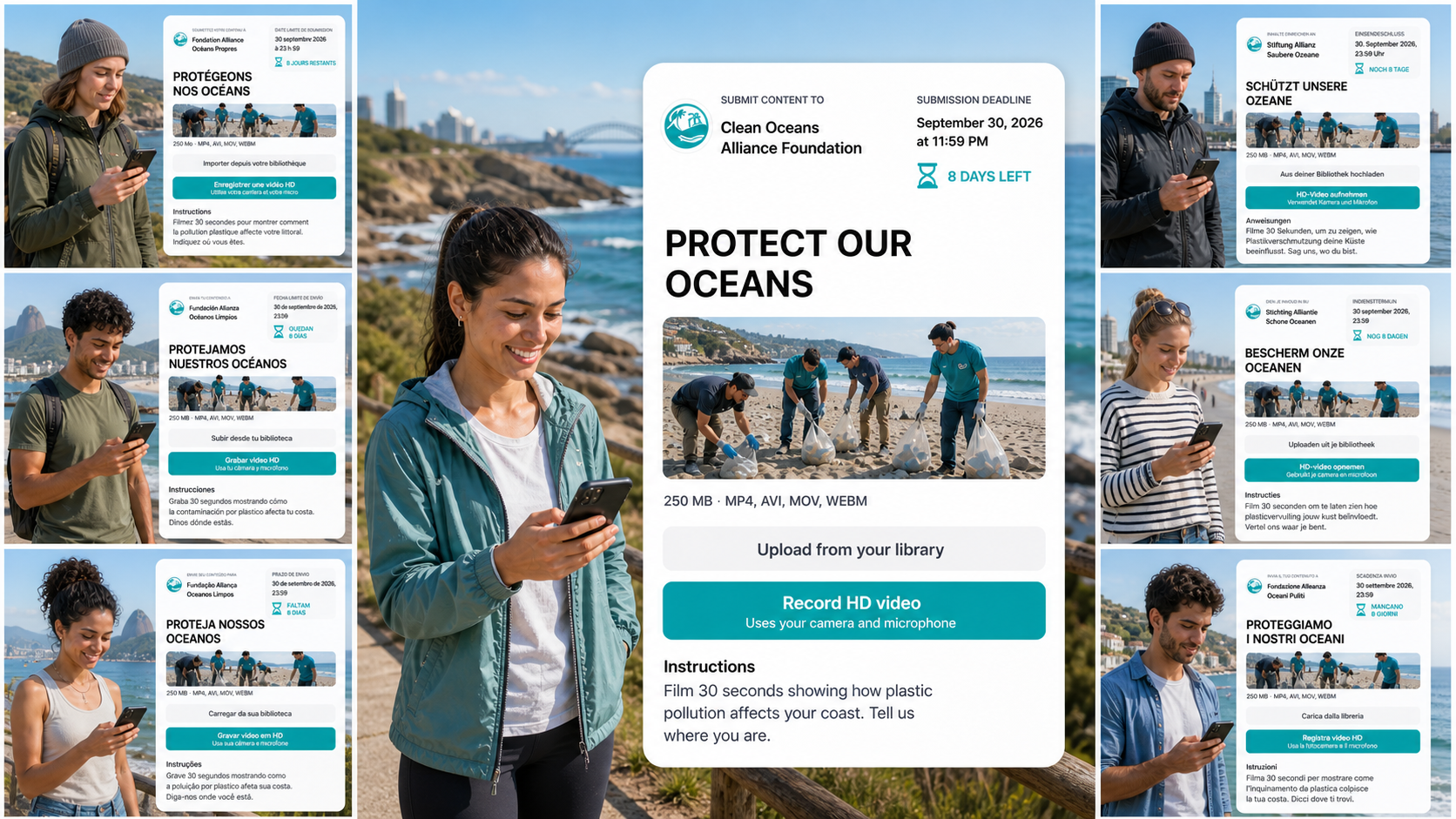
A contributor experience in their language
Explore the multilingual release: localized upload controls and clearer privacy information for contributors across borders.
Common questions
Context, explained.
What is zero-party data?
It is information people intentionally share with your organisation: their personal details, location, preferences or written answers. Context collects those responses through your video form.
Is this the same as device metadata?
No. This page is about contributor-supplied form answers and reference data you provide. Device and file metadata, such as technical capture information, are separate.
What can I upload as a dataset?
A CSV of useful reference values: stores and store IDs, products and SKU codes, schools, course types, states or categories. Use a unique key for each record and include only the related columns your workflow needs.
Can contributors search or select from my list?
Yes. Link a dataset to the appropriate question type. Contributors can use searchable lookups or single-select and multi-select choices, depending on the form configuration and list.
How do dataset values become video tags?
Choose the related columns to include as tags when the dataset is linked. A matching selection connects the submitted video to those configured values—for example, a store ID and state.
Do I need a CSV for every form?
No. You can collect personal details and free-text answers without one. Use a dataset when you already have a reference list or need controlled, consistent values.
Can I collect consent alongside the form?
Yes. Keep the information you collect focused on the project and explain how it will be used. Explore Consent →
Get started
Get the video—and the answers you need.
Build your contributor form, connect your reference lists and collect useful context with every submission.