
Whether you’re collecting video contest entries, staff updates, or customer stories, it’s often helpful to gather a little extra information—like the contributor’s company, location, or the topic of their video. That’s where contributor data fields come in.
This guide shows you how to add simple questions to your video form, so you can collect structured data alongside video responses. Think of it like a smart survey built right into your project.
- 1: Go to the “Contributor Fields” Section
- 2: Click “Add a Question” in the Structured Contributor Fields
- 3: Select the Response Type
- 4. Examples of how to use contributor data fields in Vloggi
- ✍️ Ask a Simple Question
- When You Want to Categorize Answers…
- Got a Long List of Options?
- How to Automatically Tag (Label) Videos
- How to label individual entries in a multi-clip video submission
- Use Linked Datasets to Keep Contributor Responses Consistent
- What Happens Next? – How to Classify your Video Submissions
- Bonus: Use Datasets to Control Free Text — Privately
- Summary: Best Practices for Contributor Fields
✅ Prerequisites #
- A project created in Vloggi Studio
- At least one video question added
- (Optional) A dataset uploaded to the “My Datasets” page
1: Go to the “Contributor Fields” Section #
Within your project, you start by customizing the video form that includes the filming brief for contributors, project rules, deadline, incentive and other details to instruct your respondents what types of video they are recording or uploading. When you click the NEXT button, it will then allow you to configure video survey questions if required. Next comes the Contributor Data page.
This is where you can collect unstructured and structured data like:
- Company
- Email address
- Instagram handle
- Department
- Region
2: Click “Add a Question” in the Structured Contributor Fields #
This opens a new question block. You’ll configure each question one at a time.

3: Select the Response Type #
Choose how you want contributors to answer:
- Free Text – open-ended response
- Single Select – one choice only
- Multi Select – choose multiple
- Rating – numeric scale (1–5)
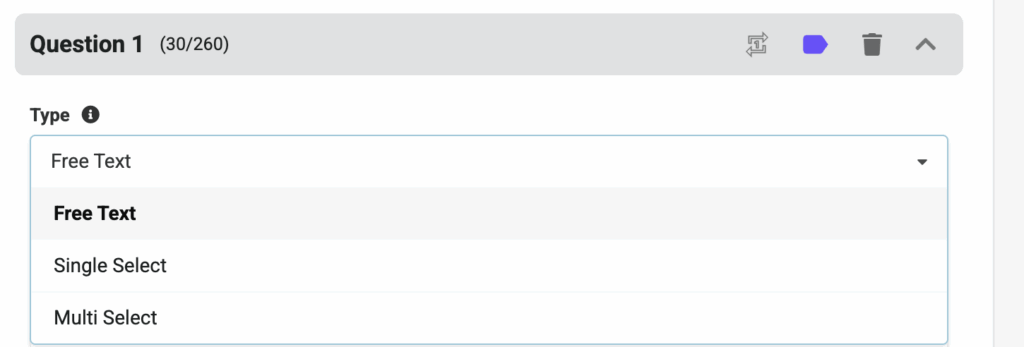
Then give your question a short label that will appear as the column header in the CSV file of responses you can download at any stage by selecting “Project Report“. NB: Label names cannot contain spaces, so use underscores such as student_name.
Tip: Use Single or Multi Select when you want consistency across responses.
4. Examples of how to use contributor data fields in Vloggi #
✍️ Ask a Simple Question #
Let’s get started with adding contributor questions in your Vloggi video form.
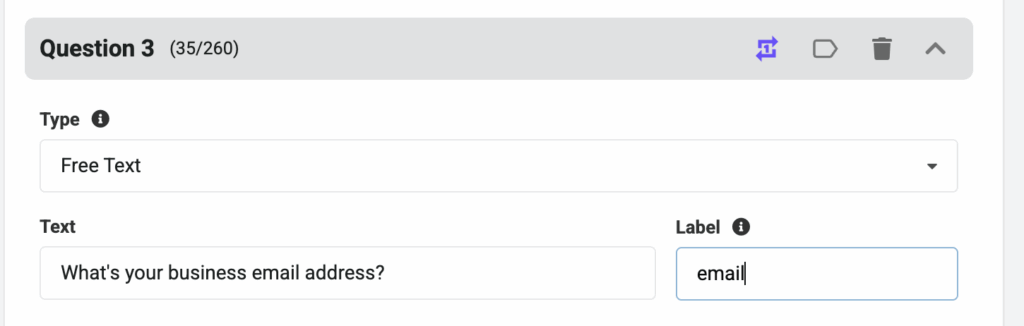
You might want to collect email addresses for future correspondence:
In which case, ask a question like “What’s your business email address?”
(Label this field “email”)
For lead generation, where you do not already have a list of prospects, free text is the best option. Contributors can type their email address and you’ll have it in a downloadable CSV report.
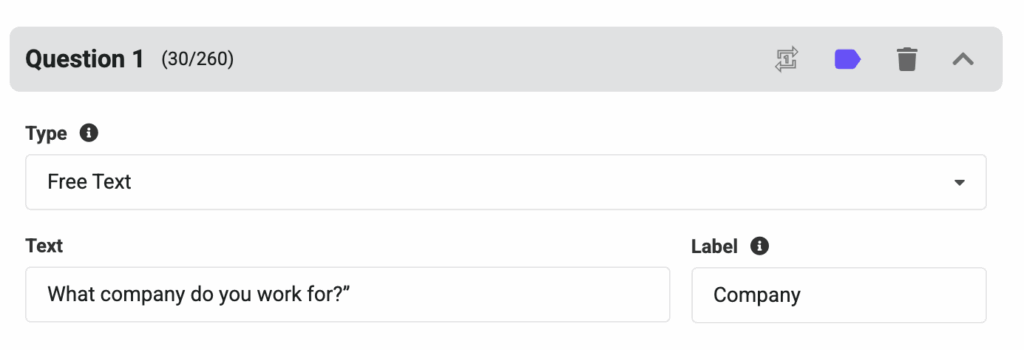
Or you might want to collect organization details from your contributors. So you’d ask something like:“What company do you work for?”
For this kind of open-ended response, free text is the best option. Contributors can type their answer in full, and you’ll see it next to their video.
(Label this field “Company”)
When You Want to Categorize Answers… #
Sometimes, you want everyone to choose from a set list—like if you’re collecting entries by category.
“What category is this video entry for?”
(Label: “Category”)
Options: Drama, Dance, Art or Music
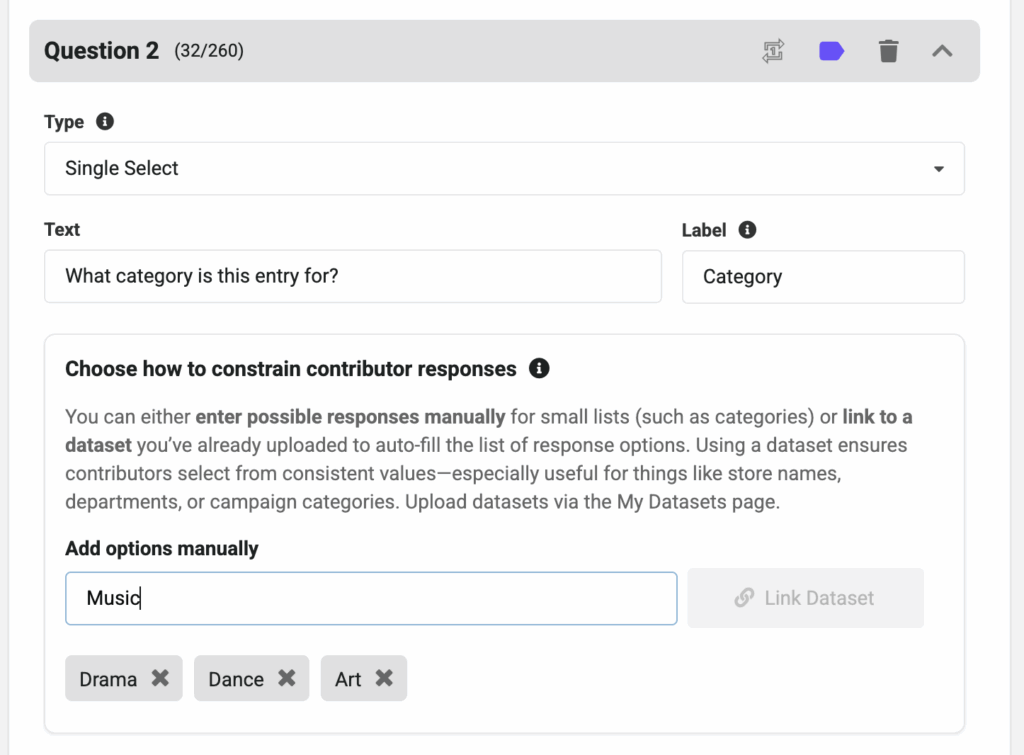
To do this:
Type each option and press Return after each one:
- Click Add a Question
- Choose Single Select (one answer) or Multi Select (choose more than one)
Drama ⏎
Dance ⏎
Art ⏎
Music ⏎
NB: Pasting in comma-separated entries does not currently work. So do not paste in a string of values “Drama, Dance, Art, Music” etc. Instead enter each one and hit return after each entry.
You can also delete unwanted categories by pressing the cancel cross (⨯) next to the category.
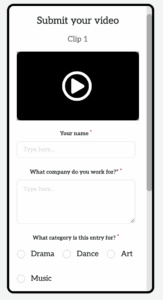
Your contributors will now see buttons or checkboxes to choose from on the upload form.
Got a Long List of Options? #
If you’ve got more than 12 items (like every store location, department, or school), you’ll need to upload a dataset. These can be used to autopopulate other answers, making it easier for contributors to enter just one entry and for their data to be pre-filled. More in this later.
For now, don’t worry—“dataset” just means spreadsheet.
Here’s how:
- Create a spreadsheet with one column (e.g., “Store Name”)
- Make sure each row is unique (no duplicates!)
- Save it as a CSV file (Comma-Separated Values)
- Upload it to the My Datasets page
- In your project, choose Link to Dataset for that question
Read more:
How to format a CSV dataset for use in Vloggi
How to create a lookup table by uploading existing datasets of contributor information to Vloggi
Example: Upload a list of 500 store names or 200 campaign codes and let contributors pick from it.
How to Automatically Tag (Label) Videos #
You can turn any question into a tagging tool for your project library. This is perfect for when you need humans to data label user-generated content footage before you process.
Just click the small tag icon next to the question field.

Then every time someone answers “Dance,” their video gets the “Dance” tag—making it easier for you to filter and find later.
How to label individual entries in a multi-clip video submission #
Ask your contributors once, or after every clip
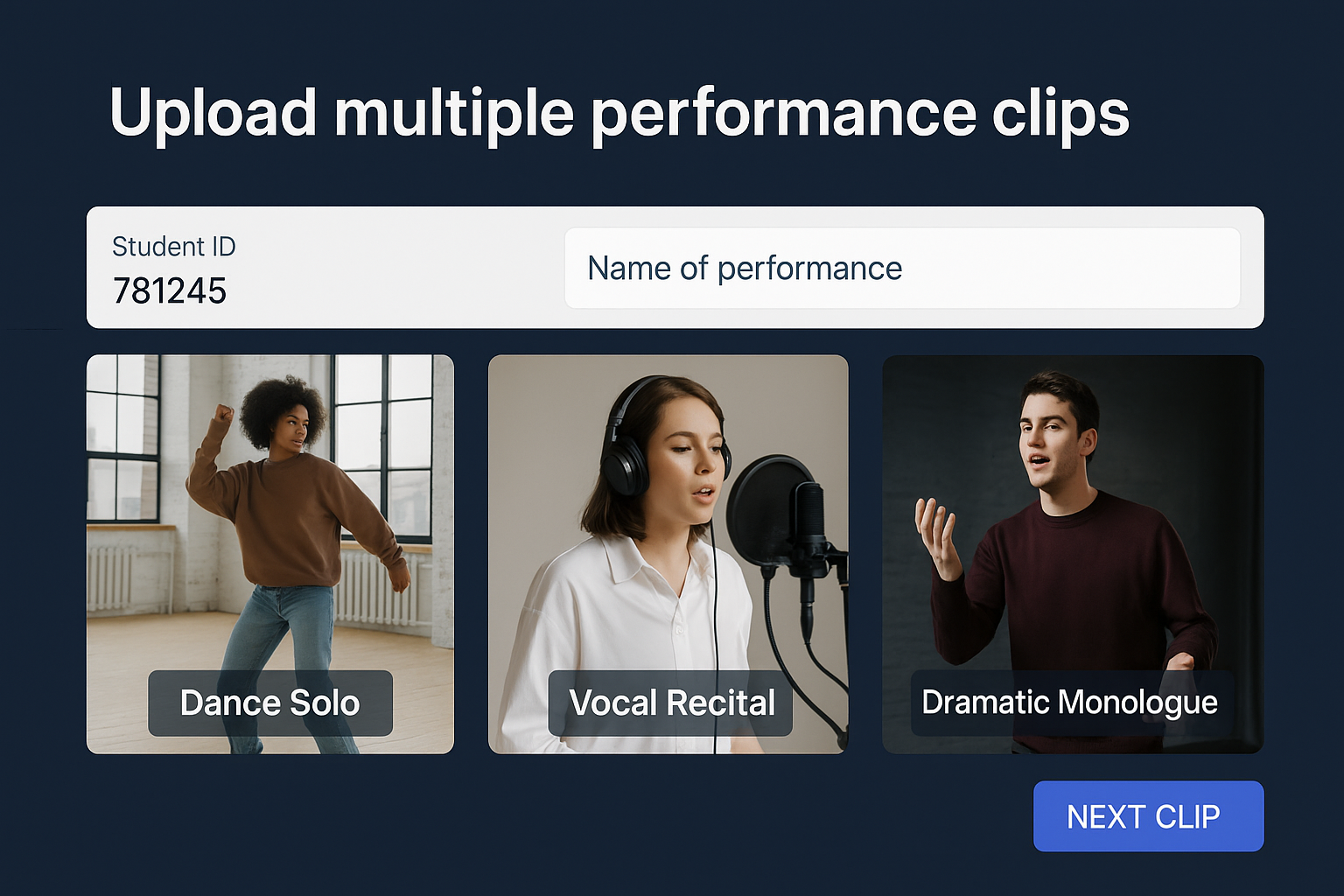
If you have multiple questions in your video form, you may want to colelct different data for each clip. So when you add a structured field to your video form, you can choose when to ask it:
- Once only — great for questions like name, email, organisation, or student ID
- Every time — perfect for things that change with each video, like a performance title or scene number
🎓 For example:
- Ask once: “Student ID”
- Ask every time: “Name of performance”
- This way, if a student uploads five performances, each one gets labeled correctly
You’ll find this setting as an icon next to each question in the form builder. Simply toggle between

Ask only once
(Contributor is asked questions only once, at the end of the submission)

Ask for each clip
(Question is asked after every clip, for per-video data)


💡 This is especially useful for:
Performance showcases where each clip represents a different actVideo competitions where each entry is unique
Training videos where each submission relates to a different module
 Use Linked Datasets to Keep Contributor Responses Consistent #
When you want contributors to select from a long, standardized list—like store names, departments, or US states—you can save time (and typos) by using a linked dataset.
🔍 Why Use a Dataset? #
- Avoid spelling mistakes and free-text chaos
- Enforce consistent answers across all videos
- Link extra data to each answer (like region, manager, etc.)
- Enable advanced filtering and tagging later in your video library
📊 What’s a Dataset? #
It’s just a spreadsheet saved as a CSV file (Comma-Separated Values).
Example dataset: US States and Territories
| GNIS_ID | Abbreviation | Code | State_name | Capital |
| 1779775 | AL | 1 | Alabama | Montgomery |
| 1785533 | AK | 2 | Alaska | Juneau |
| 779777 | AZ | 4 | Arizona | Phoenix |
| 68085 | AR | 5 | Arkansas | Little Rock |
| 1779778 | CA | 6 | California | Sacramento |
| 1779779 | CO | 8 | Colorado | Denver |
🔧 How to Use a Dataset in Your Video Form #
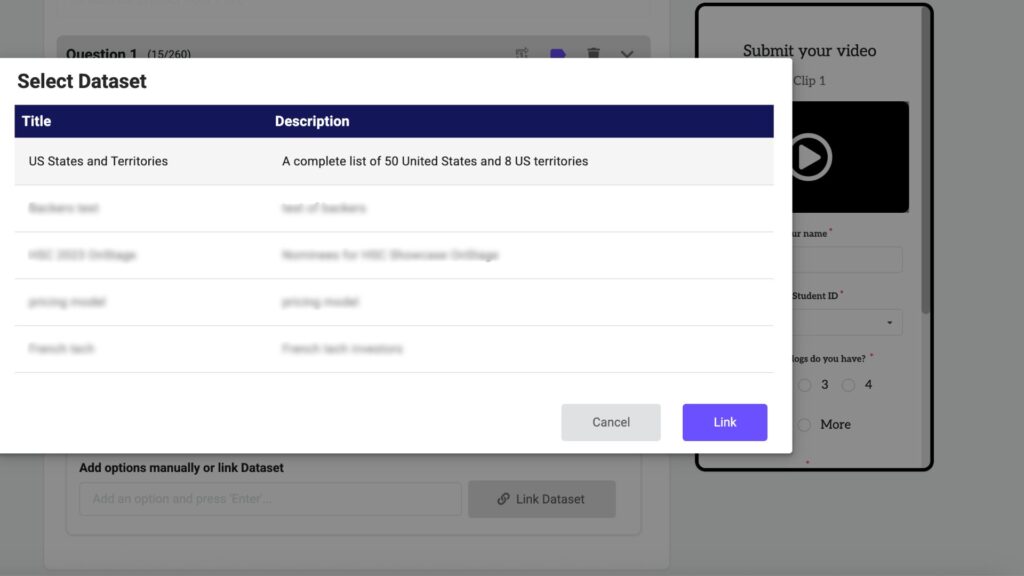
- Upload your CSV spreadsheet
- Go to the My Datasets page
- Upload your .csv file
- Choose a key column – this will be the actual answer the contributor selects In the above example, you’d likely choose Abbreviation (e.g., “DE”)
- Read more:
How to format a CSV dataset for use in Vloggi
How to create a lookup table by uploading existing datasets of contributor information to Vloggi
- Add a question in your video form
- Click Add a Question
- Choose Single Select or Multi Select
- Select Link to Dataset
- Pick the dataset and choose which column is the key
- Enter your question Example: “What state or territory are you in?”

The dropdown will now show just the two-letter codes (e.g., AL, CA, DE), pulled from the Abbreviation column. For long lists, contributors can also type, which will look up more quickly than scrolling. Only those answers in the key column of the dataset will be valid answers.
What Happens Next? – How to Classify your Video Submissions #
When contributors submit their form:
- The selected value (e.g., “DE”) is stored as their answer
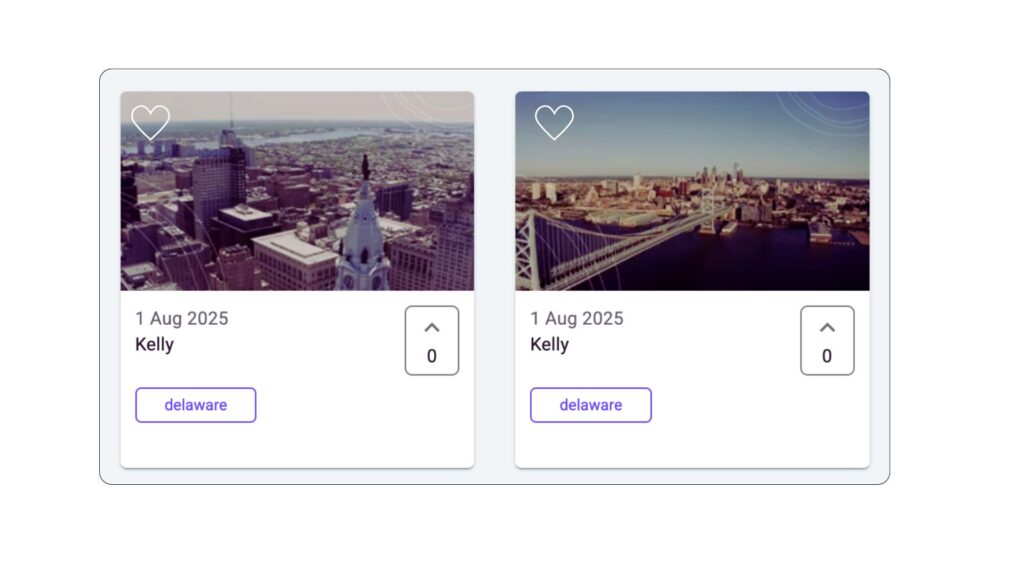
- The system can also display related columns (e.g., “Delaware”, “Dover”) in the project library
- If Convert to Tag is selected, tags like Delaware are automatically applied
💡 Now you can filter videos by state, region, department—or any other column in your dataset.
Bonus: Use Datasets to Control Free Text — Privately #
Even for free text questions, you can use a linked dataset to enforce a “blind whitelist.”
That means contributors must enter a valid value from your dataset (like a student ID or staff number), but they won’t see the full list. This ensures only permitted responses are accepted—without exposing other people’s data.
It’s a great option when privacy matters.
Summary: Best Practices for Contributor Fields #
- Use free text when answers will vary (like names or companies)
- Use Single or Multi Select to keep data clean and searchable
- For long lists (over 12 options), upload a CSV dataset to keep it tidy
- Use the tag icon to automatically label videos by contributor responses
- Choose whether each question is asked once per contributor or once per clip
- For sensitive fields (like student ID), enforce a blind whitelist to maintain privacy
- Remember: the smarter your data, the more powerful your video library becomes


