
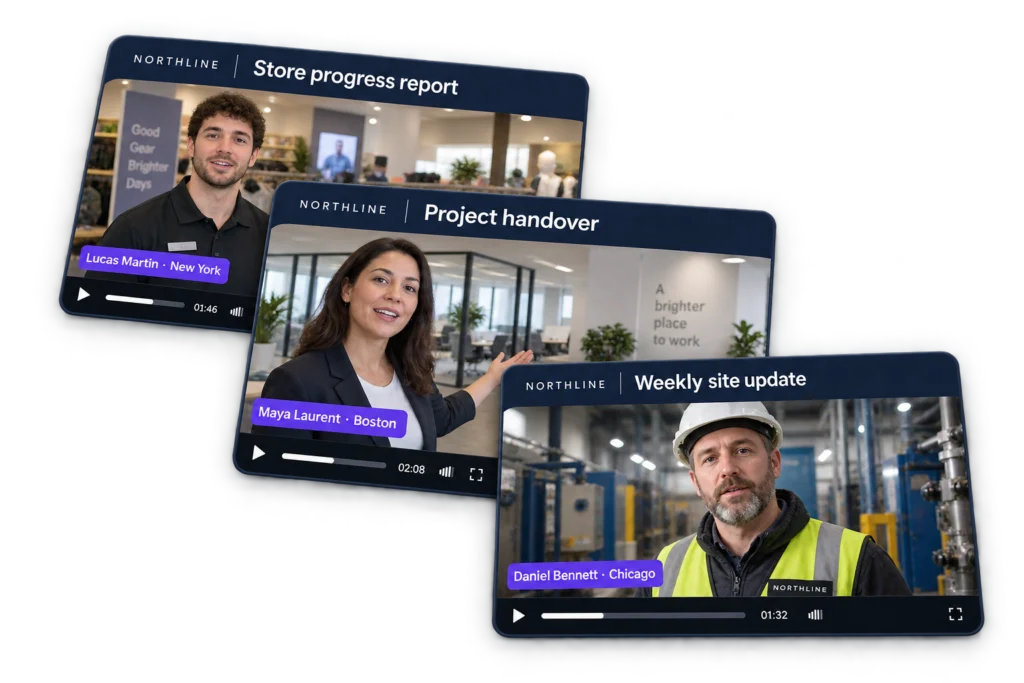
Use the Video Template Builder to combine static branding with dynamic information from each submission. This reference explains the five element types; the complete builder guide covers positioning, timing and troubleshooting.
Open the builder
Select Customize → Video Template Builder in your project. Choose the intended Landscape, Portrait or Square canvas, then use the + menu to add elements.
Dynamic text
Dynamic text substitutes information for the current clip. Choose fields from the smart-field menu rather than guessing their names. Standard fields include the contributor name and video prompt; questions created in Contributor Data expose their own response fields.
For attribution, use {{contributorName}}. For a question labeled department, a response field can look like {{department.response}}. The exact field is inserted by the builder.
If a question is linked to a dataset, its submenu lets you select an available related column. For example, one store selection can supply its region. A prefilled-link external reference is integration data, not automatically a visible template field.
Static text
Static text stays the same across clips. Use it for a campaign name, fixed label or short call to action. Adjust font, size, color, alignment and background for readability.
Watermark
The Watermark element uses your workspace’s saved video watermark. A transparent image avoids a solid rectangle around the logo. Position it inside the canvas edge and adjust opacity when needed.
Image
Add artwork such as a lower-third bar, campaign badge or decorative frame. Resize and position it, then arrange its layer order so text remains visible.
Rating
Use Rating to represent a collected rating visually. Configure the contributor-rating prompt in Contributor Data, then review the output with a sample response.
Position and timing
Drag and resize elements on the canvas or use the Position controls. Use layer-order controls to place backgrounds behind text. Special effects control fade timing; choose timings that work with the expected clip length.
Save and review the output
Save the project and inspect a processed example in the Project Video Library. The canvas is a design preview; the rendered video shows the finished result. Check long names, missing optional answers and the shortest expected clips. Keep private contact data out of public overlays.
For a complete walkthrough, continue to Video Template Builder.