
Video Report Workflows define when a report is ready, which clips belong together and the order in which Vloggi should compile them. This guide covers the beta workflow builder where it is enabled. If your workspace does not show Video Report Workflow, contact Vloggi support about availability; you can still build a manual compilation from the Project Video Library. Configure the visual design separately in Video Template Builder.
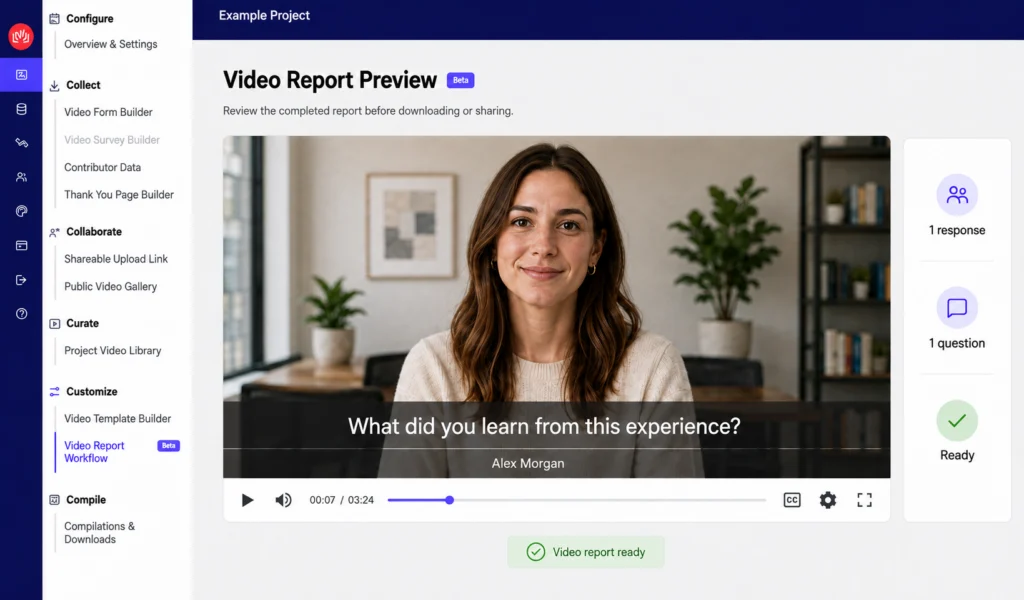
Before you start
You need a project with its submission workflow, contributor questions and video template already configured. Open the project in Vloggi Studio, then select Customize → Video Report Workflow.
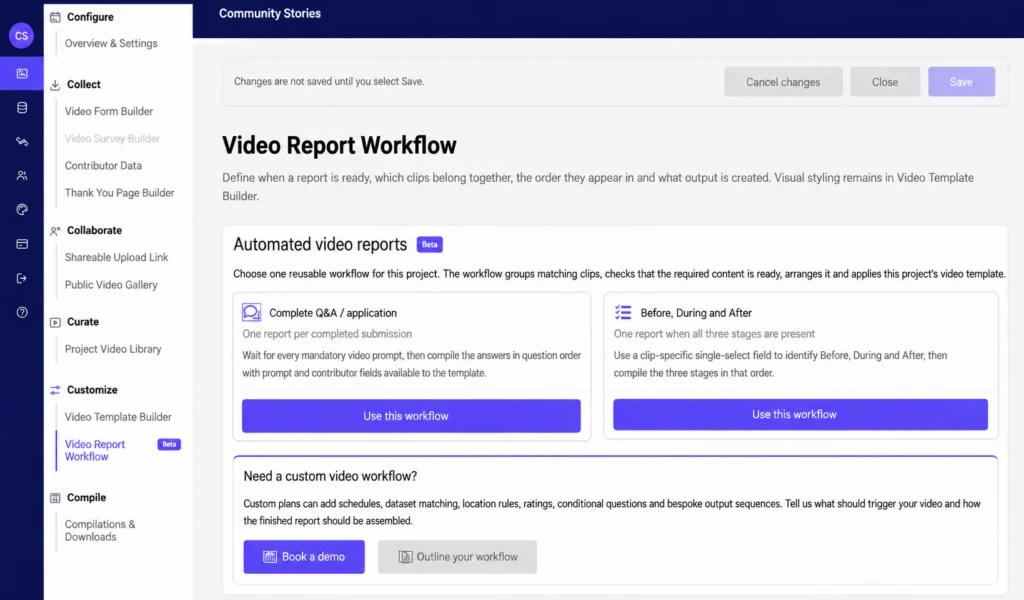
Video Report Workflows control which clips are selected and how they are ordered. The project’s colors, typography, titles and overlays continue to be configured in Video Template Builder.
Complete Q&A or application reports
Use Complete Q&A / application when every completed submission should produce one report.
- Select Use this workflow under Complete Q&A / application.
- Confirm which video prompts are mandatory.
- Enter the report title. Dynamic fields such as contributor name, submission date and project name can be used in the title and template.
- Select Save.
Vloggi waits until every required video response is ready, then orders the clips by question. Incomplete submissions do not qualify for a report.
Before, During and After reports
Use Before, During and After when contributors provide visual evidence for three stages of the same activity.
- Select Use this workflow under Before, During and After.
- Choose the clip-specific Single Select field that identifies the stage. If the project does not have one, Studio can create it with Before, During and After options.
- Confirm the required stage values and enter the report title.
- Select Save.
A report becomes ready when all three stages are present. Vloggi orders all Before clips first, followed by During and After clips in upload order.
Create and review a report
- Open Curate → Project Video Library.
- Review the submission and confirm that its required clips have finished processing.
- Use the video-report action shown for an eligible submission.
- Review the resulting report under Compile → Compilations & Downloads.
If a report is not offered, check that the workflow is saved, all mandatory clips are present, each clip has finished processing and the stage field uses the configured values exactly.
Troubleshooting
- The report action is not available: confirm the workflow was saved and every mandatory response has finished processing.
- A Complete Q&A report is incomplete: check that each required video prompt has a response in the same submission.
- Before, During and After clips are not grouped correctly: confirm every clip uses the configured Single Select field and that the option names match the saved workflow exactly.
- The report styling is incorrect: update the project in Video Template Builder. Workflow settings determine selection and order, not visual styling.
Custom workflows
For a custom implementation, discuss schedules, dataset matching, location rules, ratings, conditional questions and bespoke output sequences with Vloggi. Scope and availability are agreed for your workflow. Use Outline your workflow in Studio to tell Vloggi what should trigger the report and how its output should be assembled.
For help designing a custom workflow, contact Vloggi support.