
How to check that a video is real is becoming a routine question for marketers, compliance teams, researchers and anyone reviewing footage online. Vloggi Confirm helps you examine whether a file shows evidence of an authentic human video, understand whether it may be real or AI-generated, and save a versioned Human-Origin Confidence Score (HOCS) assessment.
Open Vloggi Confirm · Follow the checking process · Understand HOCS
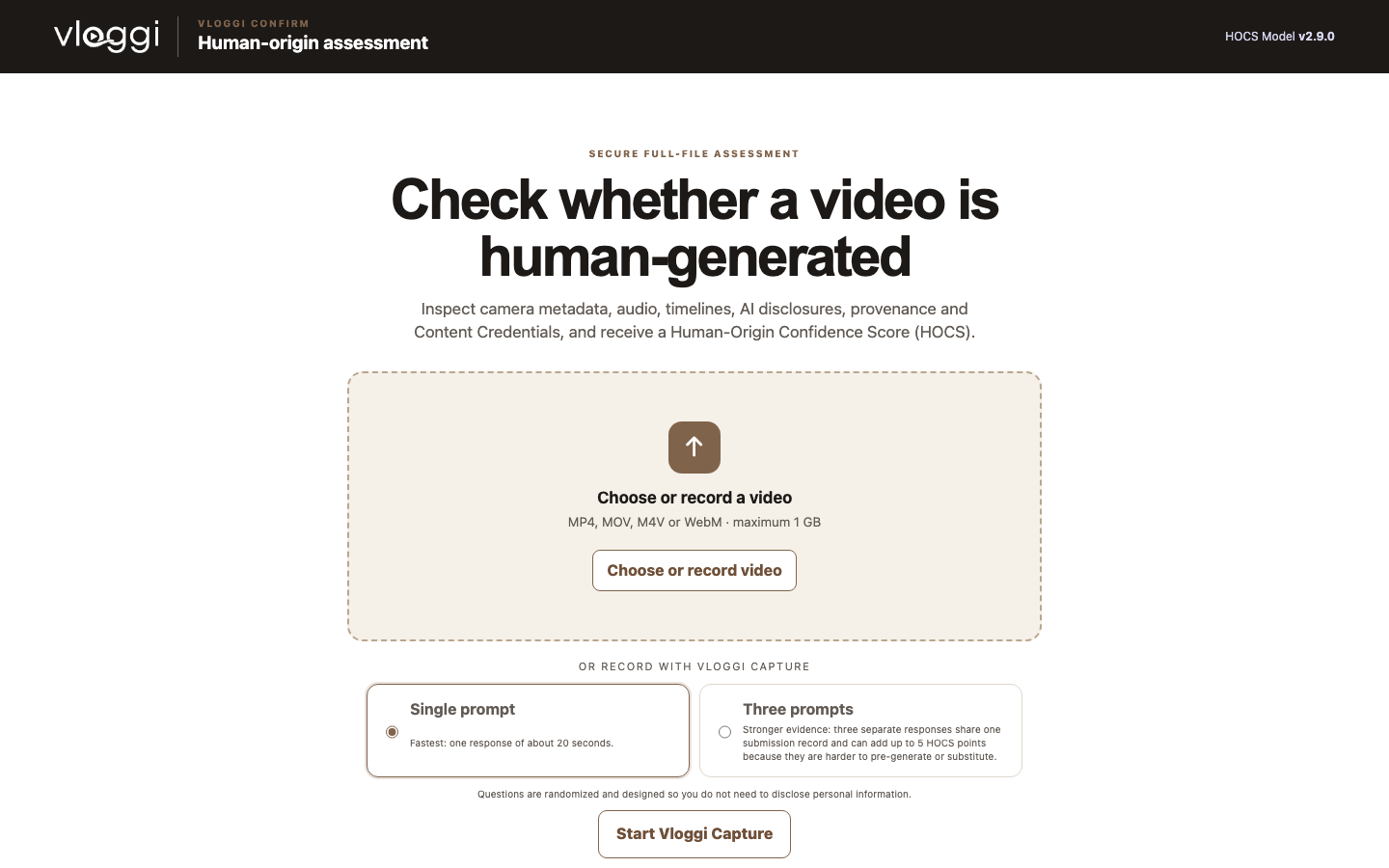
Before you check whether a video is real or AI
- Have the original video available where possible. Confirm accepts MP4, MOV, M4V and WebM files up to 1 GB.
- Avoid editing, exporting or sending the file through another service first. Those steps can remove camera metadata and provenance evidence.
- Confirm asks for consent before temporarily uploading an encrypted copy for automated analysis.
- The beta service currently offers up to 50 assessments. Follow the allowance displayed in the tool.
How to check that a video is real: four steps
1. Choose an existing file or use Vloggi Capture
Select Choose or record video and pick the file you want to assess. Confirm displays the filename before analysis begins. On supported versions you can instead select Start Vloggi Capture to record a prompted response in the browser.
Vloggi Capture can ask for one response or three separate responses tied to the same submission. Randomised spoken prompts, interaction timing and continuity evidence can strengthen an authentic human video record because multiple linked responses are harder to pre-generate or substitute.
2. Give consent and assess the video
Read the temporary-analysis notice, tick the consent box and select Assess video. Keep the tab open while Confirm examines the full file. Depending on the available evidence and model version, the service may inspect camera and device markers, codecs, dimensions, duration, timestamps, audio tracks, frame timing, location presence, editor or export markers, supported C2PA Content Credentials and declared AI use.
3. Read the evidence, not only the number
- HOCS and confidence band: a summary of how strongly the available evidence supports human-origin capture and participation.
- What helped: signals consistent with an original camera file, human participation, provenance or a controlled capture process.
- What reduced confidence: missing metadata, editing markers, absent audio, short duration, contradictory provenance or other cautions.
- Model version: the exact HOCS method used for that assessment. Keep it with the result because the model is versioned.
4. Download the assessment report
Select Download TXT report and keep it with the exact file assessed. The report records the assessment reference, creation time, model information, SHA-256 fingerprint, score and supporting findings. If a file is edited or re-exported, assess the new version separately because its fingerprint will change.
What does the Human-Origin Confidence Score mean?
HOCS is a score from 0 to 100 that combines multiple strands of evidence. It is designed to answer a more useful question than a simple visual guess: how strongly does this file support an authentic human video created through a documented capture and participation process?
A high score means Confirm found stronger supporting evidence. A lower score means important evidence was absent, weak or contradictory. Missing evidence does not automatically prove fabrication, and even a strong result does not prove that every event depicted is true. Always read the explanation beside the score.
Do not compare results from different model versions as though the recipes were identical. Use the confidence wording and model version shown in the assessment you downloaded.
Is it real or AI? Evidence Vloggi Confirm checks
When someone asks “is it real or AI?”, appearance alone is not enough. Convincing synthetic footage can contain realistic people, speech and movement. Confirm therefore combines technical media evidence with capture, consent, custody and human-participation signals instead of relying on a single AI detector.
- Camera and file evidence: device markers, metadata tracks, dimensions, codecs, frame rates, timestamps, duration, audio and signs of editing or export.
- Provenance evidence: supported C2PA Content Credentials and declarations about digital capture, AI generation or AI assistance.
- Human interaction: consent, session continuity, privacy-minimised interaction timing and, in a managed capture, randomised spoken challenges.
- Chain of custody: whether the media arrived through an ordinary upload or a controlled Vloggi capture workflow tied to a submission record.
What are Content Credentials?
Content Credentials are provenance records based on the C2PA standard. They can contain statements about how media was captured or changed, including declared AI generation or AI assistance. Confirm checks supported credentials when they are available.
A file without Content Credentials may still be genuine. Many phones, cameras and older files do not create them, and some editing or sharing services remove them. Their absence is a provenance gap rather than proof that a video is fake.
Does Vloggi Confirm upload my video?
Yes. After you consent, an encrypted copy is uploaded for automated inspection and deleted immediately after analysis. A one-day deletion lifecycle protects against interrupted processing. Confirm retains the assessment evidence and the file’s SHA-256 fingerprint, but not the source video.
For a browser recording, Confirm may also process a privacy-minimised interaction summary and use a pseudonymous first-party continuity identifier stored in that browser. It does not collect typed text, pointer paths, canvas fingerprints or font fingerprints.
Why can a genuine video receive a lower score?
A genuine recording can still contain limited evidence. Social platforms, messaging apps and editing tools often strip metadata or transcode footage. An imported file may also lack contributor consent, identity context and capture-chain evidence. That is why an ordinary upload can score lower than an authentic human video recorded through Vloggi Capture.
Use the original camera file where possible. If the decision is important, ask the contributor for context, obtain the earliest available version and consider a new prompted capture rather than treating a low score as a verdict.
How to collect stronger authentic human video
For new projects, start provenance at capture. Vloggi Capture can collect prompted video directly from customers, employees or communities with consent and a stronger chain of custody. Three linked responses provide more continuity evidence than a single imported clip.
The highest confidence is reserved for eligible media collected through a managed workflow where the required participation, consent, device, prompt and custody checks validate without contradictory evidence. Selecting an arbitrary file cannot recreate evidence that was never recorded at capture.
Troubleshooting
- Assess video is unavailable: select MP4, MOV, M4V or WebM footage no larger than 1 GB and accept the analysis notice.
- The assessment fails: keep the tab open, check your connection and try again. If the problem continues, contact support with the displayed error and model version.
- No Content Credentials found: this is missing provenance, not proof of manipulation.
- The score seems unexpectedly low: confirm that you used the original file and review every explanation shown with the result.
Check an authentic human video now
Open Vloggi Confirm to check whether a video is real or AI, or talk to Vloggi about collecting authentic human video through a managed workflow.