Vloggi Conversations: the easiest video survey software
Video surveys & questionnaires
Ask your questions. Hear their answers.
Build a video survey with two to eight prompts and invite people to respond in their own words. Contributors record through their browser, in their own time, while your team reviews the answers together—without scheduling a call.

The problem
A rating rarely tells the whole story.
Scores miss the explanation. Meetings exclude people on different shifts or in different time zones. Unstructured video requests leave your team sorting answers to different questions.
The solution
The same prompts. Each person’s perspective.
Create a guided video questionnaire, share one branded link and let people record when they can. Keep their answers, contributor details and permission connected, ready to review.
Feature spotlight
One question at a time. A fuller picture at the end.
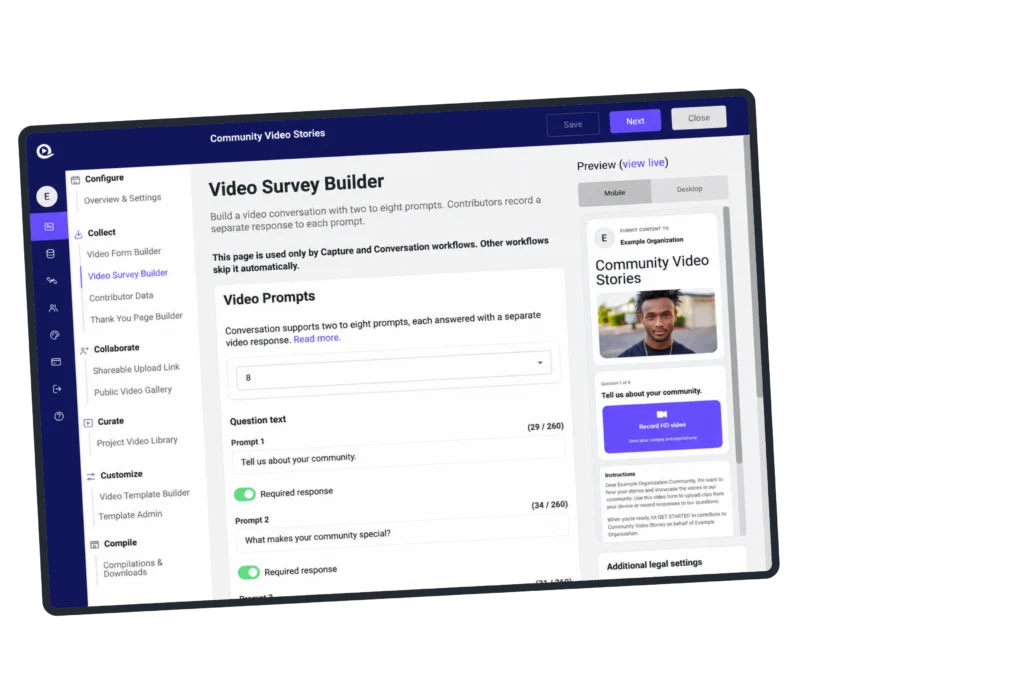

Set the sequence in your project settings.
Write two to eight focused questions. Add useful instructions and choose which responses are required. Contributors record a separate video for each prompt.
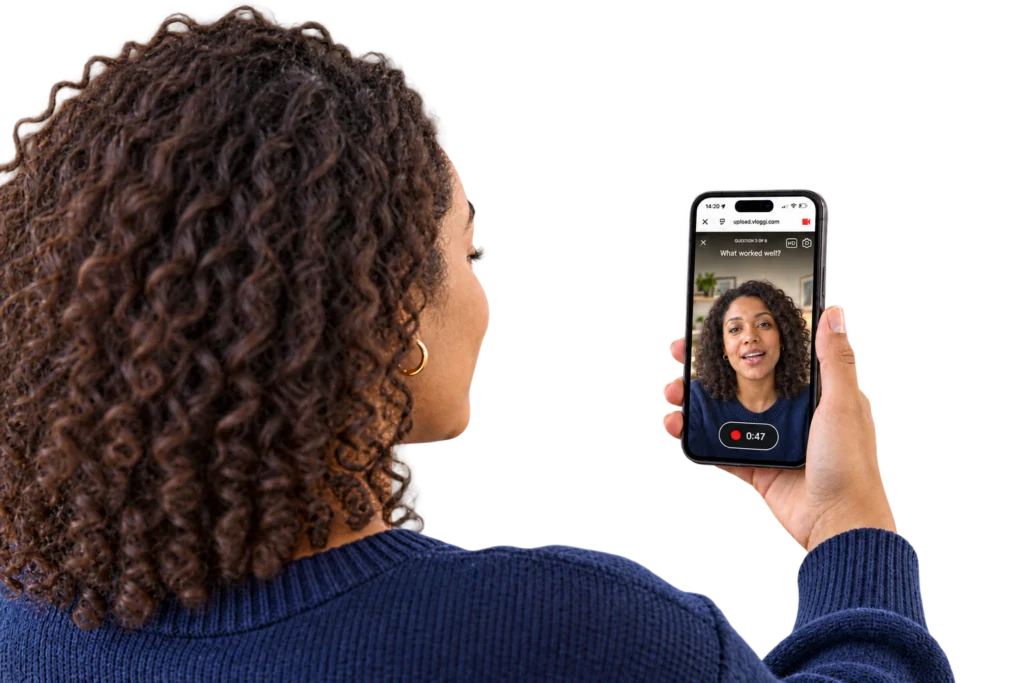
Every answer starts with the device camera.
Conversations requires a new recording from the contributor’s device camera for each prompt. Prerecorded file uploads are not available in this workflow. Combined with Vloggi’s technical and non-technical checks, verified submissions can achieve a 100% confidence rating.
Built for useful conversations
Easy to answer. Easier to understand.
Ask focused questions.
Program two to eight prompts and give each one a clear purpose. Consistent questions make the responses easier to compare.


Record, review and retake.
Invite live responses directly from the device camera. Contributors can review and retake their recording before submitting; 1080p recording is supported on compatible cameras and browsers.

Let contributors skip optional questions.
Mark essential responses as required and let contributors skip optional questions. They answer on their own schedule, without a live meeting or a Vloggi account.
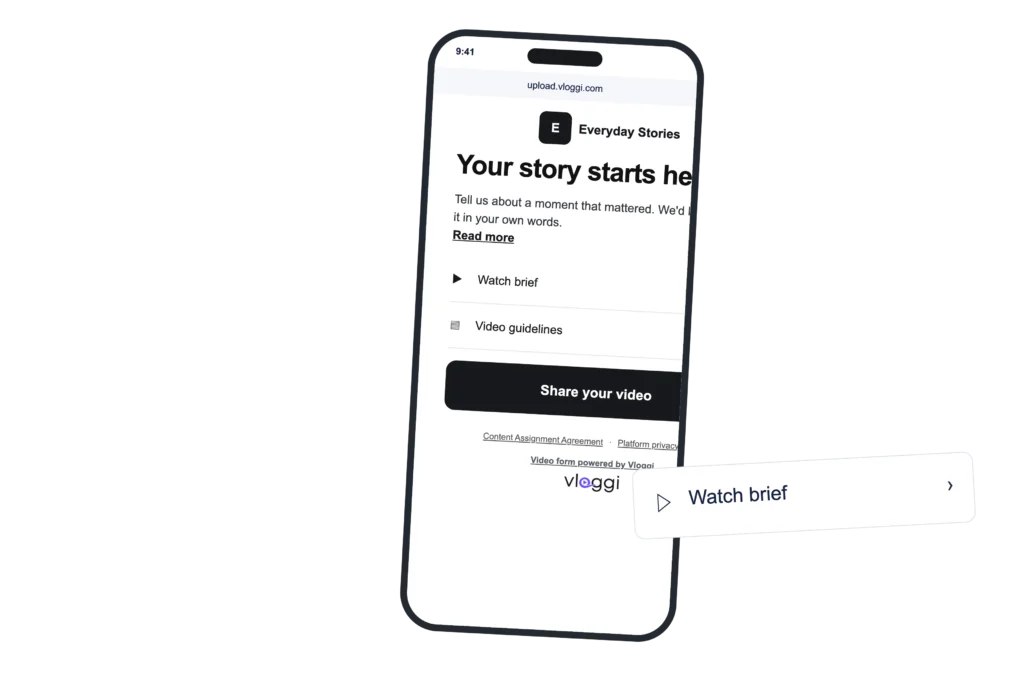

Welcome people in your own voice.
Use your branding and a welcome video to explain the purpose, audience and what makes a useful response.
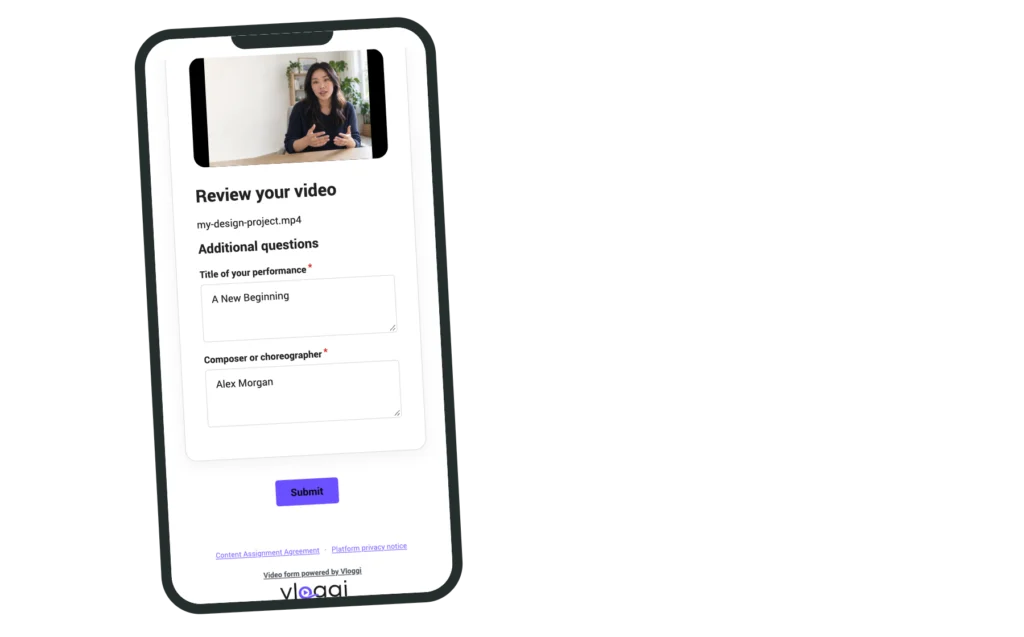

Keep the useful details with the answers.
Collect short written facts such as a role, product name or location alongside the video answers. Use form fields and lookups for consistent labels.
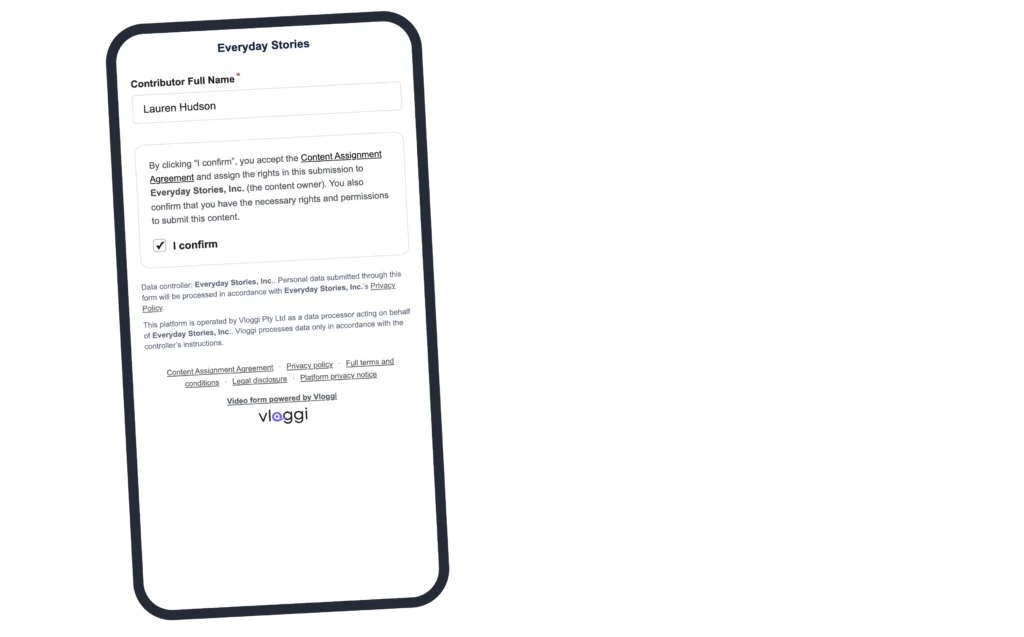
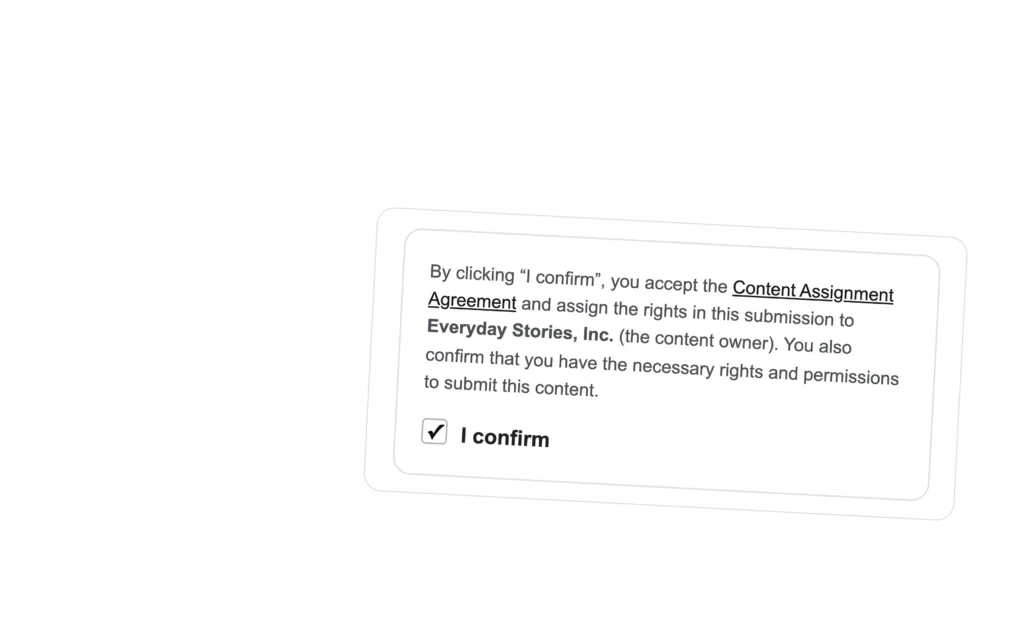
Make permission clear from the start.
Name the legal entity receiving the rights, link your privacy policy and add any declarations the project needs before people submit.
How it works
From your questions to useful answers.
1. Set your questions
Choose two to eight prompts, mark essential answers as required and add contributor fields to keep useful details alongside every recorded response.
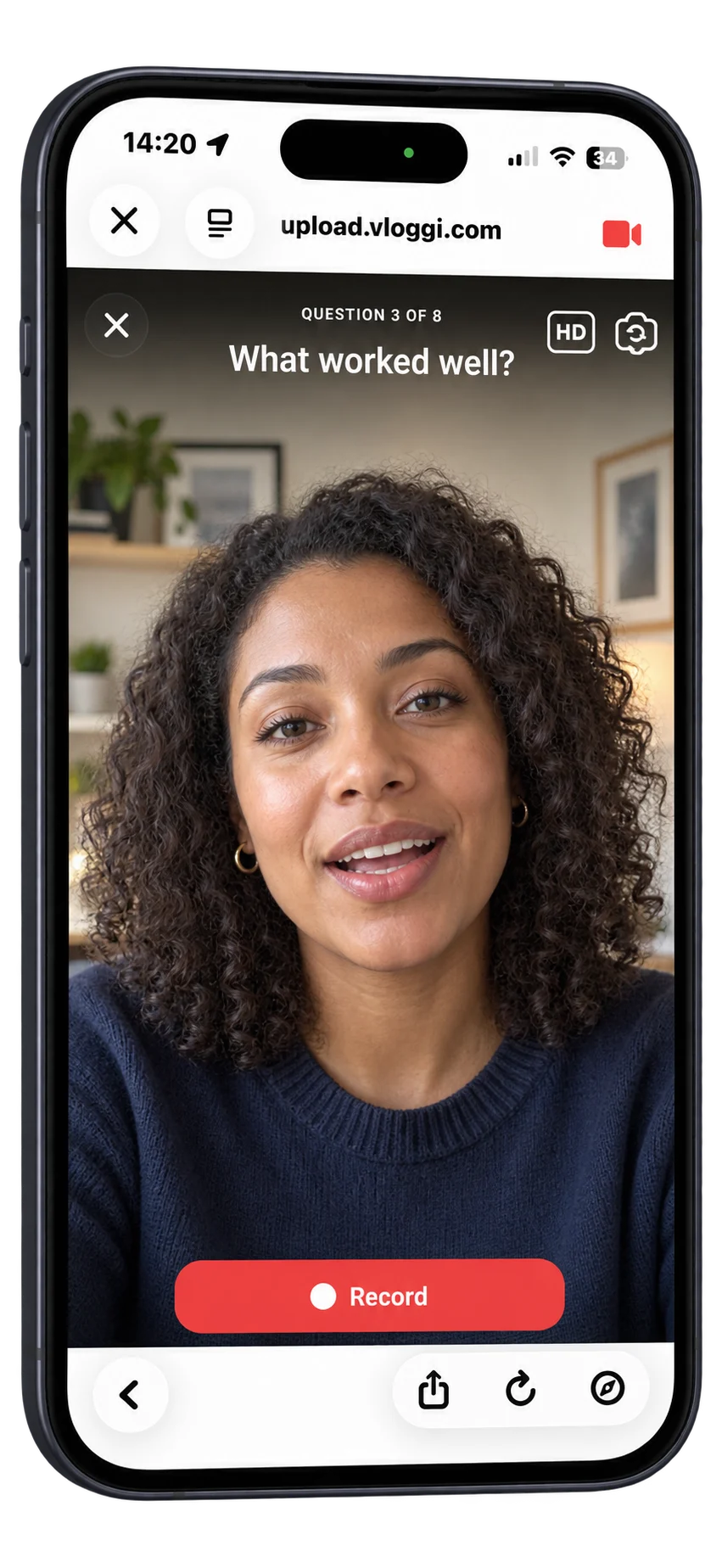
2. Record each answer
Contributors record each answer with their device camera, skip optional questions, and review or retake responses before submitting the completed set of videos.

3. Review the responses
Review answers by contributor and question in your project library. Add tags, mark favorites and build shortlists to find the responses you need.
Review and reuse
A video library built for portrait responses.
People naturally hold their phones upright. Set your project to 9:16 portrait and review their responses in a compact grid of vertical videos. See more contributors at a glance, with each question kept alongside its answer.
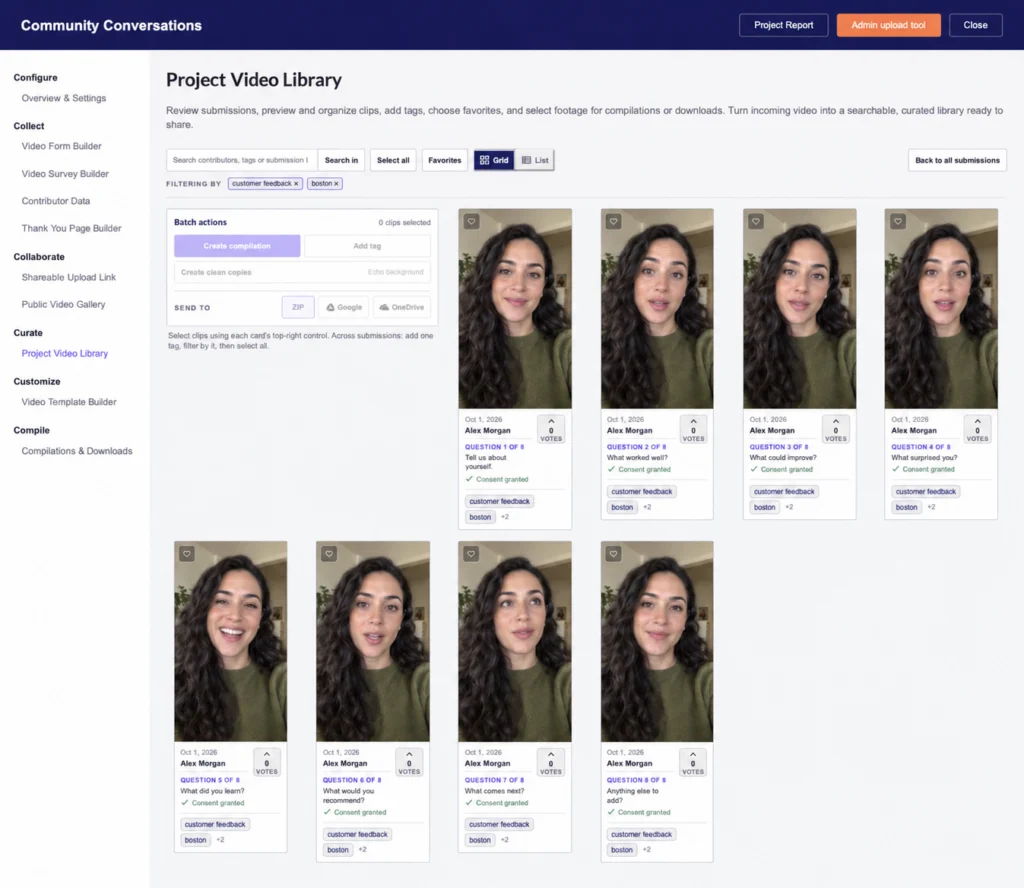
Review each respondent’s answers together rather than piecing together email attachments. Use tags and favorites to find relevant clips. Select permissioned responses for a video Q&A, an internal update or a compilation.
Open a submission. Keep every answer and tag together.
Each multi-clip card keeps a contributor’s responses together under their full name. Open it to review individual questions, see the tags attached to each video and find the answers you need.
Q&A template
Turn your questions into their answers in one branded video compilation
One contributor
Eight responses
One camera response per question
One finished Q&A
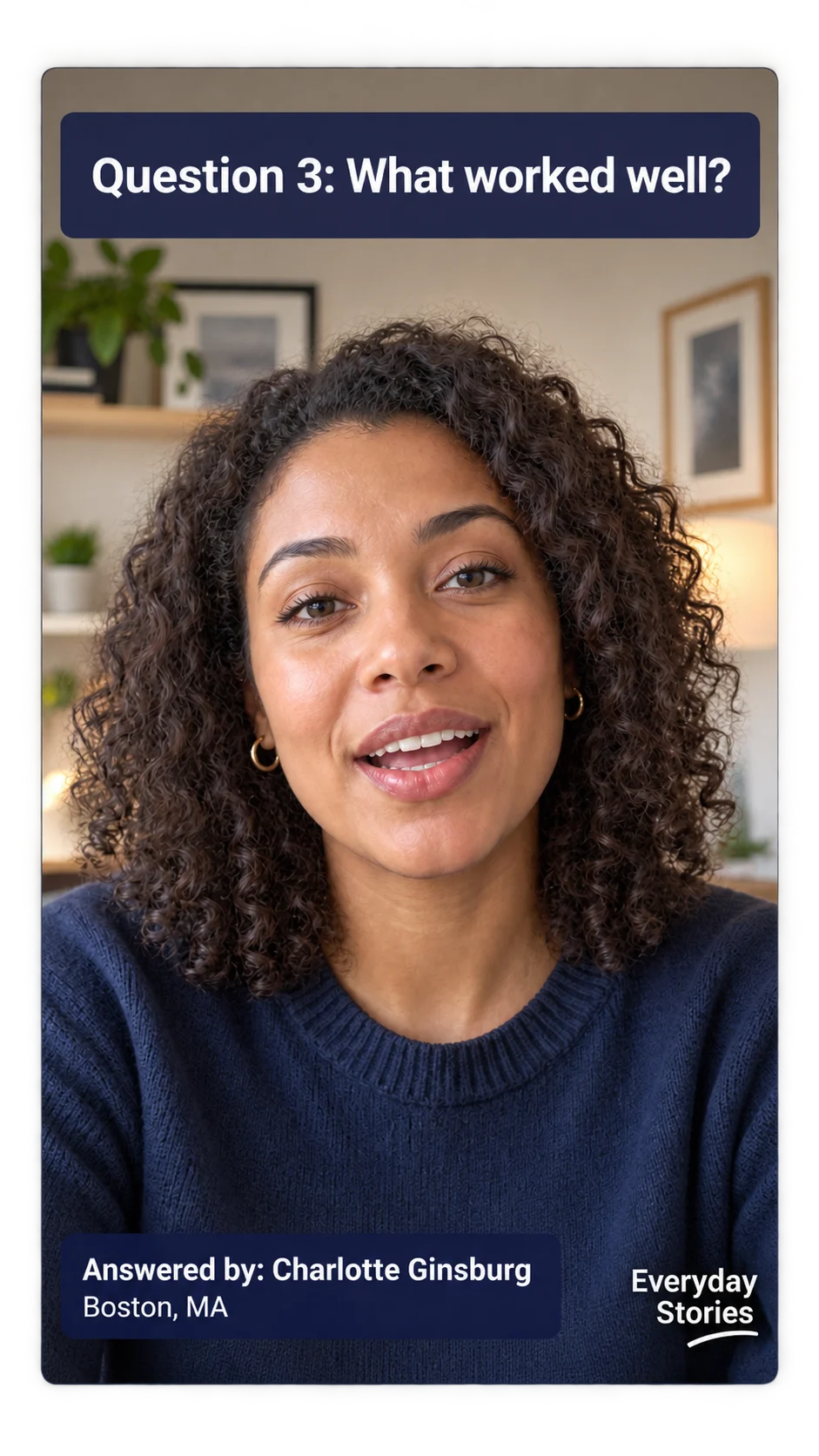
Go beyond a library of separate clips. Combine a contributor’s responses into a single Q&A video, with each question displayed on screen as they answer.
The question, the person and the context—on screen.
The Q&A template overlays the question prompt and contributor’s name on each response. Add collected details such as their location in your video template, together with your branding, so viewers know who is speaking and what they are answering.
In this example, Charlotte Ginsburg’s eight phone-recorded answers become one portrait compilation. Each new answer introduces its own question, while her full name and Boston location remain clear.
Use cases
Hear from the people closest to the experience.
People development
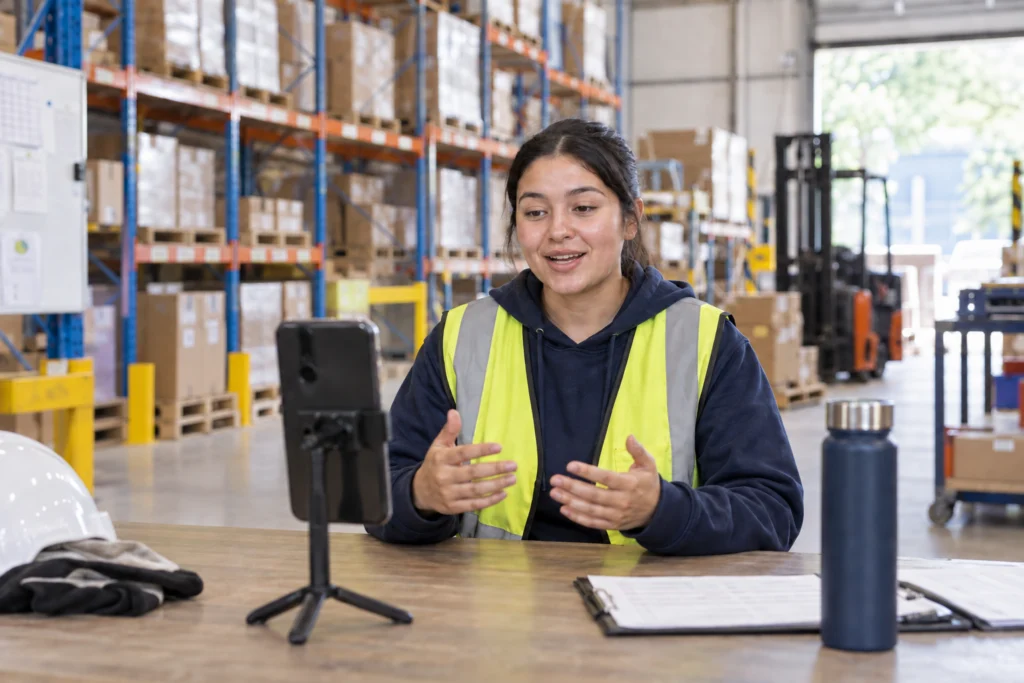
Hear employee ideas and feedback across shifts, locations and time zones. Give everyone the same clear prompts.
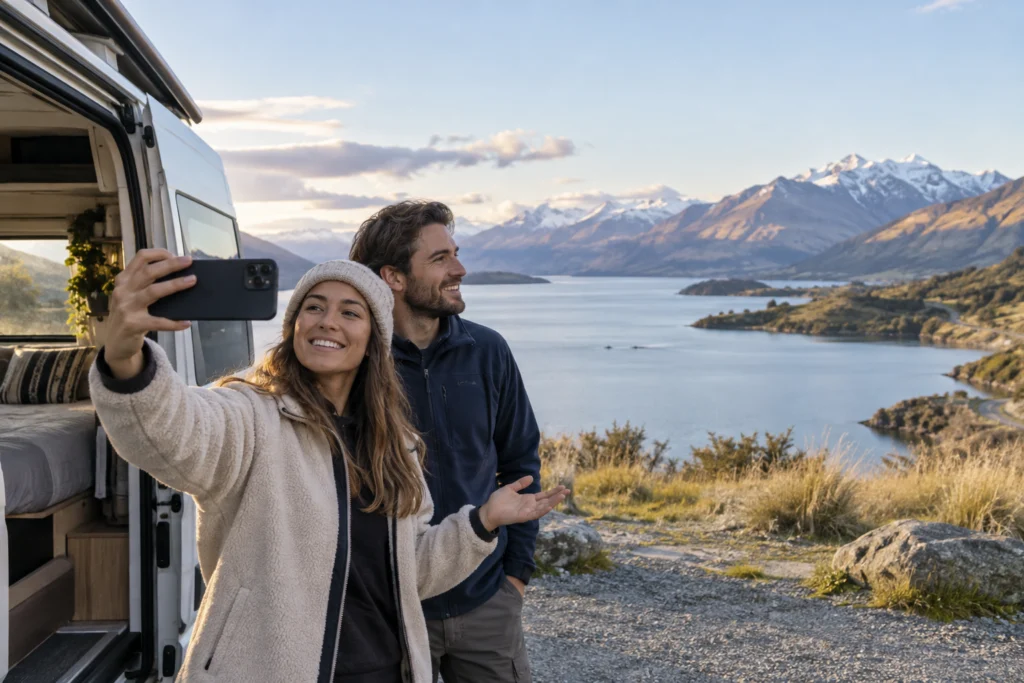
Tourism
Ask visitors what stood out, what could improve and which experiences they would recommend.

Events
Collect delegate questions before a session and detailed feedback afterward, without another meeting.
Customer proof
More ways to listen over time.
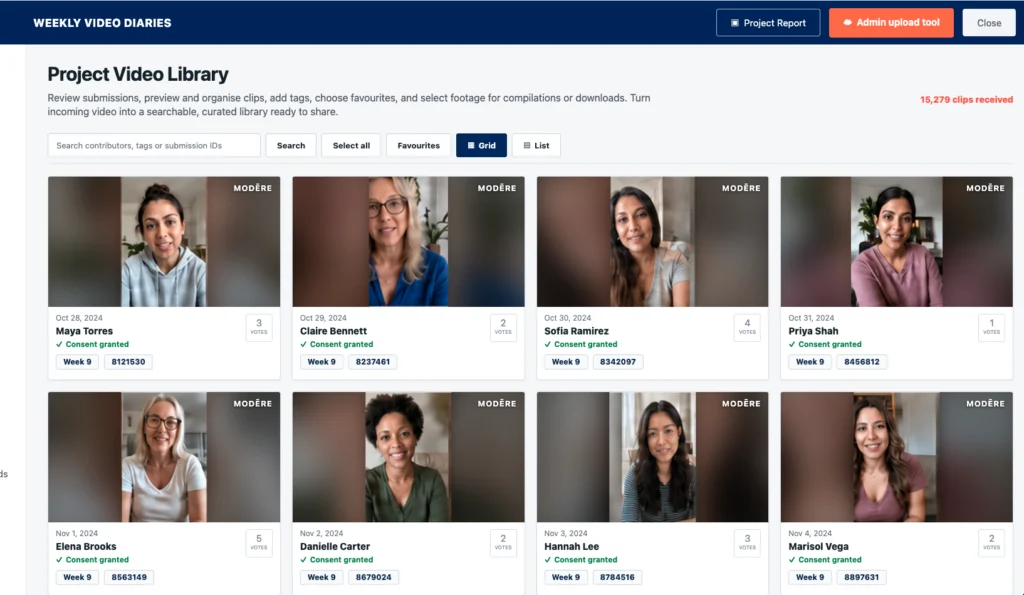
Mōdere: recurring customer video diaries.
Women and men taking part in Mōdere’s program answered one video question every week for eight weeks. Mōdere used a custom workflow for recurring video diaries, participant tracking and English and Spanish responses—a practical example of gathering regular feedback and following participants’ experiences over time.
Common questions
Video surveys, explained.
Are video surveys, questionnaires and Conversations different tools?
Conversations brings them together: a guided sequence of video questions, answered asynchronously. Use it for structured feedback, interviews and video Q&As. For a simple upload request or single response, explore Call-outs →.
How many questions can I ask?
A Conversation supports two to eight prompts, each with a separate video response. Choose required responses in your project settings. Read the questionnaire guide →
Do participants need an app or a live meeting?
No. People open your link in their browser on a phone or computer, without creating a Vloggi account. They record when it suits them and your team reviews afterward.
Can participants retake an answer?
Yes. Contributors can review and retake their camera recording before they submit, so they can send the response they want you to receive.
Can contributors upload prerecorded videos?
No. Conversations requires a new device-camera recording for each prompt. To accept prerecorded files, choose the Contribution or Collection workflow in your project settings instead. Contributors can still review and retake their camera responses before submitting.
Can I collect written details and reuse selected answers?
Yes. Use Context for short written facts and reference lookups alongside the video answers. Explain the intended audience and use, provide your privacy policy and collect appropriate permission before reusing responses. Explore Consent →
Get started
Start a conversation worth listening to.
Choose your questions, welcome your participants and collect their answers through one branded link.
Read the illustrated Conversations setup and workflow guide.