
Ask a sequence of questions. Collect a separate camera response to each.
Choose a task below. Each section includes an illustration and links to the detailed instructions where available.
Set two to eight video questions · Make a question required or skippable · Record, review and retake on a phone or computer · Keep responses grouped and reuse them as Q&A
Set two to eight video questions
Choose Conversation in Submission Workflow. Set the number of prompts from two to eight, then write one clear question per prompt. Contributors record a separate response to each question; prerecorded file uploads are not an option in this workflow.
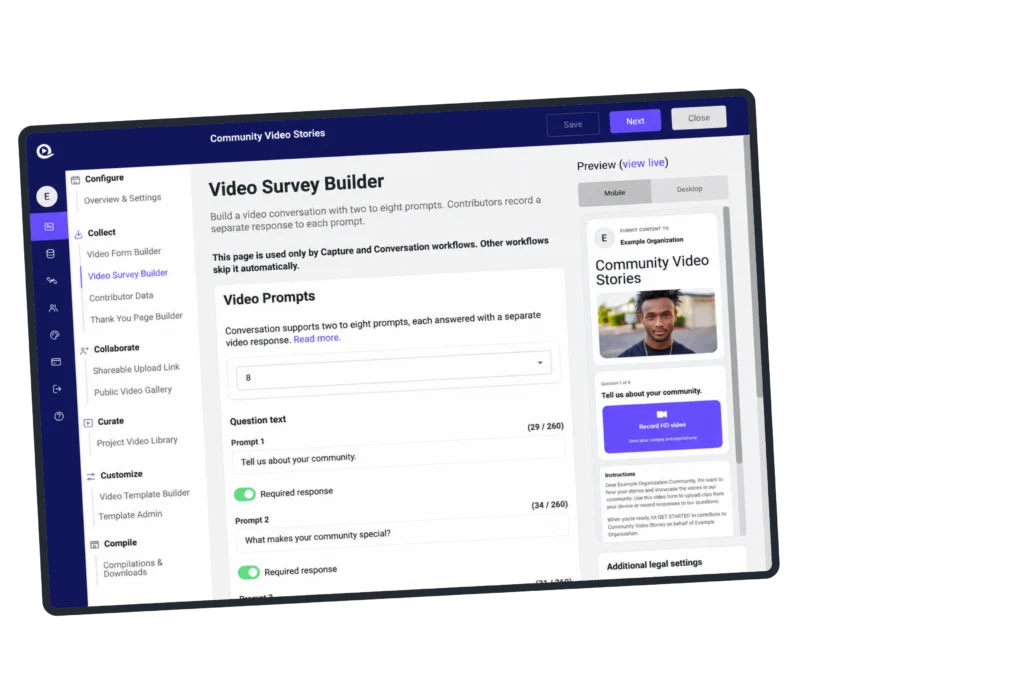
Detailed instructions: Building a Video Questionnaire in Vloggi: Enhancing Engagement and Insight
Make a question required or skippable
Use Required response for each prompt to decide whether it must be answered. Leave it off for optional questions. Preview the sequence, including skipping an optional response, before inviting contributors.
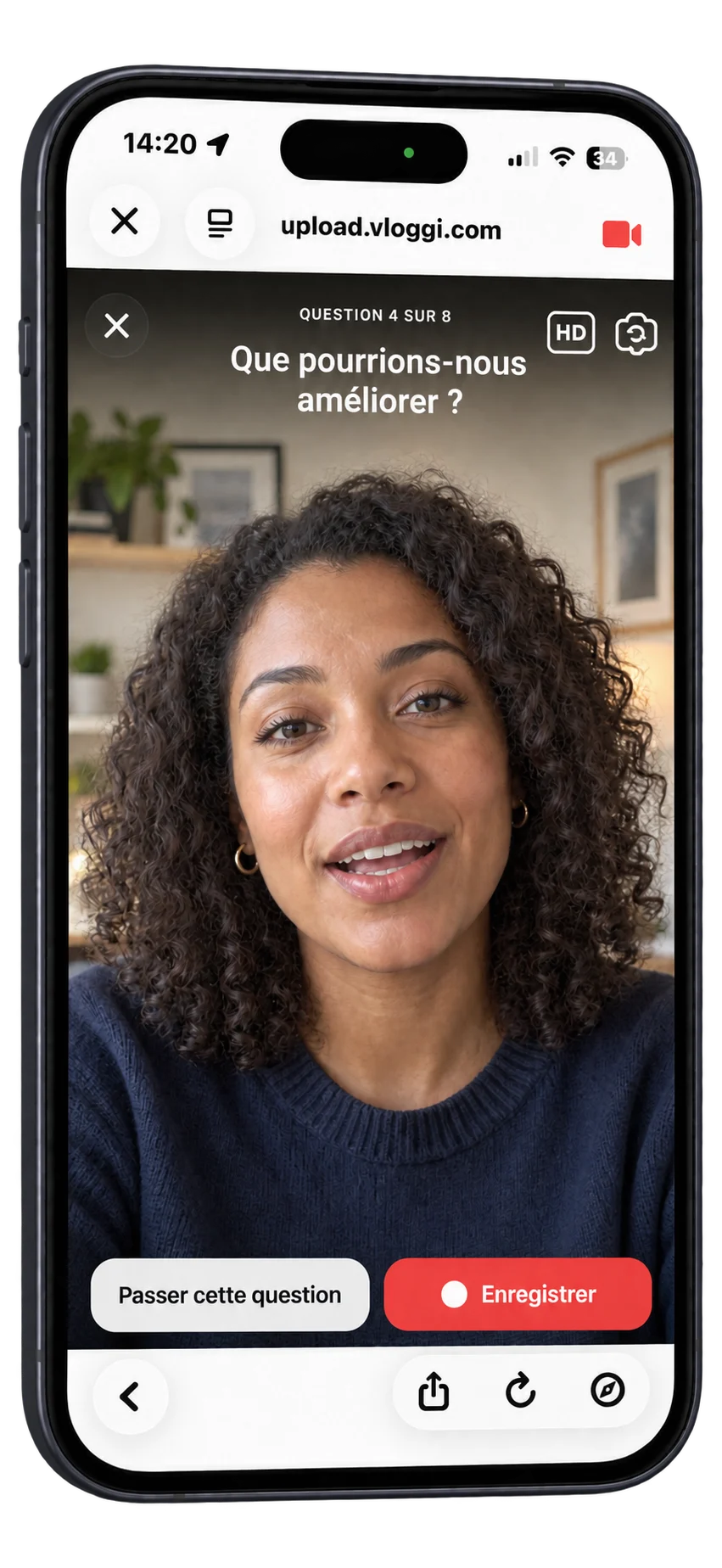
Detailed instructions: Building a Video Questionnaire in Vloggi: Enhancing Engagement and Insight · How to enable webcam responses to video questionnaires on Vloggi
Record, review and retake on a phone or computer
Contributors open the invitation in their browser and allow camera and microphone access. They record each answer, review it and retake when needed before moving on. A desktop webcam can be used as well as a phone camera.
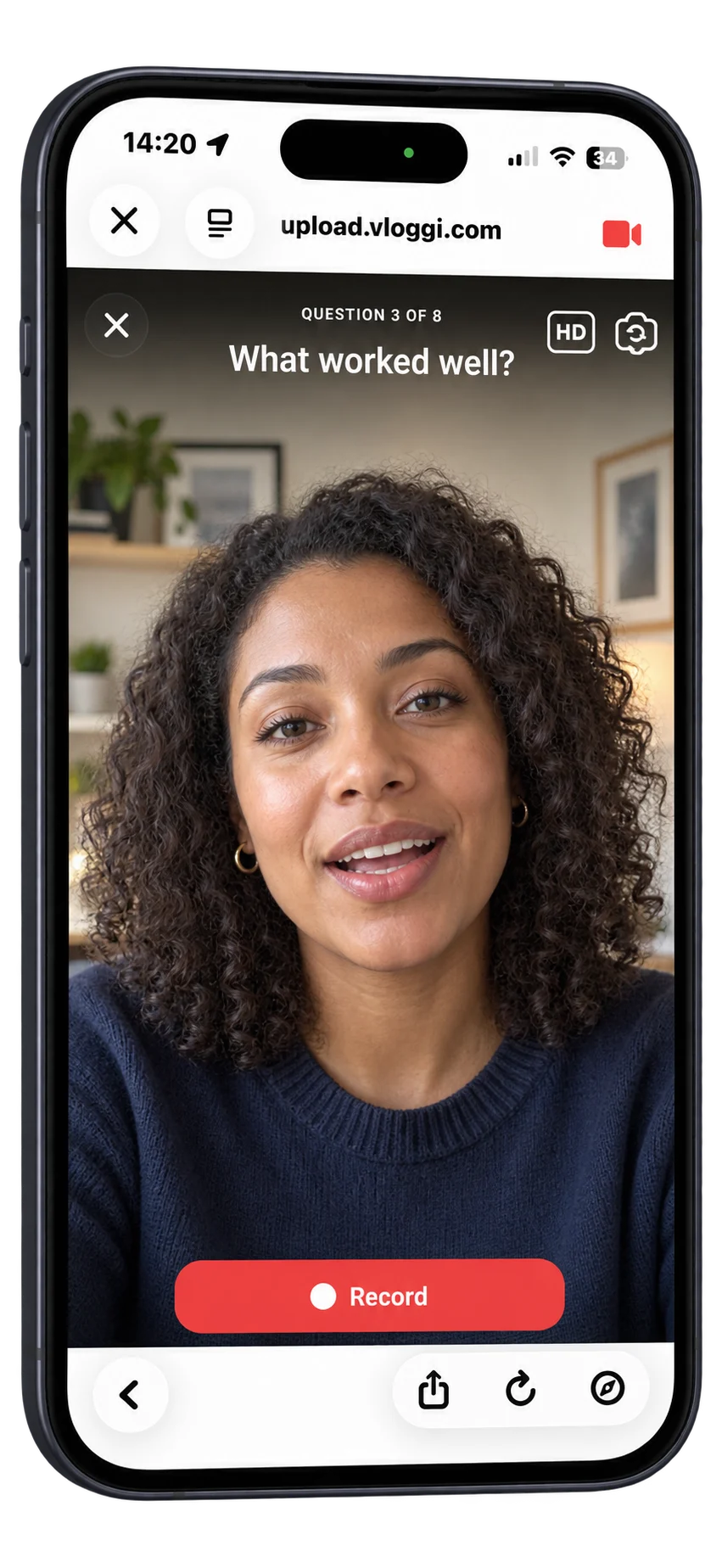
Detailed instructions: How to enable webcam responses to video questionnaires on Vloggi
Keep responses grouped and reuse them as Q&A
Find the contributor’s grouped responses in Project Video Library. Review the individual clips and retain their question context. Use the Q&A compilation format to display the question over the response, with contributor details supplied through your visual template. Choose portrait, square or landscape for the intended output.

Detailed instructions: Ways to manage your user-generated video library in Vloggi · How to build a video compilation in Vloggi