
Set the rules once. Turn incoming clips into consistent, branded videos—without rebuilding every edit. Vloggi Compile brings smart workflows, contributor data and reusable video templates together for automated rules-based video compilations.
Start with the result you need: a completed-job report, a customer interview, an employee update or a sequence of training clips. Define which footage belongs together, what must be included and how it should appear. Your smart workflow does the repeatable work, leaving your team to review and share the result.
Build your reusable smart video template · Define the rules for your smart workflow · Turn completed submissions into ready-to-create compilations · Automate a Before / During / After job report · Match the compilation format to your workflow · Give your compilation a Six Shots opening · Keep questions and answers together automatically · Deliver your compilation in the right format
Build your reusable smart video template
Open Customize → Video Template Builder and set your branding, contributor credit and dynamic placeholders. The template controls the look; the workflow controls which clips belong together and their order. Names, locations and other supported fields populate the graphics from the supplied data. Test one representative submission, then reuse the same design across future compilations.
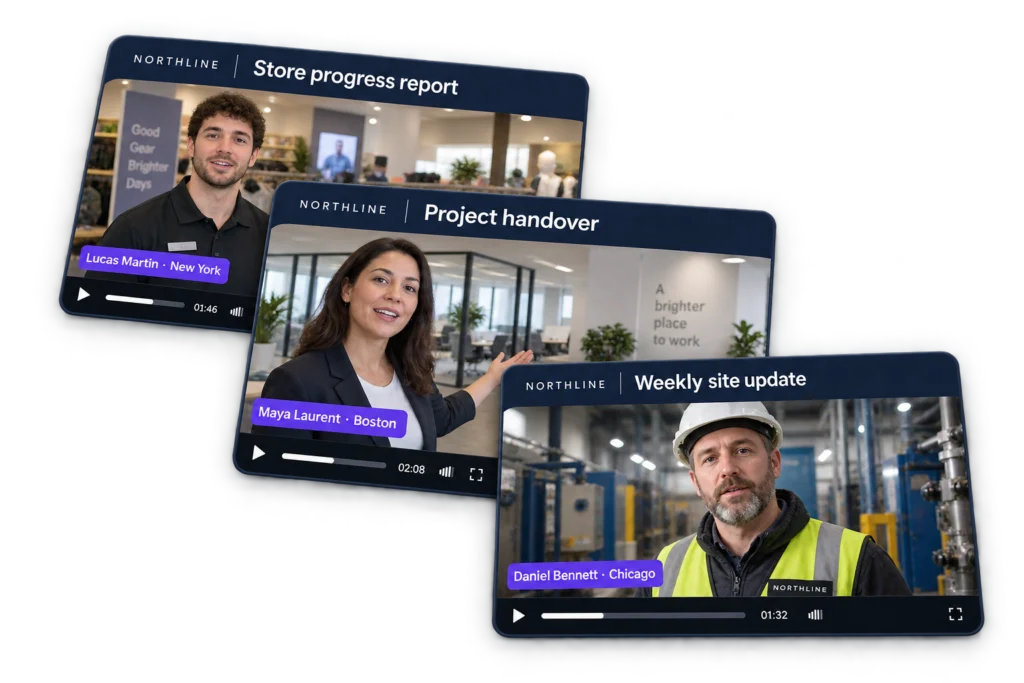
Detailed instructions: How to use the Vloggi Video Template Builder · How to Use the Vloggi Video Template Builder (Dynamic, Static, and Visual Elements) · Creating a master template in Vloggi to automate video creation from UGC
Define the rules for your smart workflow
Think of your smart workflow as a reusable brief: include these clips, group them by this reference and play them in this order. Map required and optional content to contributor answers and tags. A hotel-review workflow might require Lobby AND Room, with Pool optional. An onboarding sequence might bring together a manager welcome, store information and role-specific instructions. Work with Vloggi to configure custom rules and triggers for your business, then let the workflow check when the required content is present.
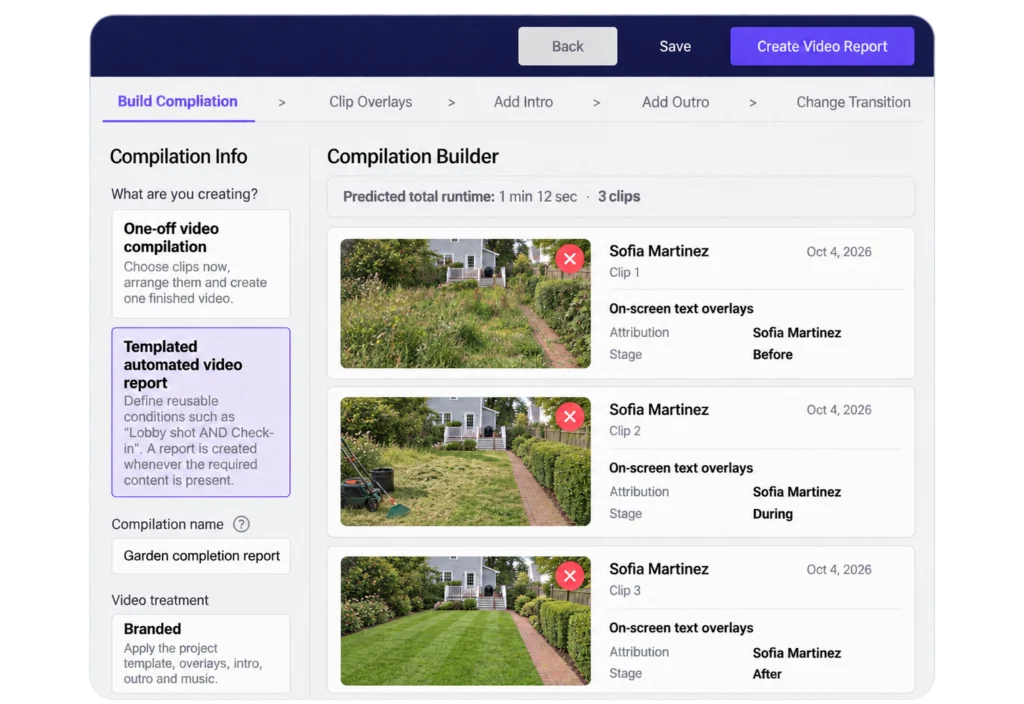
Detailed instructions: How to use Video Report Workflows in Vloggi
Turn completed submissions into ready-to-create compilations
When the required clips are present, the workflow can show Conditions met. Select Compile Video Report to open the builder with the matching footage, prescribed sequence and saved branding ready to apply. For workflows configured for automatic creation, meeting the conditions can trigger the report without that manual step. Automatic creation and custom triggers depend on your configured workflow; creating a video does not automatically publish it to an external audience. Review the finished output before sharing.
Detailed instructions: How to use Video Report Workflows in Vloggi · How to build a video compilation in Vloggi
Automate a Before / During / After job report
A cleaner, gardener or tradesperson can record the job, tag the stage and let the workflow build the sequence. Before and After are required; During is optional. Clips from the same submission play full-frame in the fixed order: Before, any During clips in upload order, then After. Your smart template can add stage labels, timestamps and supplied location. Keep the original submissions alongside the finished compilation so your team can return to the source records.
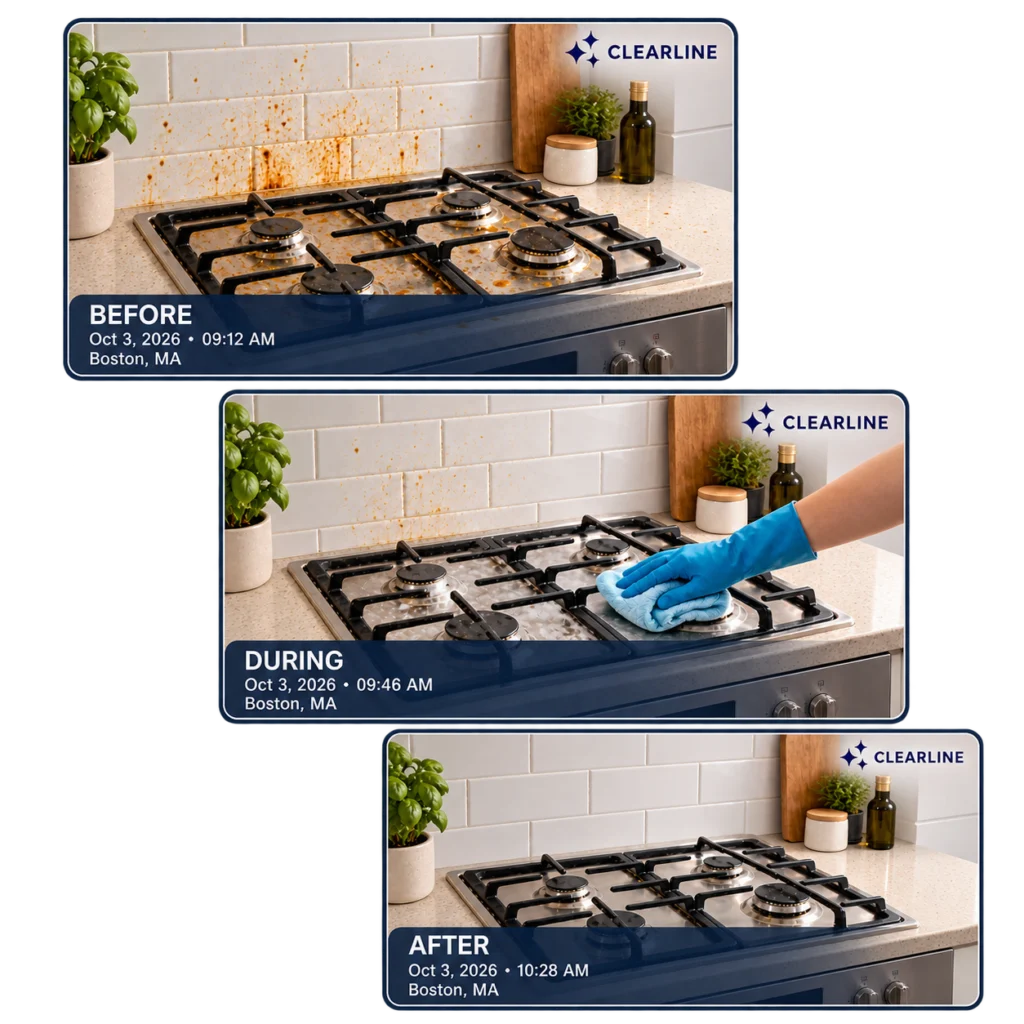
Detailed instructions: How to use Video Report Workflows in Vloggi
Match the compilation format to your workflow
Smart workflows decide how the content is grouped and arranged; visual templates make it consistent and recognizable. Use a numbered Listicle for recommendations or tips, a complete Q&A for structured responses, or a Six Shots opening for a shared event. These are different presentation options, not interchangeable automation rules. Choose the combination that serves your audience.
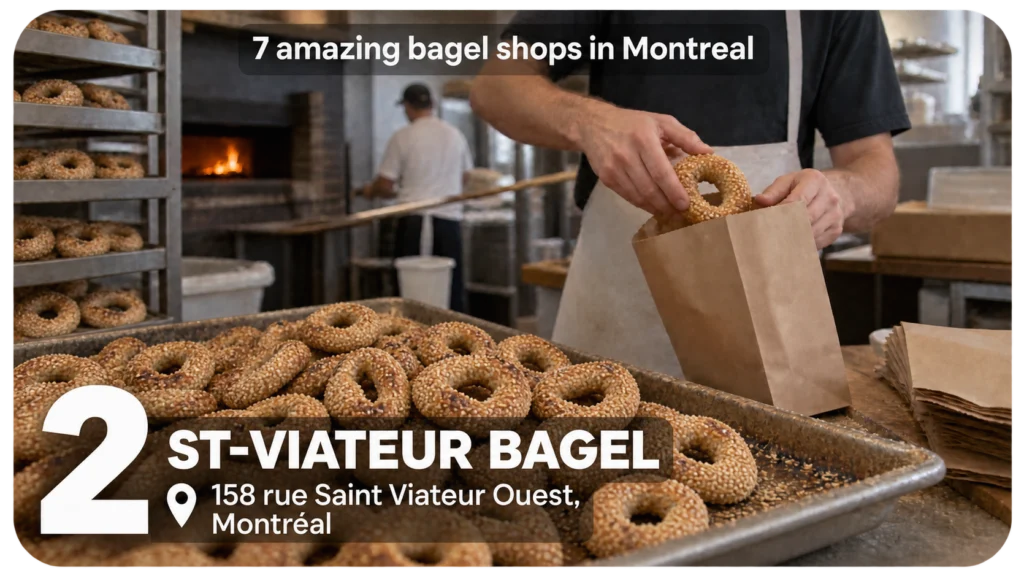
Detailed instructions: How to build a video compilation in Vloggi
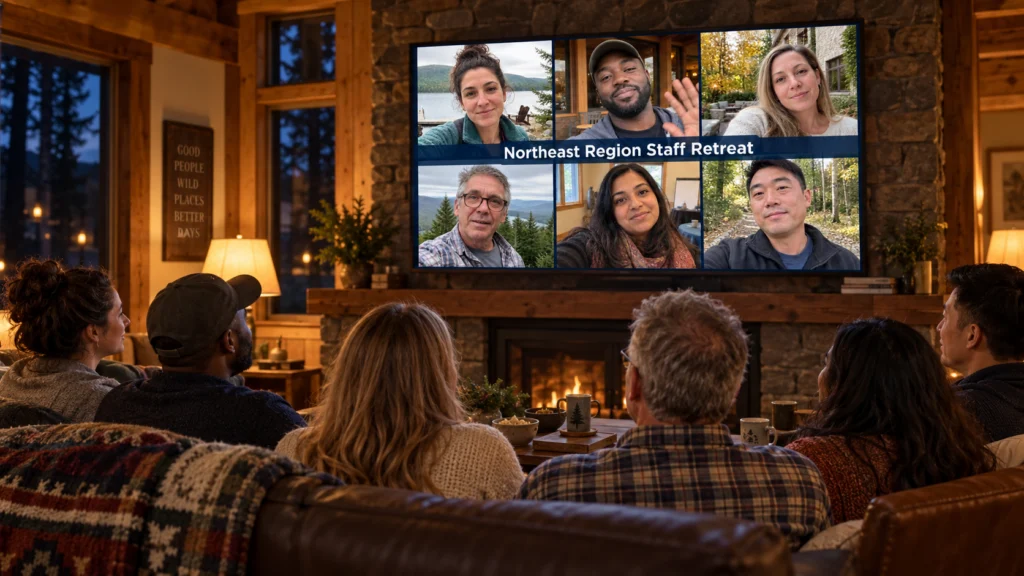
Give your compilation a Six Shots opening
Bring six video thumbnails or posters together in one opening frame, with your title in the centre. It is a simple way to introduce the people and moments behind a staff retreat or community campaign. Six Shots is an opening visual—not six videos playing simultaneously. Preview the framing before generating your compilation.
Detailed instructions: How to build a video compilation in Vloggi
Keep questions and answers together automatically
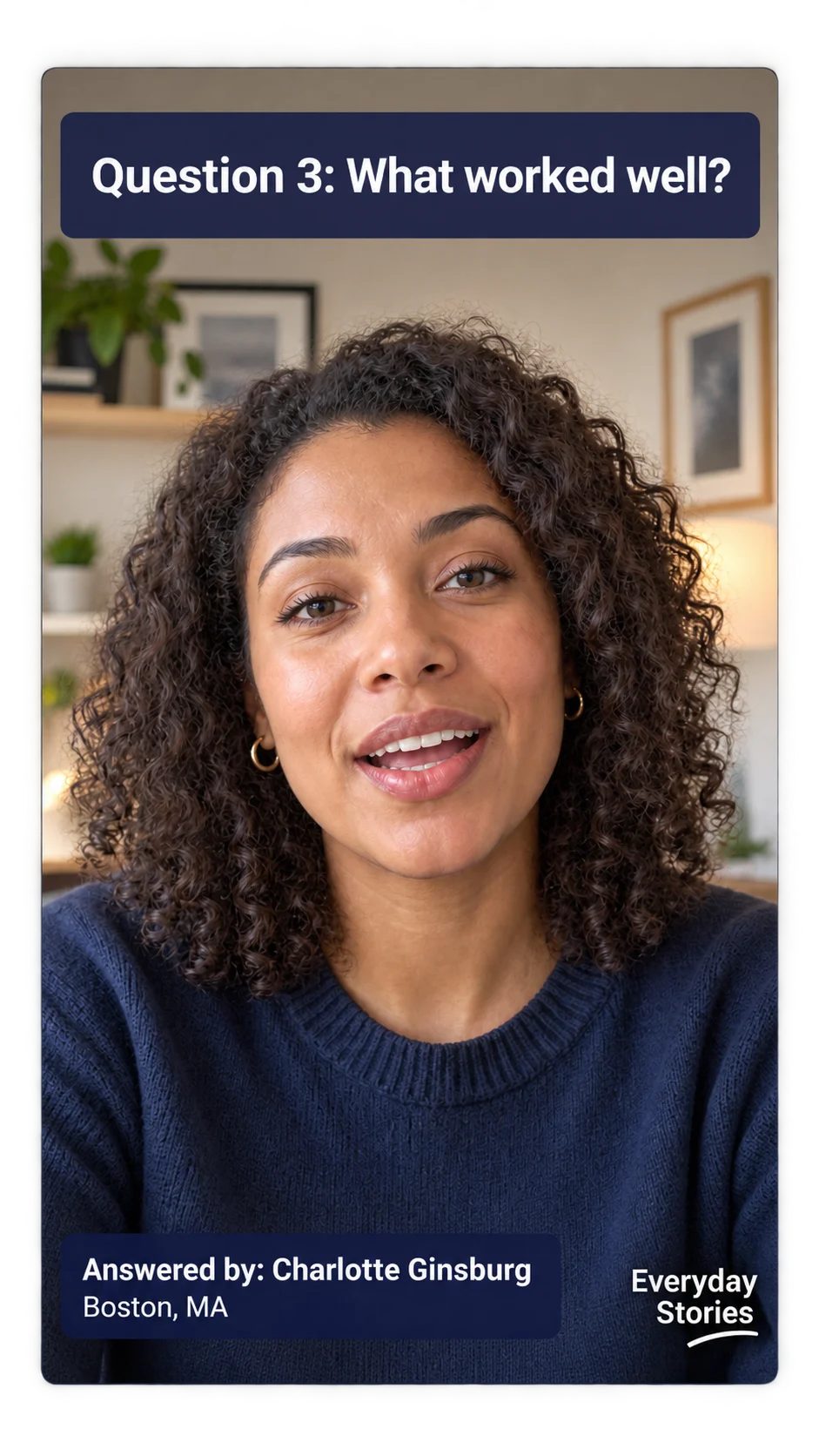
Collect structured responses with Vloggi Conversations and use a Q&A workflow to bring them together in question order. Keep each prompt linked to its answer, then use your smart template to display the question, contributor name and other relevant details. The result is a coherent interview or feedback video that viewers can follow without seeing the original questionnaire.
Detailed instructions: How to build a video compilation in Vloggi · Building a Video Questionnaire in Vloggi: Enhancing Engagement and Insight
Deliver your compilation in the right format
Choose the project canvas for where the finished video will be watched: portrait 9:16, square 1:1 or landscape 16:9. Check the footage and overlays in that layout, then generate the compilation. Find generated outputs in Compile → Compilations & Downloads. Each compilation uses the selected format; one job does not automatically create all three versions.
Detailed instructions: How to use the Vloggi Video Template Builder · How to download video submissions from my Vloggi library?
Put your smart workflow to work
Explore automated rules-based video compilations · Back to Help Center