
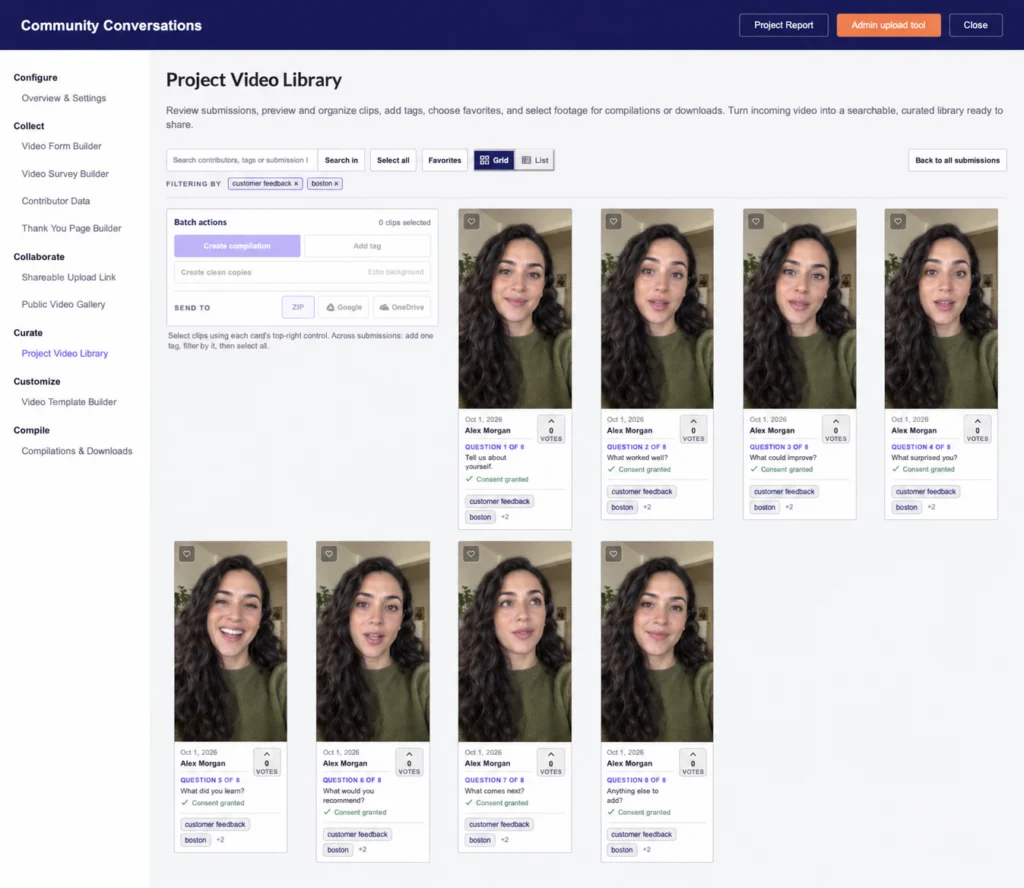
Manage unwanted footage from the Project Video Library. If you only want to stop a clip appearing publicly, hide it from the gallery instead of deleting it.
Delete an individual clip
- Open your project and select Curate → Project Video Library.
- Open the clip and confirm that it is the item you intend to remove.
- Open the three-dot menu in the clip viewer.
- Select Delete clip and review any confirmation shown.
Treat deletion as permanent: retain any required original files and project records beforehand. Only a user with the relevant project permissions should remove footage.
Hide a public entry without deleting it
The clip viewer also provides Hide from gallery. Use this when reviewing a report or withdrawing a public entry while keeping the clip in the private project library. The Public gallery setting is separate from Feature clip, which controls submission-form example content.
Compilations are separate outputs
Open Compile → Compilations & Downloads to manage finished compilation outputs. Review the selected output before using its deletion control. Do not assume removing an output also removes the source clips, or that deleting a clip recalls copies already downloaded or published elsewhere.
Retention and requests
Follow your organization’s retention process before deleting footage needed for a consent inquiry, dispute or audit. For a wider contributor-data deletion request, coordinate with your workspace administrator or Vloggi support so the scope is clear.