
Vloggi Compile: video reporting software for business
Video reports & reusable compilation workflows
Turn reports people skip into videos they watch.
Turn employee clips into branded video reports without rebuilding every edit. Vloggi’s video compilation software combines reusable templates, preset sequences and contributor details to make progress easy to watch and understand.
The problem
Another report. Another unread update.
Your team has useful information to share—but long documents, scattered clips and status emails make it hard to see what matters. Then someone has to edit the footage before anyone can watch it.
The solution
Show the progress. Keep the context.
Collect short clips from the people doing the work, then bring them together in a repeatable video report. Reuse the structure, branding and collected details instead of rebuilding each update from scratch.
Feature spotlight · Evidence of work
Show the work. Keep the evidence.
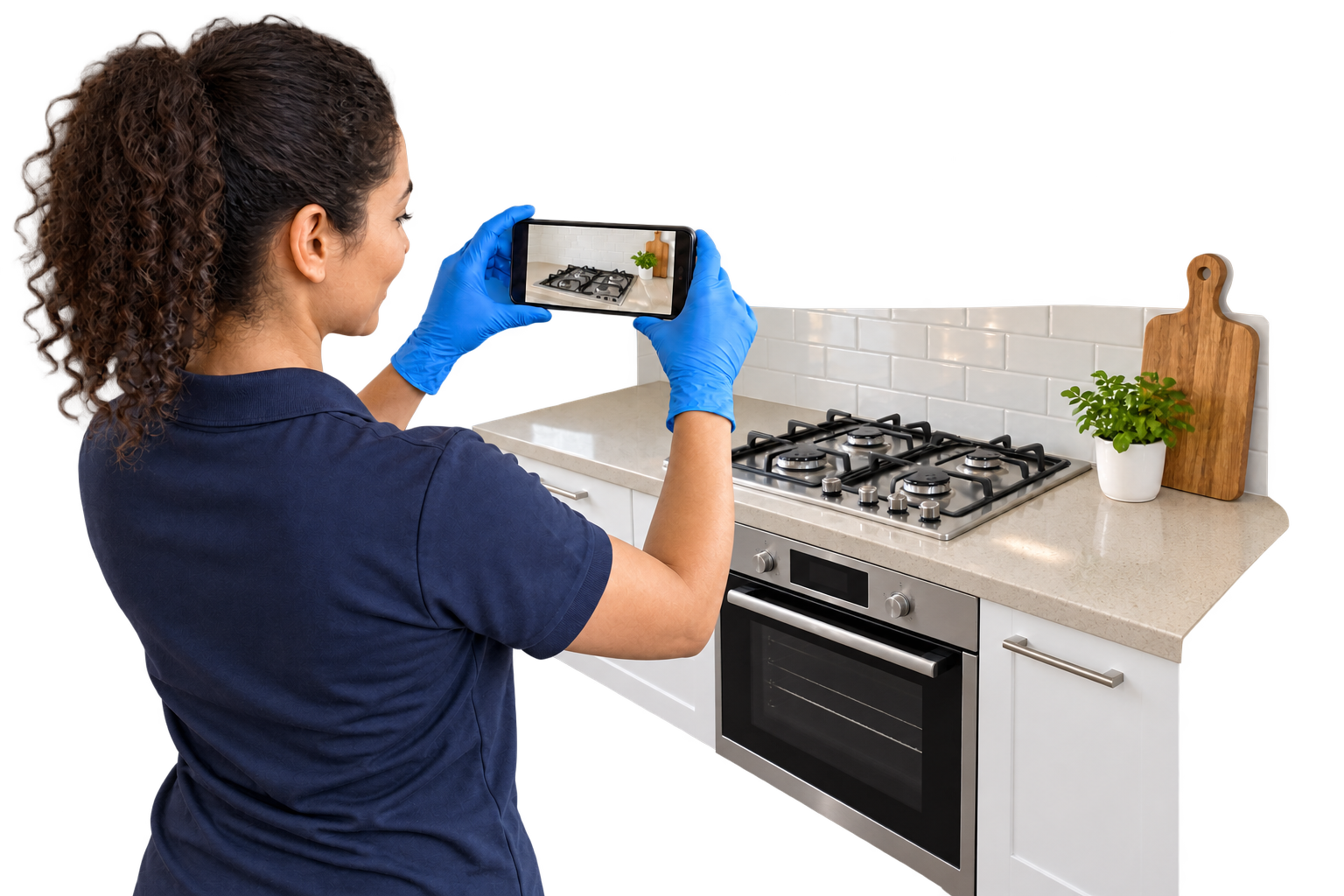
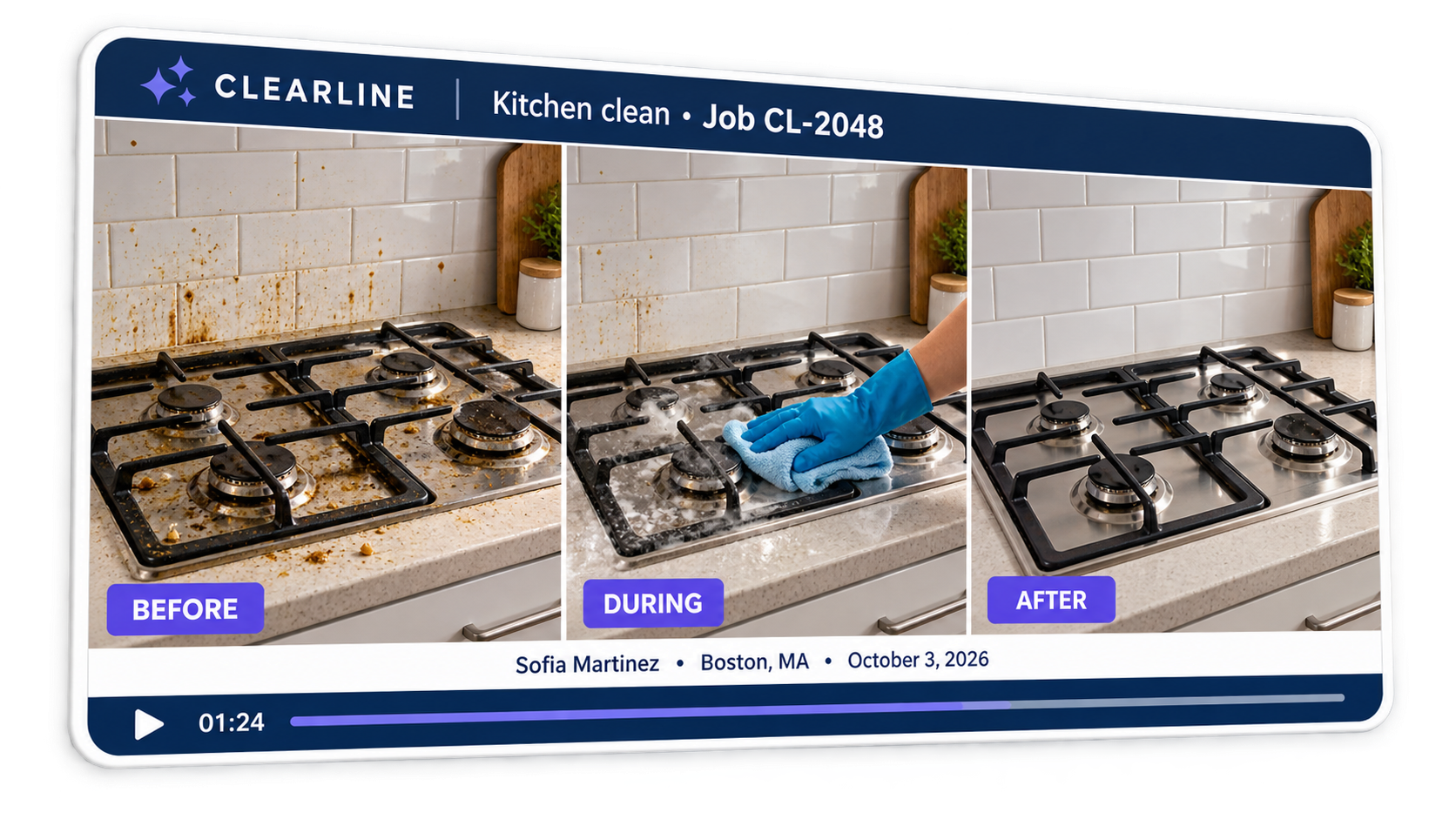
For gardeners, cleaners and tradespeople, a finished-job video is more than an update. Record the starting condition and the completed work, keep the original submissions as evidence, and send your client a clear, branded video report.
Record it. Tag the stage.
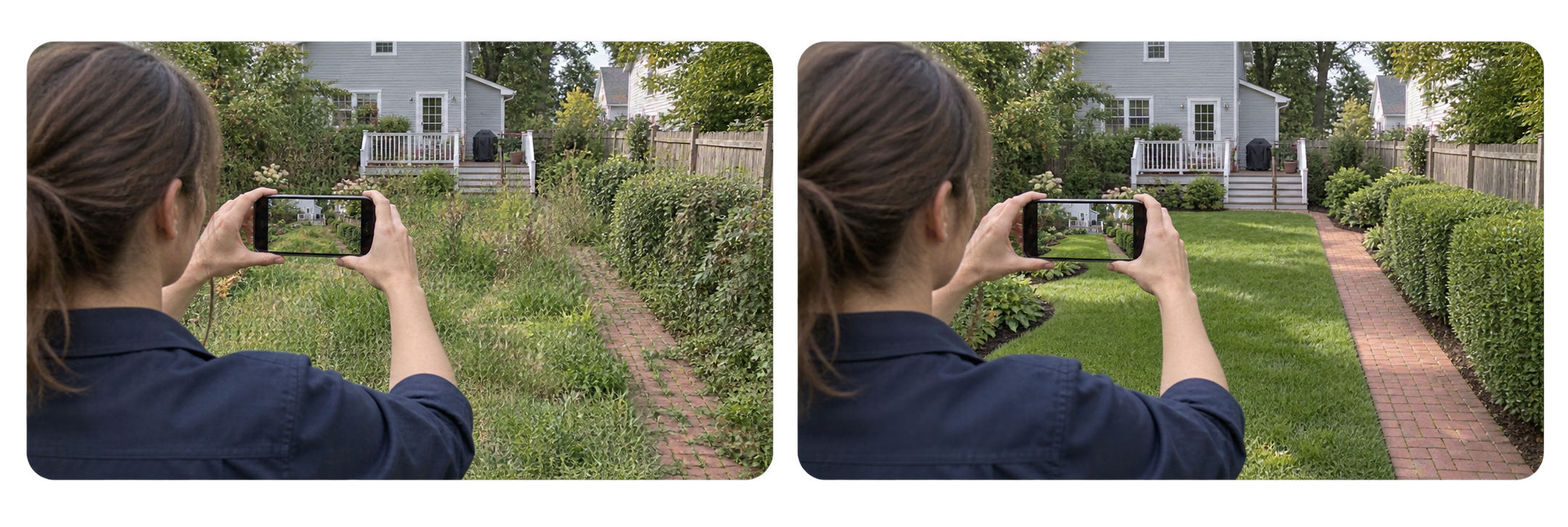
Film the job on your phone and label each clip Before, During or After. Before and After are mandatory; add During clips when the work in progress matters. Collect the job reference, worker details and location with the footage using Vloggi Context.
Keep a traceable job record.
Retain the original submissions alongside the finished report. Timestamp and location overlays help clients see when and where the recorded work took place. Vloggi Confirm connects available capture evidence, the original file and the submission’s chain of custody, so there is more to review than the edited video alone.
Conditions met. Your report is ready to compile.
Set the workflow and branded template once. When the required Before and After content is present, the submission shows Conditions met. Use the magic Compile Video Report button to open the builder with the matching clips in the prescribed order and your saved branding ready to apply.
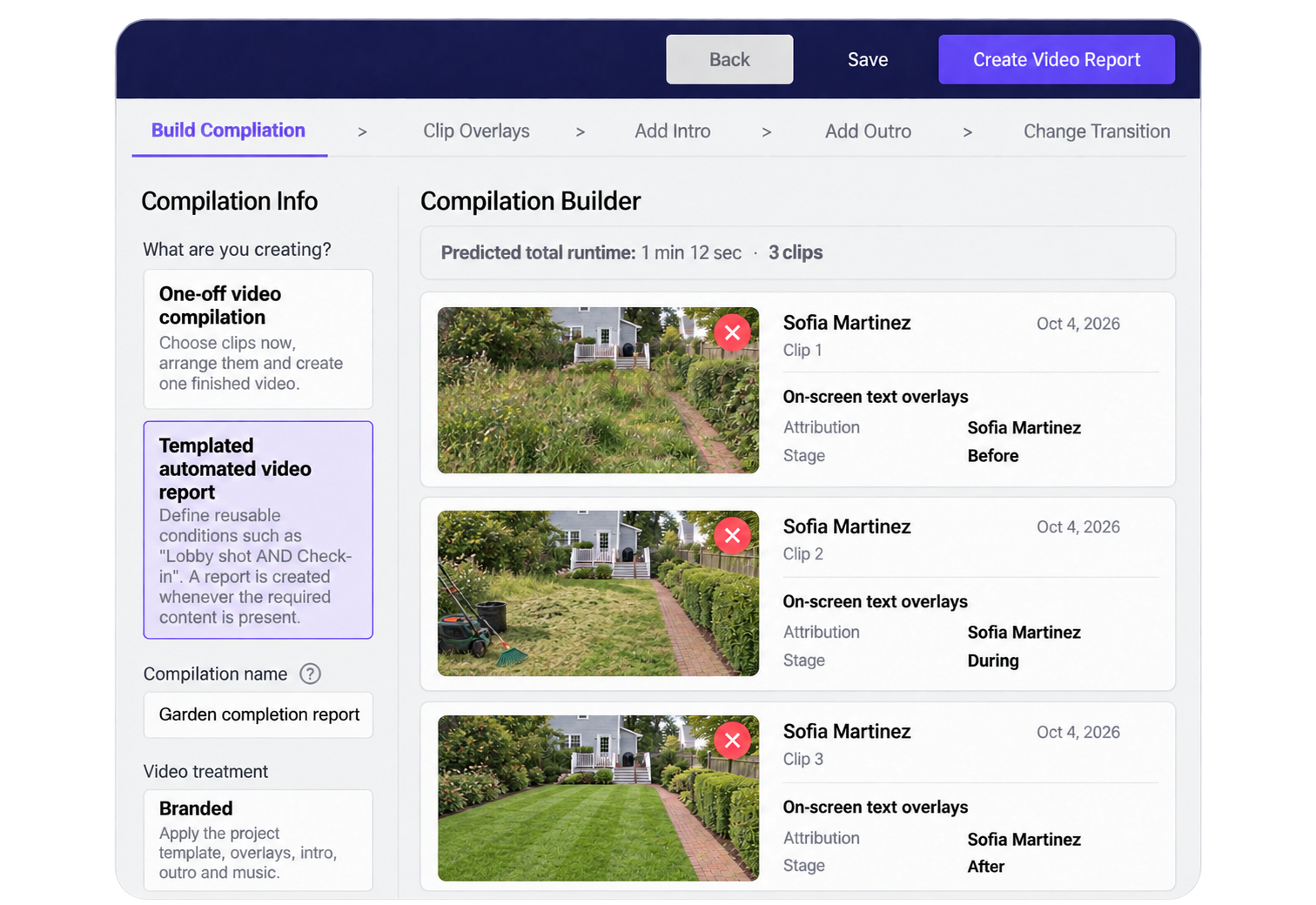
The sequence is fixed: Before → During, when supplied → After. Each clip plays full-frame. Review the report, create it and send it to your client when the job is done. With the appropriate permissions, the same footage can also demonstrate your work in marketing.
Add job details, timestamps and location to your video overlays →
Choose your report format
Video compilation templates for repeatable reports.
Before / During / After
Document the starting condition and the completed work, with optional progress clips. Before and After are required; During is optional. For cleaners, gardeners and tradespeople, the fixed sequence creates a clear evidence-of-work report for managers and customers.

Social-style listicles, numbered automatically
Create a social-style video such as “7 amazing bagel shops in Montreal,” with a large number over each clip and details such as “ST-VIATEUR BAGEL” with a location pin and “158 rue Saint Viateur Ouest, Montréal.” Reorder the clips in the compilation builder and Vloggi automatically updates their numbers to match the new sequence.
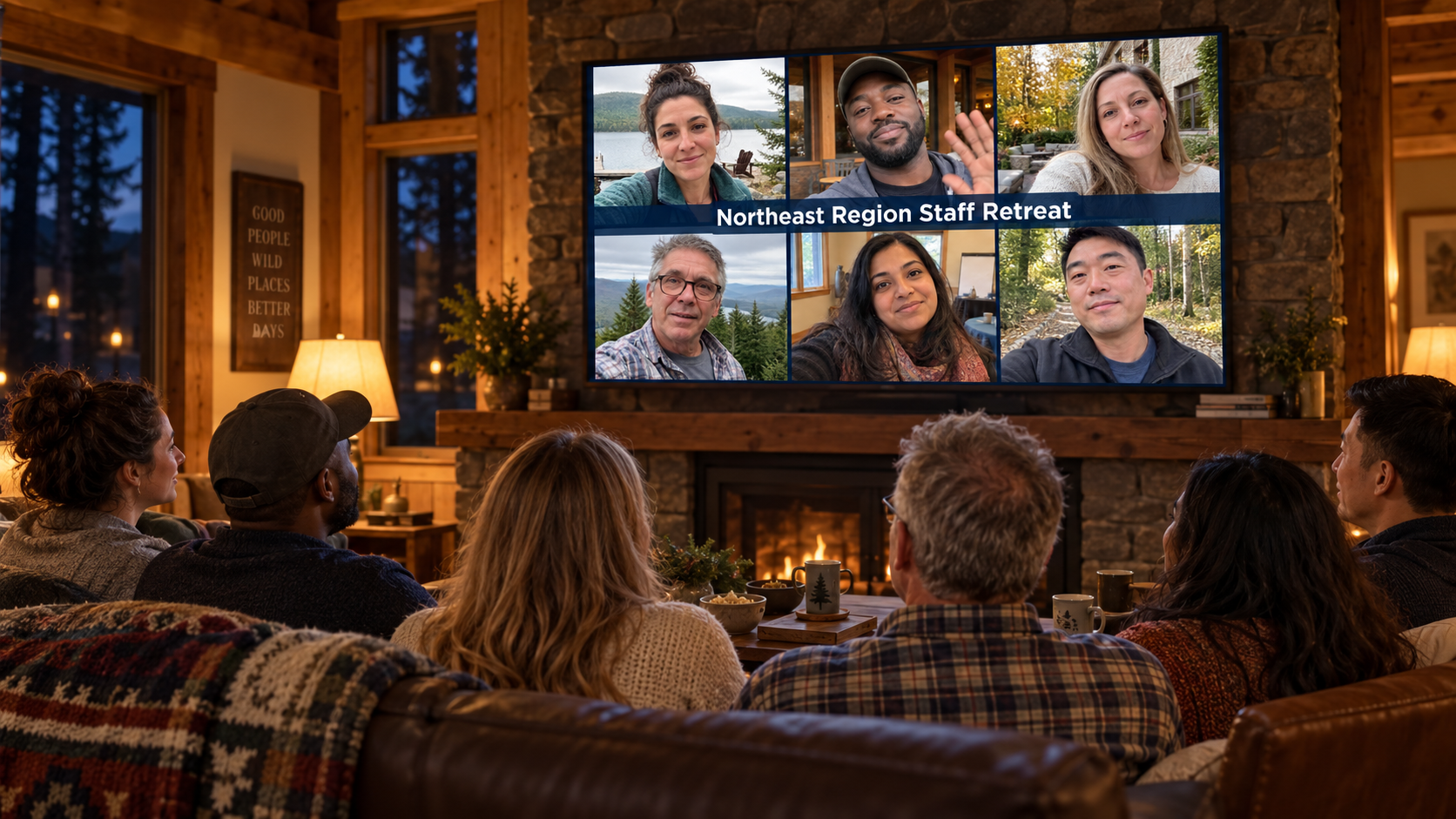
Six Shots for a visual opening
Six Shots takes the thumbnail or poster from each video and brings six of them into one frame, with the title over the middle. At a staff retreat, colleagues can contribute phone videos on day one and watch their shared compilation together on night two.

Complete Q&A reports
Combine responses into one Q&A video in question order. Each question appears over the video as the contributor answers, together with their name, location and your branding. Collect the responses with Vloggi Conversations, then use your Q&A template to create the finished compilation.
One template. Every report.
Set your template once. Every compilation follows it.
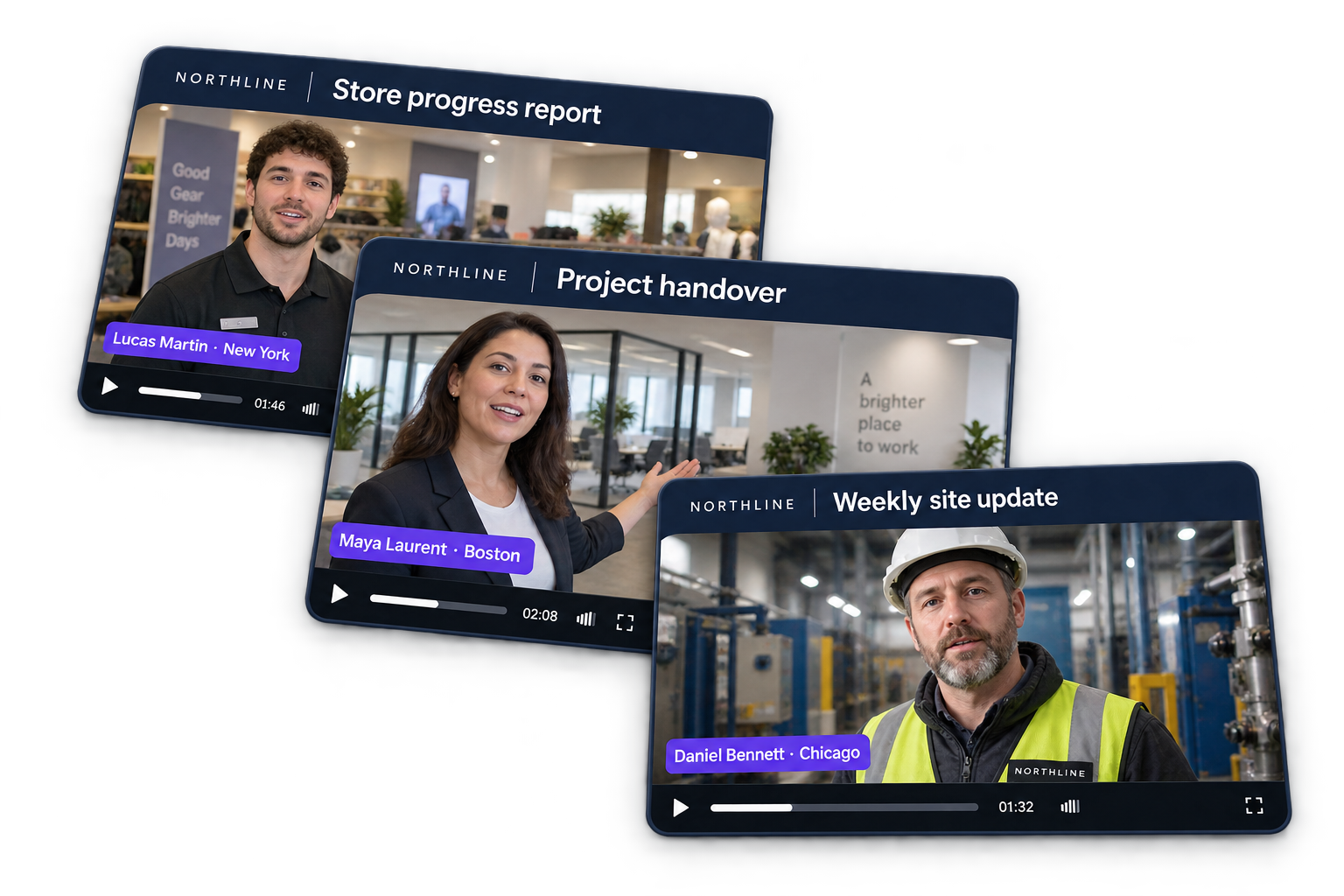
Your branding, applied automatically.
Set your logo, colors, overlays, intro, outro and music in your project video template. Every branded compilation uses that presentation. Contributor names, locations and other collected details change with the footage; the look stays consistent.
Choose clips—or use an automatic compilation workflow.
Select clips and choose Create compilation, or use Compile Video Report for a submission that meets your workflow conditions. Business workflows can use preset rules such as chronological order, Before / During / After or question order.
Choose your format
Portrait, square or landscape.
Create video reports in the aspect ratio that fits your audience: portrait (9:16) for phone-first viewing, square (1:1) for feeds, or landscape (16:9) for presentations and wider screens.
Choose the project canvas and apply your branded template. Each compilation uses the selected format.
How it works · Conditional logic
Build an automatic video compilation workflow.
Your company defines what a complete report needs. Vloggi connects those conditions to contributor tags and smart video templates, turning incoming clips into consistent business video reports.
1. Define the report conditions
Decide which clips are mandatory, which are optional and how they should be ordered. An onboarding video might require a manager’s welcome, general store information and role-specific instructions. A hotel review might require lobby footage and at least one room, with swimming-pool footage optional.
Use conditional logic to specify what makes the report complete. Work with Vloggi to configure custom workflow rules and triggers for your business.
2. Turn the rules into tags
Add the required categories to a dataset that supplies the contributor’s choices. As people upload or record each video, they select what it shows. Their answers become consistent tags—such as Lobby, Room or Pool—that the automatic compilation workflow can match.
Keep the report reference with each submission so the workflow groups the right footage together.
{{projectName}}{{contributorName}}{{submissionDate}}3. Apply your smart video template
Create the visual template once, with your branding and dynamic placeholders for the supplied data. Contributor names, report titles and other configured fields populate the on-screen graphics automatically.
Once the required conditions are met, the configured workflow either creates the report automatically or presents it for manual compilation. The same smart video template keeps every report consistent.
Built for business
Video reporting for operations and employee updates.
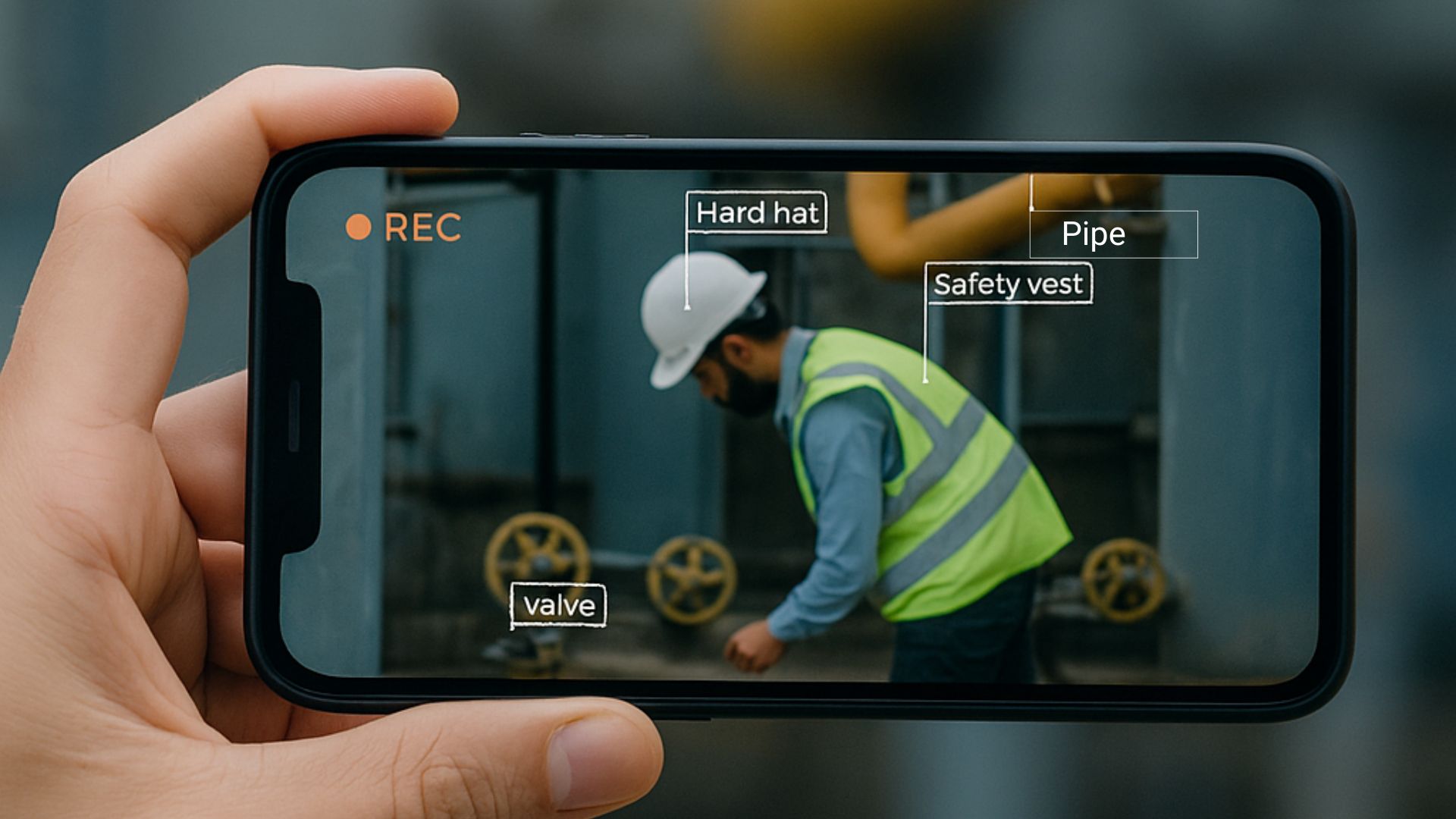
Operations & inspections
Show the condition before work, the action taken and the result. Keep the asset or job reference visible.

Employee communication
Turn team check-ins, lessons learned and project updates into short videos colleagues can watch.

Multi-site retail teams
Bring store updates and merchandising progress together in a consistent format for regional managers.
Customer workflow · Specialist Height Access
Turn practical expertise into consistent training videos.
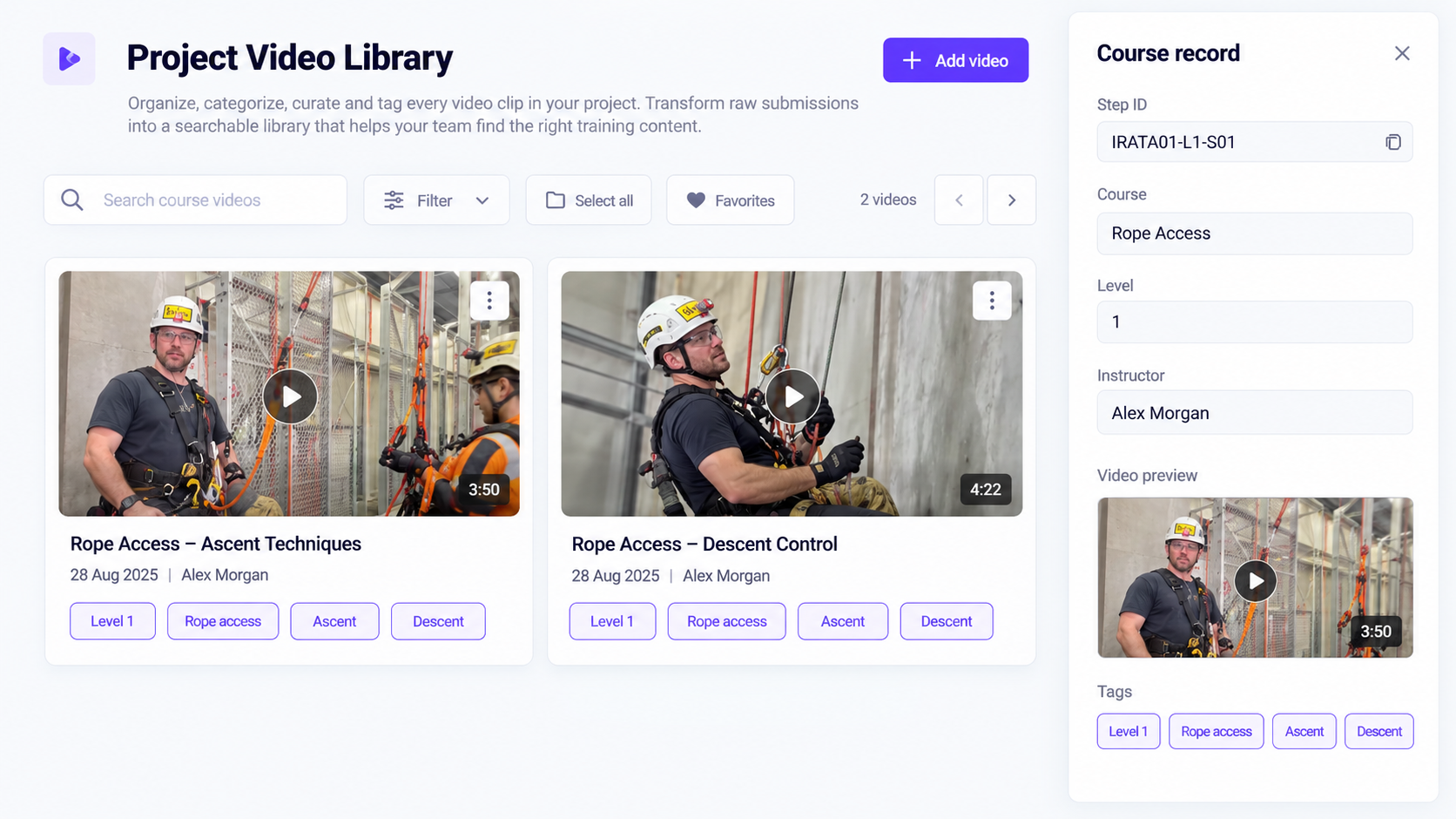
From instructor footage to reusable training.
The training workflow developed for Specialist Height Access connects rope-access demonstrations with structured course data. Instructors submit phone footage against a course or step ID, linking each clip to the course level, maneuver and instructor.
The dataset supplies consistent tags and on-screen information. Smart video templates apply the branding, course titles and instructor details, creating a repeatable foundation for automatic compilation workflows and reusable learning resources.
Training-library proposal developed for Specialist Height Access.
Common questions
Video reporting software: common questions
Can I automate video compilations with my company branding?
Yes. Set your branding once in a smart video template: logo, overlays, intro, outro and music. Dynamic placeholders populate the graphics with supplied contributor and report data. Conditional workflow rules define grouping, required content and clip order. Depending on the configured workflow, meeting the conditions triggers automatic compilation or makes the report ready for manual compilation. Custom triggers and automatic report creation can be configured with Vloggi; creating a report does not automatically publish it to an external audience.
How does Before / During / After work?
Use a clip-specific single-select question with the three stage values. The workflow groups by submission ID. Before and After are required; During is optional. The finished report plays each clip full-frame in a fixed sequence: Before, any During clips in upload order, then After. You cannot change that workflow order. Stage labels, timestamps and location can appear as overlays on the footage.
Are Listicle and Six Shots the same kind of workflow?
No. Listicle is a numbered compilation sequence: when you change the clip order in the compilation builder, the numbers update automatically. Six Shots is an opening visual option that uses the thumbnails or posters from six videos in one frame. Before / During / After and complete Q&A define how report content is grouped and arranged; visual templates control how it is presented.
Can I include asset IDs, locations and employee names?
Yes. Collect the relevant details with the footage and add supported fields to your video template. Only display information appropriate for the intended audience.
Can reports be landscape, portrait or square?
The compilation follows the active project canvas. Choose the format for your audience and check the layout before sharing; one compilation does not automatically generate all three versions.
Do video reports replace our formal records?
Use them to make progress, findings and next steps easier to understand. Keep any written records, approvals and reporting processes your organization still requires.
Does a chain of custody make footage impossible to fake?
No. It helps establish where a file came from and whether the retained file matches its recorded integrity data. Fresh device-camera capture, timestamps and contributor declarations strengthen that evidence, but do not by themselves prove that a scene was not staged or that every claim is true. Keep the original records and review the supporting evidence with the video.
Get started
Make your next report worth watching.
Collect the clips. Keep the details. Turn the work into a clear video update.