
Download in bulk and connect submissions to your existing workflow.
Choose a task below. Each section includes an illustration and links to the detailed instructions where available.
Choose the right version to download · Download selected clips as a ZIP · Connect cloud storage where available · Send submissions to your forms or CRM workflow · Use signed webhooks and the API
Choose the right version to download
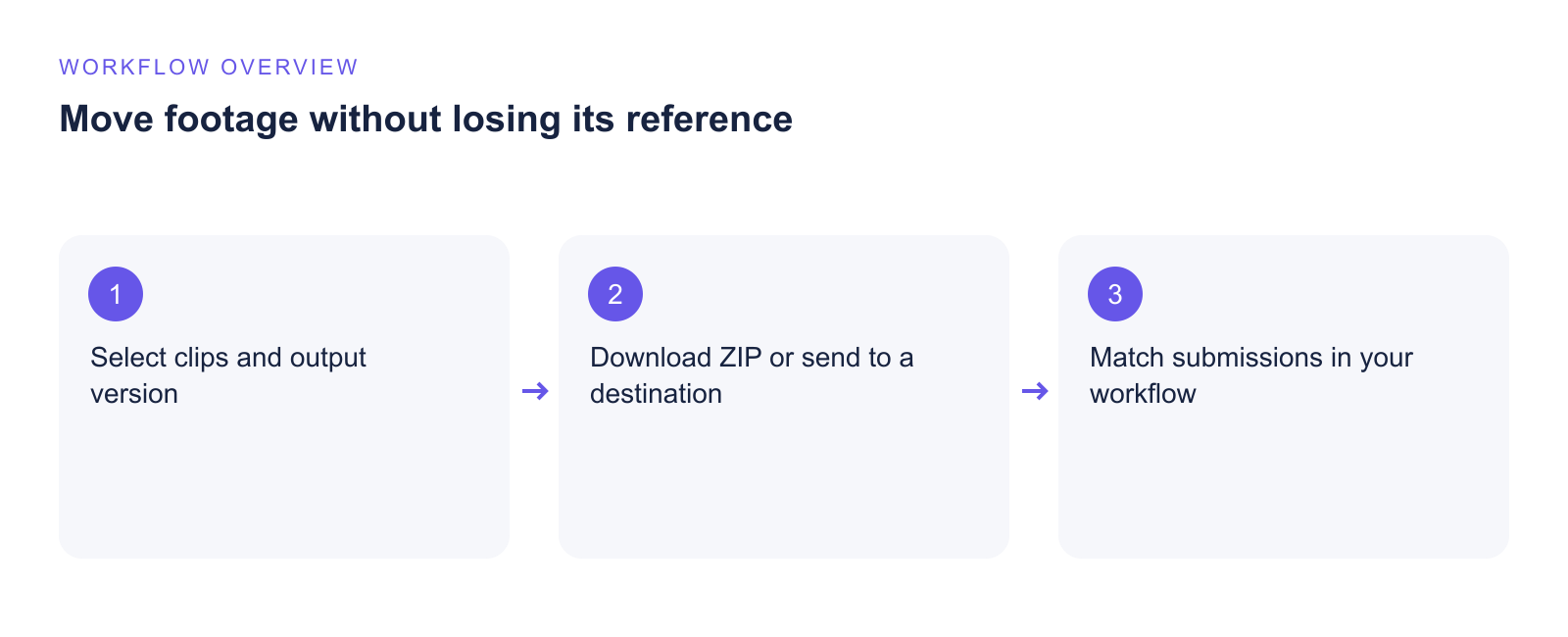
Open the clip viewer and choose the available version you need: source footage, a clean output or a branded video. Confirm orientation and overlays before sending it onward. Retain the submission reference separately when it is needed for audit or evidence.
Detailed instructions: How to download video submissions from my Vloggi library? · Quick Help Guide: Downloading Raw Video Clips or Vertical Videos from Vloggi
Download selected clips as a ZIP
Select clips in Project Video Library, then choose ZIP in Batch actions. For reliable bulk downloads, keep each batch to no more than 25 clips as recommended in the library. Retrieve the prepared archive from Compilations & Downloads and check its contents.
Detailed instructions: How to download video submissions in bulk as zipped folder on Vloggi
Connect cloud storage where available
Open Integrations to see the cloud-storage destinations enabled on your account. Connect your chosen destination, then use its export control in the video library. Need another destination? Download your files in bulk or talk to us about connecting your workflow.
Detailed instructions: Building for the Vloggi Integrations Marketplace
Send submissions to your forms or CRM workflow
Use prefilled links to carry an external reference from your existing form or CRM into the submission. Configure a submission webhook for your receiving system. Match records using the reference and submission ID; do not place secrets or unnecessary personal information in the URL.
Detailed instructions: How to use prefilled upload links in Vloggi · How to configure and use submission webhooks in Vloggi
Use signed webhooks and the API
Verify webhook signatures on your server and handle retries without creating duplicate records. A submission.received event confirms acceptance, not that every video derivative is ready. Use the documented API for permitted retrieval and integration tasks, and keep credentials server-side.
Detailed instructions: How to configure and use submission webhooks in Vloggi · Accessing the Public Vloggi API for Advanced Users